← All WonderLister user guides
The single page editor is how WonderLister edits a listing: not a stack of tabs, but one long scrolling page with every section on it, a navigator down the left, and a toolbar at the top and bottom. Everything about the listing is on one page, so nothing is hidden behind a tab you forgot to open.
Where to find it
It is what opens when you edit a listing or a listing template — select a row in Listings or Listing Templates and choose Edit, or double-click the row. The same component is used for both, and for the editor shown inside a dialog.
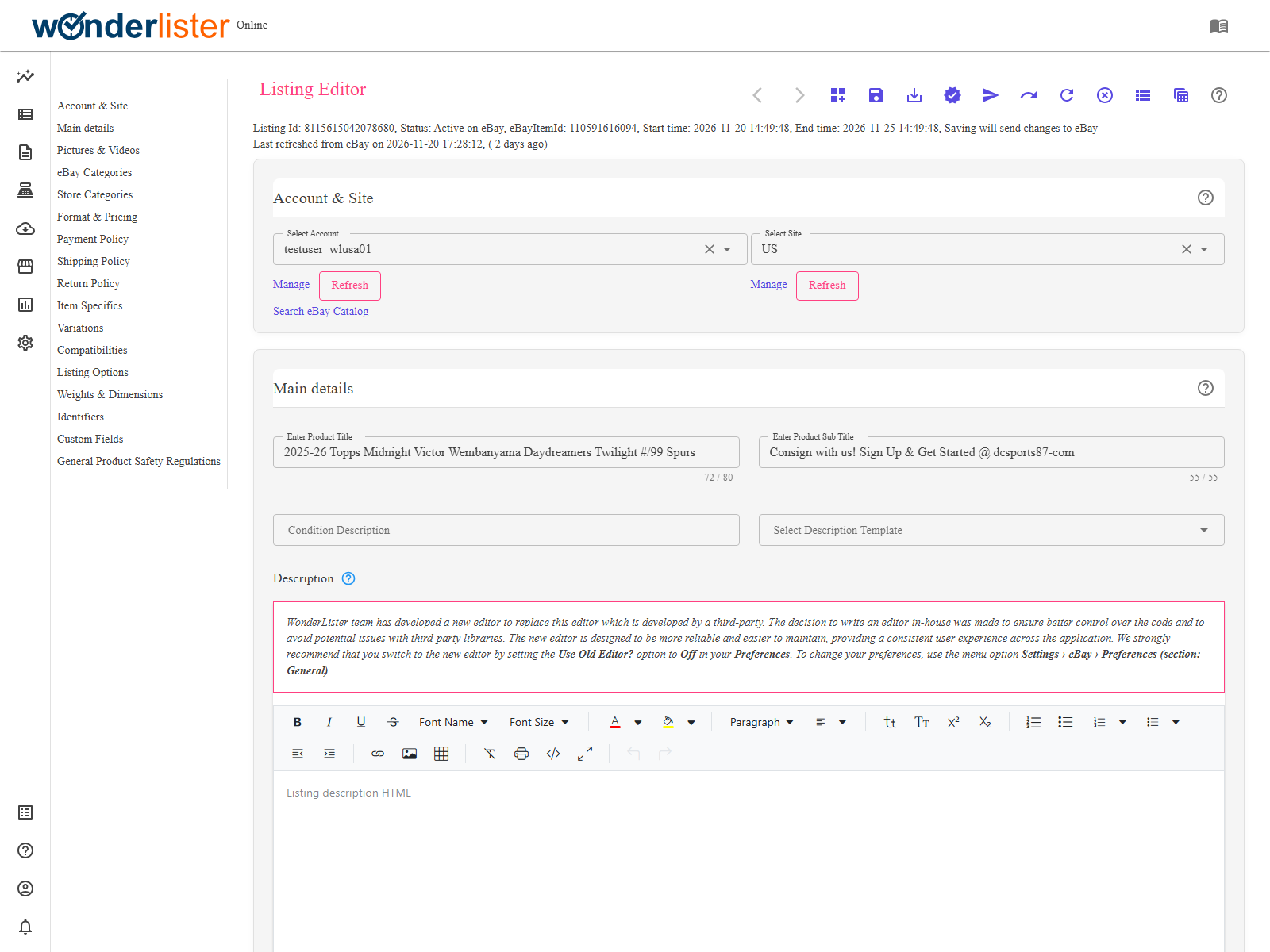
The section navigator
The list down the left names every section on the page and jumps to it. It stays put as you scroll, so it doubles as a table of contents and a progress check.
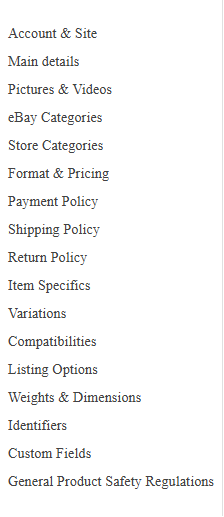
The sections, in the order they appear:
- Account & Site
- Main details
- Pictures & Videos
- eBay Categories
- Store Categories
- Format & Pricing
- Payment Policy
- Shipping Policy
- Return Policy
- Item Specifics
- Variations — hidden by the Hide variations preference
- Compatibilities — hidden by Hide compatibilities
- Listing Options
- Weights & Dimensions — hidden when both Hide weight and Hide dimensions are on
- Identifiers — hidden by Hide unique IDs
- Custom Fields — hidden by Hide custom fields
- General Product Safety Regulations
The toolbar
The same toolbar appears above and below the sections, so it is in reach wherever you are on the page.

| Button | What it does |
|---|---|
| Back / Forward arrows | Move to the previous or next listing in the selection, without going back to the grid. Disabled at either end. |
| Customize | Opens Customize Editor, which is where the Hide… options above are set. |
| Save | Saves the listing and stays on it. |
| Save and close | Saves and returns to the grid. |
| Verify | Saves, then asks eBay to check the listing without publishing it. The quickest way to find out what eBay will object to. |
| Submit | Saves and sends the listing to eBay. |
| Reload | Discards unsaved changes and re-reads the listing. |
| Refresh | Fetches the listing’s current state from eBay. Listings only — a template has nothing on eBay to refresh. |
| End listing | Ends the listing on eBay. Listings only. |
| View listing | Opens the item page on eBay. Listings only. |
| Activity logs | Shows what WonderLister has done to this listing, and what eBay replied. |
| Help | Opens the help for the editor. Every section also has its own help icon in its title bar. |
How to use it
- Work down the page in order. The sections are arranged so that each one has what it needs from the ones above it — account and site first, then category, then everything that depends on the category.
- Use the navigator to jump back to a section you need to change.
- Verify before you submit. It costs nothing and reports exactly what eBay would reject.
- Save, or Save and close when you are done.
FAQ
Why isn’t a section I need on the page?
It is hidden by an editor preference. Press Customize on the toolbar, or open Preferences.
What is the difference between Verify and Submit?
Verify asks eBay to check the listing and report problems without publishing it. Submit actually lists it.
Why are the arrows grayed out?
You are on the first or last listing of the selection. Select several rows in the grid before opening the editor to move between them.
I made a mess of a listing. Can I start again?
Reload throws away unsaved changes and re-reads the saved listing.
What is the difference between Reload and Refresh?
Reload re-reads WonderLister’s copy. Refresh goes to eBay and asks what the listing looks like there.
Support
For further assistance you can:
- Email support@wonderlister.com
- Use the Contact Us page inside the application
← Back to the User Guide index
Or go to Support, the FAQs, or contact us.