
← All WonderLister user guides
The Shipping Policy section covers everything about getting the item to the buyer: where
it is sent from, which of your eBay shipping policies applies, what it is packed in, and the
collection options you offer.
Where to find it
Open a listing in the editor and scroll to Shipping Policy, or click it in the editor’s
left-hand section list.
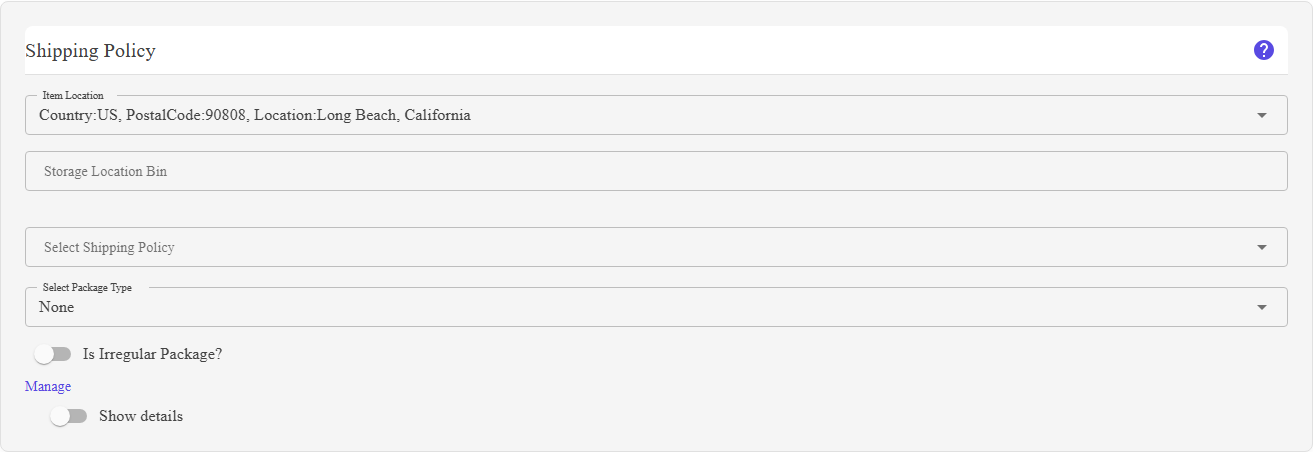
Item location and bin, the policy picker with its Manage link and Show details switch, then package type and the collection switches.
What is on this section
| Control | What it does |
|---|---|
| Item Location |
Which of your storage locations the item is in. This is the address eBay shows as the item’s location, and postage is calculated from it. The list comes from the Storage Locations page. |
| Storage Location Bin |
A free-text shelf or bin reference within that location — for finding the item when it sells. Never sent to eBay. Hidden if Hide storage location bin is on in your editor Preferences. |
| Select Shipping Policy | The eBay shipping policies held on the chosen account for the chosen site: services, costs and where you will post to. |
| Manage | Opens the Shipping Policies page. |
| Show details | A switch that displays the chosen policy’s services and costs below the picker, read only. |
| Select Package Type | What the item is posted in — letter, parcel, large envelope and so on. Carriers price on package type as well as weight. |
| Is Irregular Package? | A switch for a parcel that is not a normal box — awkward, oversized or oddly shaped. Carriers surcharge these. |
| Offer Click & Collect? | A switch for eBay’s Click & Collect, where the buyer collects from a collection point. Available on some marketplaces only. |
| Offer InStore Pickup? | A switch offering collection from your own premises. |
Account and site come first. Until both are set in Account & Site,
this section shows a message naming whichever is missing rather than the controls.
this section shows a message naming whichever is missing rather than the controls.
How to use it
- Set the account and site in Account & Site.
- Choose the item location the parcel is posted from.
- Record the bin so the item can be found when it sells.
- Choose the shipping policy. Turn on Show details to confirm what it
charges. - Set the package type, and flag it as irregular if it is.
- Turn on collection options if you offer them.
- Fill in Weights & Dimensions if the
policy uses calculated postage — without them eBay cannot price it.
FAQ
Q: The section shows a message instead of the controls.
A: The eBay account, the site, or both are not set.
Q: Item Location is empty.
A: You have no storage locations yet. Create one on the
Storage Locations page.
Storage Locations page.
Q: What is the difference between Item Location and Storage Location Bin?
A: The location is an address — eBay shows it and calculates postage from it. The
bin is a shelf reference inside that address, for your own picking, and eBay never sees it.
bin is a shelf reference inside that address, for your own picking, and eBay never sees it.
Q: The buyer was quoted the wrong postage.
A: For a calculated-postage policy the price comes from the item location plus the
parcel’s weight and dimensions. Check all three.
parcel’s weight and dimensions. Check all three.
Q: Click & Collect is not doing anything.
A: It is only supported on certain marketplaces and for sellers who qualify. eBay
ignores the flag where it does not apply.
ignores the flag where it does not apply.
Support
For further assistance you can:
- Email [email protected]
- Use the Contact Us page inside the application
← Back to the User Guide index
Or go to Support, the FAQs, or contact us.