← All WonderLister user guides
Preferences is where WonderLister is tuned to the way you work: which fields the listing editor bothers to show you, how the main grids behave, what a duplicated listing copies, how folders work, and whether the application e-mails you when background work finishes. Nothing here changes anything on eBay — these are settings for the application itself.
Where to find it
- Choose Settings on the left-hand bar. Settings opens on Preferences.
- If you have moved to another part of Settings, choose Preferences under eBay in the Settings list.
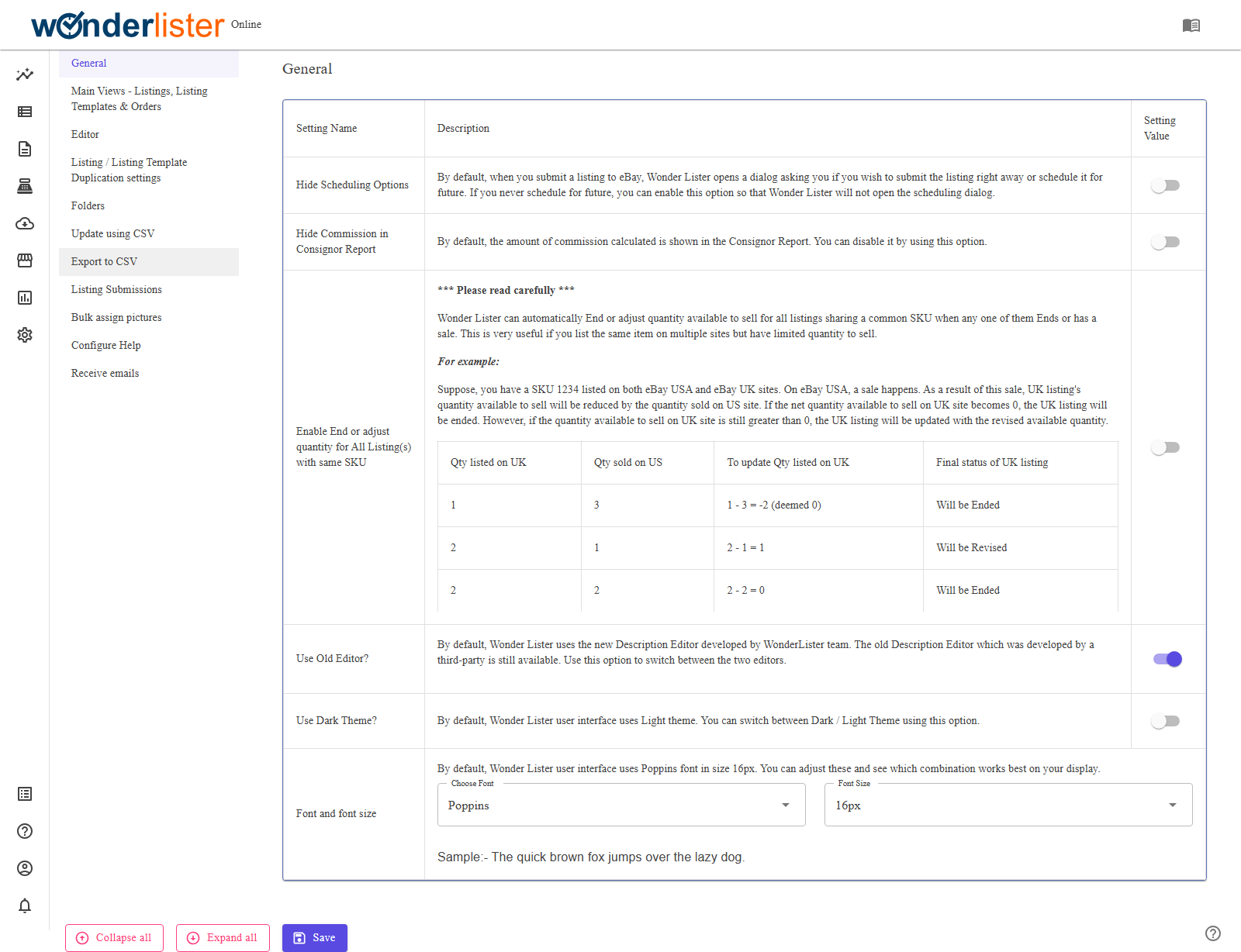
The sections
| Section | What it covers |
|---|---|
| General | Scheduling, theme, font, and the shared-SKU rule. Described below. |
| Main Views – Listings, Listing Templates & Orders | How the Listings, Listing Templates and Orders grids behave: column headings, row selection, thumbnail size and automatic archiving. See Main Views. |
| Editor | Which fields and sections the listing editor draws. Described below. |
| Listing / Listing Template Duplication settings | What a duplicate copies from the original. Described below. |
| Folders | Whether folders are shared across views, whether an item may be in more than one, and whether the folder list stays open. Described below. |
| Update using CSV | The columns a spreadsheet update recognizes. See Update using CSV. |
| Export to CSV | The columns an export writes. See Export to CSV. |
| Listing Submissions | The columns of the submissions view. See Listing Submissions. |
| Bulk assign pictures | The columns used when assigning pictures in bulk. See Bulk assign pictures. |
| Configure Help | The floating help popups. Described below. |
| Receive emails | Whether the application e-mails you. Described below. |
| Database Backup | Desktop application only. How often to back up, and where. Described below. |
General
| Setting | What it does |
|---|---|
| Hide Scheduling Options | Submitting a listing normally opens a dialog asking whether to send it now or schedule it. Turn this on and the dialog is skipped. |
| Hide Commission in Consignor Report | Leaves the calculated commission out of the consignor report. |
| Enable End or adjust quantity for All Listing(s) with same SKU | Keeps listings that share a SKU in step with each other. See the explanation below — read it before turning it on. |
| Use Old Editor? | Switches the description editor back to the older third-party one. The newer editor is the default. |
| Use Dark Theme? | Switches the whole application between the light and dark themes. |
| Font and font size | The interface font and its size. The default is Poppins at 16px. |
Keeping listings with the same SKU in step
If you list one physical item on more than one marketplace, the two listings each claim the stock you have only once. With this option on, a sale on one adjusts the other: the quantity sold is taken off the other listing, and if that leaves nothing, the other listing is ended.
| Quantity listed on UK | Quantity sold on US | New UK quantity | What happens to the UK listing |
|---|---|---|---|
| 1 | 3 | 1 − 3, treated as 0 | Ended |
| 2 | 1 | 1 | Revised |
| 2 | 2 | 0 | Ended |
This only makes sense if your SKUs really do identify the same physical stock across listings.
Editor
Every switch here hides something in the listing editor. Hiding a field does not clear it — it removes it from the screen so the editor is shorter for the way you list.
| Setting | What it hides |
|---|---|
| Hide Sub Title | The subtitle field. |
| Hide SKU | The SKU (custom label) field. |
| Hide Pictures | The whole Pictures section. |
| Hide Condition Description | The condition description. Useful if you only list new items. |
| Hide LotSize | The lot size field. |
| Hide Average Unit Cost | What the item cost you — the figure profit is worked out from. |
| Hide Theme | The listing theme. Most eBay sites no longer support it. |
| Hide Visitor Counter | The visitor counter. Most eBay sites no longer support it. |
| Hide Notes | Your private notes. Buyers never see these. |
| Hide Custom Fields | Your own custom fields. |
| Hide Storage Location Bin | The storage bin field. |
| Hide Description Template | The description template picker. |
| Hide Dimensions | Parcel dimensions. Only safe if you never use calculated shipping. |
| Hide Weight | Parcel weight. The same caution applies. |
| Hide Product Ids (UPC/EAN/ISBN/Brand-MPN) | The product identifiers. |
| Hide Consignor | The consignor picker. |
| Hide Secondary Category | eBay’s optional second category. |
| Hide Best Offer | Best Offer and everything that goes with it. |
| Hide Variations | The Variations section. |
| Hide Compatibilities | The Compatibilities section, for parts fitment. |
| Hide VAT % | The VAT field. Meaningful only on EU marketplaces. |
| Disable Simple Editor | The Simple Editor is a cut-down editor that opens in a dialog when you select a row and press F2. It reaches many fields but not all. This switch turns it off. |
| Max characters for Title | eBay currently allows 80. |
| Max characters for Sub Title | eBay currently allows 55. |
| Max characters for SKU | eBay currently allows 50. |
Listing / Listing Template Duplication settings
Duplicating copies everything by default. These settings say what not to copy.
| Setting | What it does |
|---|---|
| Append Random String to Title | Adds a random eight-character string to the copy’s title, so the two are told apart at a glance and you are reminded to write a real title. |
| Do NOT Copy | A switch each for Pictures, Title, Description, Condition Description and SKU. Anything switched on is left blank on the copy. |
Leaving SKU switched off means the copy carries the original’s SKU — worth thinking about alongside the shared-SKU rule in General above.
Folders
| Setting | What it does |
|---|---|
| Allow different folders for Listing Templates, Listings & Orders | By default a folder you create exists in all three views. Turn this on to give each view its own folders. |
| Ensure one item (Listing, Listing Template, Order) can be in one folder only | On, which is the default: an item lives in one folder at a time — adding it to F2 takes it out of F1. Off: an item can be in several folders at once. |
| Keep the folder list open | By default, the folder list on the left opens when you move the mouse over it and closes when you move away. Turn this on to keep it open beside the page all the time. The pin at the top of the folder list does the same, and changes this switch. |
Configure Help
| Setting | What it does |
|---|---|
| Disable help on Folder hover | Stops the popup that explains a folder when you hover over it. |
| Disable help on Toolbar hover | Stops the popup that explains a button when you hover over it — the buttons and dropdowns above the grid on Listings, Templates and Orders, and the items in their More menu. |
Receive emails
| Setting | What it does |
|---|---|
| Disable Emails | Much of WonderLister’s work runs in the background and can take a while; you are normally e-mailed when it finishes. This switch stops those e-mails. |
With them off, Activity Logs becomes the only place that tells you a background job has finished or failed.
Database Backup (desktop application only)
| Setting | What it does |
|---|---|
| Frequency (in days) | How often a backup is taken. Seven days suits most people. Backups run in the background and you can keep working, though a large database takes a while. |
| Backup directory | Where backups are written — into a sub-directory of the folder you name. Choose a drive with plenty of free space. |
The buttons at the foot
| Button | What it does |
|---|---|
| Collapse all | Closes every expanded group on the page. |
| Expand all | Opens them. |
| Save | Saves every section. |
| Help | Opens the guided tour of this page. |
Permissions
The page is drawn only for an account administrator or a staff account granted Manage Preferences; anyone else is told they are not permitted and shown nothing. Staff permissions are set on Staff Accounts.
FAQ
Why did nothing happen after I changed a setting?
Press Save at the foot of the page. Moving to another section does not save the one you left, but one Save at the end applies all of them.
Why has a field vanished from the listing editor?
Check the Editor section — one of the Hide switches is on. Hiding never clears the value, so turning it back off brings the field and its contents back.
Why have all my folders disappeared?
The Allow different folders… switch in Folders has been changed. Folders created under the previous setting are hidden, not deleted; switch it back to see them.
Why have I stopped getting e-mails about imports?
Check Disable Emails in Receive emails. With it on, Activity Logs is where you find out how a job went.
Why do I not see a Database Backup section?
It is in the desktop application only. The online application’s database is ours to look after.
Do these settings apply to my staff too?
They are the account’s preferences, so yes.
Support
For further assistance you can:
- Email support@wonderlister.com
- Use the Contact Us page inside the application
← Back to the User Guide index
Or go to Support, the FAQs, or contact us.