
← All WonderLister user guides
Listing Options carries the item’s condition and the paid upgrades and extras
eBay offers for the chosen category — bold titles, subtitles, gallery upgrades, charity donations and the
like. What appears here is decided entirely by the eBay category you picked, so the section is different
from one listing to the next.
Where to find it
Open a listing in the editor and scroll to Listing Options, or click it in the editor’s
left-hand section list.
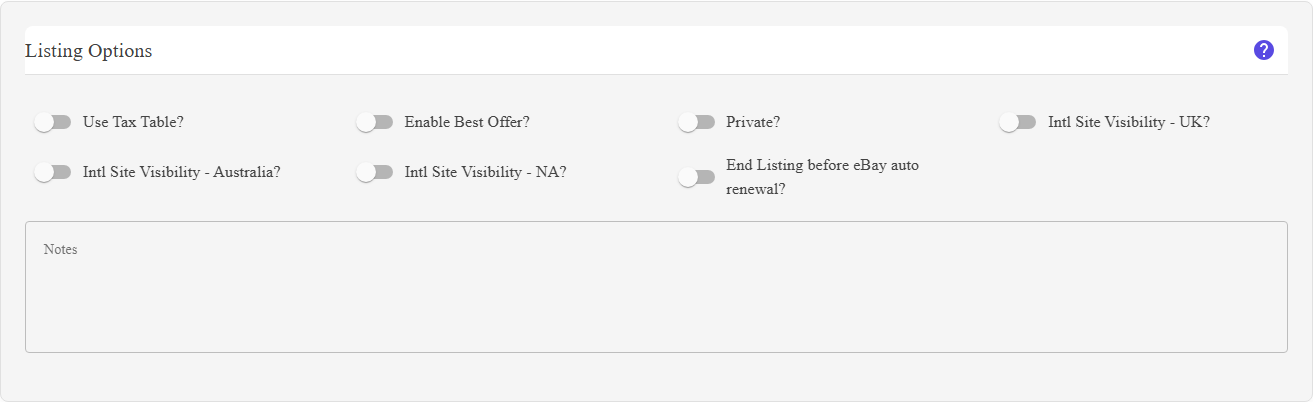
Listing Options for one category. The options offered change with the category.
Choose the eBay category first. Until a primary category is set, the section shows
“Please select eBay category first.” — eBay decides which conditions and which upgrades are legal
per category, so there is nothing to offer until it knows the category.
“Please select eBay category first.” — eBay decides which conditions and which upgrades are legal
per category, so there is nothing to offer until it knows the category.
What is on this section
| Control | What it does |
|---|---|
| Category options |
The upgrades and features eBay allows in this category, drawn from the category’s own details. Which of them appear, and what each costs, is eBay’s decision, not WonderLister’s. |
| Select Condition |
The item’s condition — New, Used, For parts or not working, and so on. Entries read Condition name [id]. In categories where eBay insists on a condition the field is required and cannot be cleared; where eBay does not, it can be. |
| Condition descriptors |
Extra questions about the condition that eBay asks in certain categories — for trading cards, sneakers, watches and similar. Each descriptor is labelled with eBay’s own help text. Some are dropdowns, some accept several values at once, and some are free text; some are required and some are not. All of it comes from eBay. |
How to use it
- Set the category first in eBay Categories.
- Choose the condition. If the field is marked required, eBay will reject the listing
without it. - Answer any condition descriptors that appear. Required ones must be answered; the
rest are optional and can be cleared. - Turn on any listing upgrades you want, remembering each is chargeable.
FAQ
Q: The section says “Please select eBay category first.”
A: Set the primary category in eBay Categories. The options are
per-category and cannot be worked out before then.
per-category and cannot be worked out before then.
Q: The condition list is empty.
A: The category has no conditions defined, or the category’s details have not been
fetched. In the desktop application, eBay Sync → Refresh Item Condition Policies
pulls them.
fetched. In the desktop application, eBay Sync → Refresh Item Condition Policies
pulls them.
Q: What are these extra questions under the condition?
A: eBay’s condition descriptors. In some categories eBay asks for more than a
single condition — a grading company and grade for a card, for example. The label on each is eBay’s
own help text.
single condition — a grading company and grade for a card, for example. The label on each is eBay’s
own help text.
Q: Why can’t I clear the condition?
A: The category requires one, so the field is marked required and offers no clear
button.
button.
Q: A descriptor lets me pick several values.
A: That is eBay’s setting for that descriptor — some accept multiple values, and
the field allows it where they do.
the field allows it where they do.
Q: I changed the category and the options changed.
A: Expected. The whole section is derived from the category.
Support
For further assistance you can:
- Email [email protected]
- Use the Contact Us page inside the application
← Back to the User Guide index
Or go to Support, the FAQs, or contact us.