
← All WonderLister user guides
The Listing Editor is the page you edit a listing on. Everything about the item — account,
title, pictures, category, price, policies, item specifics and compliance data — is on this one page.
How to open it
- From Listings: tick a row and press Edit on the toolbar,
or double-click the row. - From the row’s own Actions menu.
- By selecting several rows and pressing Edit — the editor then opens on the first and the
back/forward arrows move through the rest.
The equivalent page for templates is the Listing Template Editor, reached the same way
from Listing Templates. It is the same editor with the eBay-only
actions removed.
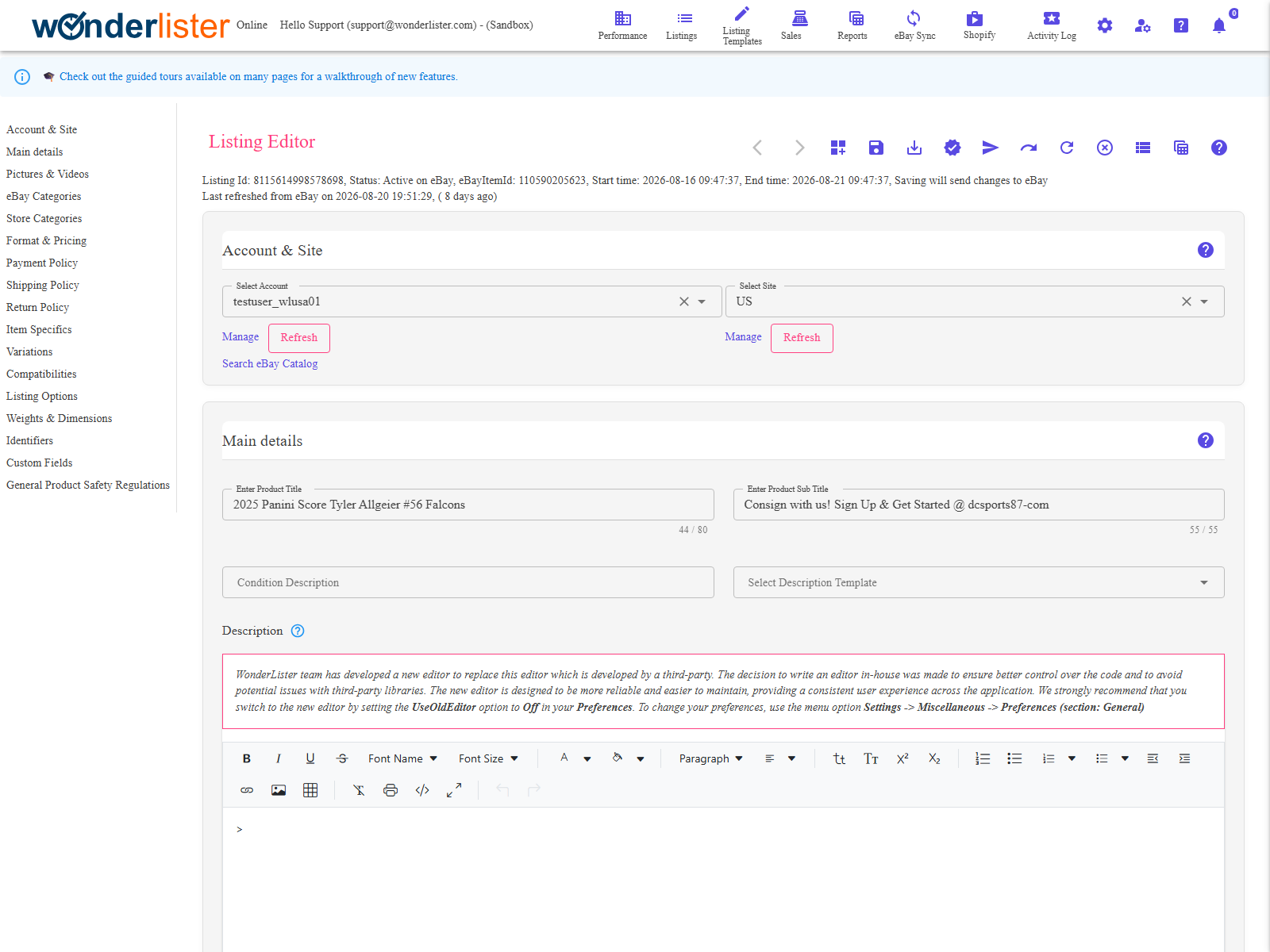
The Listing Editor as it opens, on the first listing of the selection.
How the page is laid out
The editor is a single page editor — that guide describes the
navigator, the toolbar and the full list of sections. In short:
- Left — the section navigator, which stays in place as you scroll.
- Top and bottom — the toolbar: save, verify, submit, refresh, end, activity logs and
help. - Middle — the sections, in dependency order.
The order that works
- Account & Site — everything else depends on these two.
- Main details — title, description, SKU.
- Pictures & Videos.
- eBay Categories — go all the way to the leaf; item specifics and listing
options depend on it. - Format & Pricing.
- The three business policies —
payment,
shipping and
returns. - Item Specifics — fill in everything marked required.
- The rest: variations,
compatibilities,
listing options,
weights and dimensions,
identifiers,
custom fields and
GPSR. - Verify, then Submit.
Verify first. Verify asks eBay to check the listing without publishing it, and reports
exactly what eBay would reject — a missing required item specific, an identifier the category insists on,
a policy that does not exist on that site. It is free, and it is much quicker than finding out from a
failed submission.
exactly what eBay would reject — a missing required item specific, an identifier the category insists on,
a policy that does not exist on that site. It is free, and it is much quicker than finding out from a
failed submission.
FAQ
Q: Can I edit several listings at once?
A: Select them all and press Edit — the arrows step through them one at a time. To
change the same field across many listings in one go, use Bulk Edit
instead.
change the same field across many listings in one go, use Bulk Edit
instead.
Q: Sections are missing.
A: They are hidden by editor preferences. Press Customize on the
toolbar.
toolbar.
Q: I cannot change the account or site.
A: Both lock while the listing’s status is Active. See
Account & Site.
Account & Site.
Q: My changes did not reach eBay.
A: Saving stores the listing in WonderLister. Sending it to eBay is
Submit — from the editor toolbar, or from the grid. Check the
Activity Log for what happened.
Submit — from the editor toolbar, or from the grid. Check the
Activity Log for what happened.
Q: Did I lose my work when I navigated away?
A: Nothing is stored until you save. Save, or Save and close, before leaving.
Support
For further assistance you can:
- Email [email protected]
- Use the Contact Us page inside the application
← Back to the User Guide index
Or go to Support, the FAQs, or contact us.