
← All WonderLister user guides
A staff account is a second sign-in on your WonderLister account. Staff work in your data —
your listings, your sales, your eBay accounts — but sign in with their own address and password, and see only
what you allow. This page lists them, and adds, edits and deletes them.
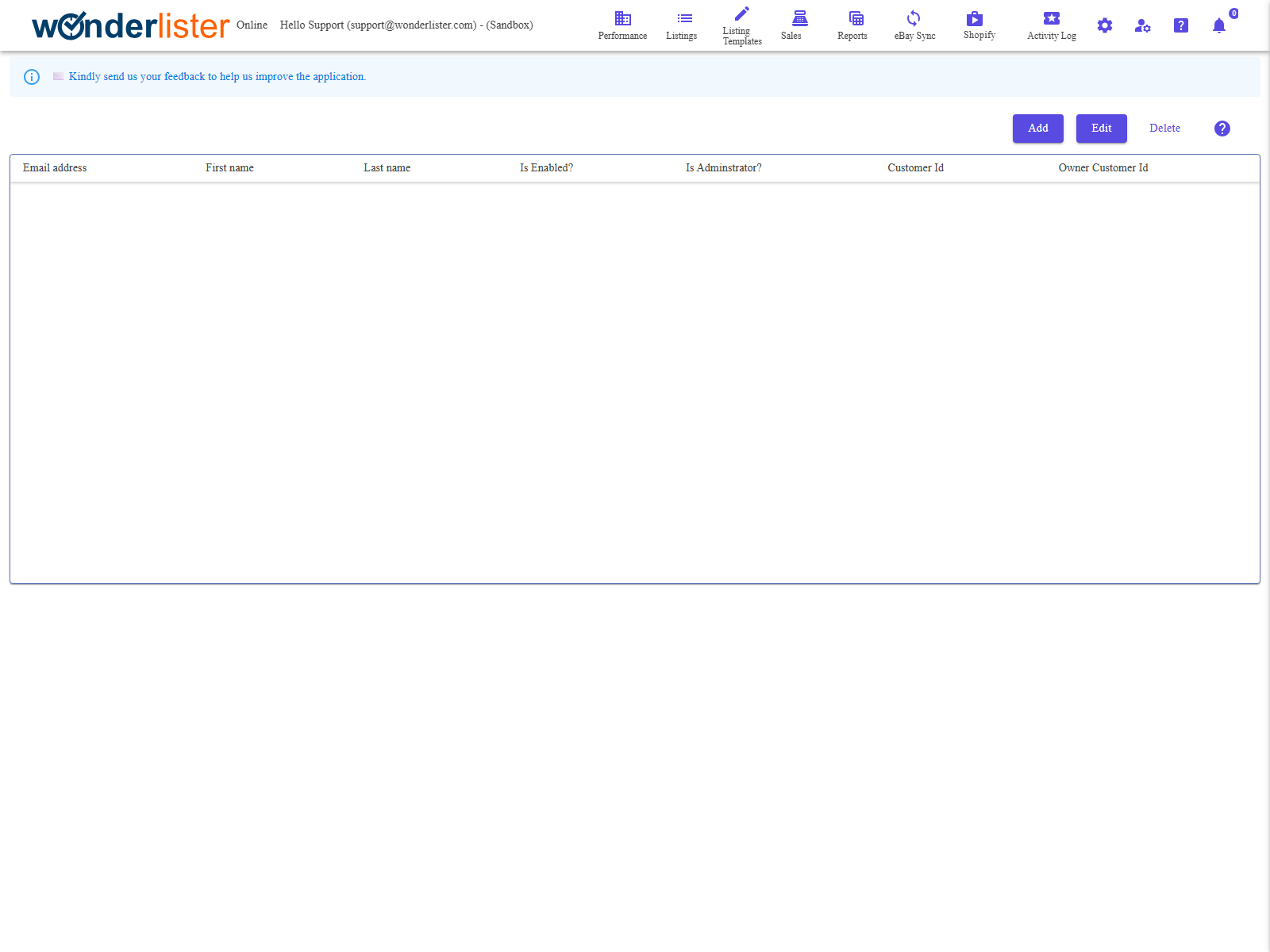
The toolbar and the grid of staff accounts.
Only the account owner sees this page. A staff account opening it is told so and shown
nothing. Customer support signed in on your behalf counts as the owner.
nothing. Customer support signed in on your behalf counts as the owner.
The toolbar
| Button | What it does |
|---|---|
| Add | Opens the staff account editor on a new account. New accounts are created enabled. |
| Edit | Opens the editor on the selected account. Select the row first. |
| Delete | Deletes the selected account, after a confirmation naming the person. |
The columns
| Column | What it shows |
|---|---|
| Email address | What the staff member signs in with. |
| First name / Last name | Their name. |
| Is Enabled? | Whether they may sign in at all. Turning this off is the way to suspend someone without deleting their account. |
| Is Adminstrator? | An administrator has every permission, whatever the individual switches say. |
| Customer Id | WonderLister’s own identifier for the staff account. |
| Owner Customer Id | Your account — the one the staff account belongs to. |
Column headings sort. One row is selected at a time.
Inside the editor
The editor collects the person’s details and then a permission for each thing they may do.
Details
| Field | What it is |
|---|---|
| Email Address and Verify Email Address | The sign-in address, typed twice. Only asked when adding. |
| Password and Verify Password | The initial password, typed twice. Only asked when adding — passwords are never shown back. |
| First name, Middle initial, Last name | The person’s name. |
| Telephone number | Their contact number. |
| Is Enabled? | Whether they may sign in. |
| Is Adminstrator? | Grants everything. Leave off unless you mean it. |
Permissions
| Permission | What it allows |
|---|---|
| Create Listings? | Creating new listings and listing templates. |
| Submit Listings? | Sending listings to eBay. |
| End Listings? | Ending live listings on eBay. |
| Delete Listings? | Deleting listings from WonderLister. |
| Export Listings? | Exporting the grid to CSV. |
| Manage Sales? | Working on the Sales page. |
| View Sales Report? | Opening the sales reports. |
| View Consignor Report? | Opening the consignor report. |
| Manage Business Profiles? | Adding, editing and deleting payment, shipping and return policies. |
| Manage eBay Accounts? | Linking and removing eBay accounts. |
| Manage eBay Sites? | Changing which sites you sell on. |
| Manage Preferences? | Changing the account’s preferences. |
| Manage Description Templates? | Editing description templates. |
| Manage Invoice Templates? | Editing invoice templates. |
| Manage Auto List Rules? | Editing auto-list rules. |
| Manage Auto Relist Rules? | Editing auto-relist rules. |
| Manage Sale Promotions? | Editing sale promotions and campaigns. |
How to add someone
- Press Add.
- Enter their e-mail address and an initial password, each twice.
- Fill in their name and telephone number.
- Turn on the permissions they need, and only those.
- Save. They can now sign in with that address and password.
FAQ
Q: Can a staff member change their own password?
A: Yes, on Change Password, once signed in with the
password you gave them.
password you gave them.
Q: Someone has left. Delete or disable?
A: Turning Is Enabled? off stops them signing in and keeps the
record, which is the safer first step. Delete when you are sure.
record, which is the safer first step. Delete when you are sure.
Q: Why does the permission list have no effect for one of my staff?
A: Check Is Adminstrator?. An administrator has every permission and
the individual switches are not consulted.
the individual switches are not consulted.
Q: Does each staff account need its own subscription?
A: No. Staff work inside your account. How many you may have depends on your plan —
see Subscriptions.
see Subscriptions.
Q: The page says only the account owner can view it.
A: You are signed in as a staff account. Sign in as the owner to manage staff.
Support
For further assistance you can:
- Email [email protected]
- Use the Contact Us page inside the application
← Back to the User Guide index
Or go to Support, the FAQs, or contact us.