
← All WonderLister user guides
An auto list rule re-lists items for you on a schedule: it starts on a date you choose,
runs every so many days, and stops when you say. The editor is where one rule’s name, window and frequency
are set.
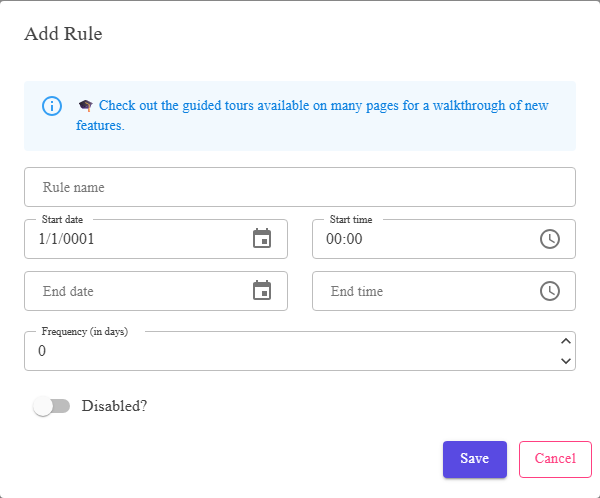
The dialog as Add opens it, before anything has been typed.
Looking for the rule that acts when a listing ends? That is an
auto relist rule, which is a different thing on a different screen.
This one works to a calendar — a start, a frequency in days, an end. That one works to an event, and
decides the price and quantity the item goes back up at.
auto relist rule, which is a different thing on a different screen.
This one works to a calendar — a start, a frequency in days, an end. That one works to an event, and
decides the price and quantity the item goes back up at.
Where to find it
- Open the Auto List Rules page.
- Click Add for a new rule, or select a row and click Edit.
The page itself lists Rule Id, Rule Name, Starts at,
Ends at, Frequency, Disabled? and Next Execution
at, and its toolbar is Add, Edit, Delete and
Help. Next Execution at is the column to watch — it is the rule
telling you when it will next act.
The fields
| Field | What it is |
|---|---|
| Rule name | What you call the rule. Required. Name it for what it does — “Re-list unsold every 7 days”. |
| Start date and Start time | When the rule first runs. |
| End date and End time | When it stops. Leave them empty for a rule that runs until you disable it. |
| Frequency (in days) | How many days between runs. Must be at least 1. |
| Disabled? | A switch. Turn it on to stop the rule running without deleting it. |
| Save | Checks the three rules below and closes. |
| Cancel | Closes without keeping the changes. |
What Save checks
- A rule name must be entered — otherwise Rule name must be entered.
- The end must be after the start — otherwise End time must be after start time.
- The frequency must be a positive number — otherwise Frequency must be a positive number. Zero is not “run continuously”; it is refused.
Times are your local times on screen and are stored in UTC. If your clocks change during
the rule’s window, the time of day a run happens can move by an hour. For a rule that runs every few days
this rarely matters; for one timed to a listing slot, check it after a clock change.
the rule’s window, the time of day a run happens can move by an hour. For a rule that runs every few days
this rarely matters; for one timed to a listing slot, check it after a clock change.
How to set up a rule
- Click Add on the Auto List Rules page.
- Type a Rule name.
- Set the Start date and Start time.
- Set an End date and End time, or leave both empty to let it run on.
- Type the Frequency (in days).
- Leave Disabled? off.
- Click Save, and check Next Execution at on the row that appears.
How to pause a rule
- Select the rule’s row and click Edit.
- Turn Disabled? on.
- Click Save. The row’s Disabled? box is now ticked and the rule does not run.
FAQ
Q: Save refuses and I cannot see why.
A: The reason is in the message at the top of the dialog. It is one of the three
checks above.
checks above.
Q: Can a rule run more than once a day?
A: No. The frequency is in whole days, and one is the smallest.
Q: What does the rule actually list?
A: It acts on the items the rule was set up against. The editor sets when it runs,
not what it runs on.
not what it runs on.
Q: Disable, or delete?
A: Disable if you may want it back — the rule and its history stay. Delete is
permanent and asks first.
permanent and asks first.
Q: It did not run when I expected.
A: Check Next Execution at on the row, and that
Disabled? is not ticked and the end date has not passed. Runs are recorded in
Activity Logs.
Disabled? is not ticked and the end date has not passed. Runs are recorded in
Activity Logs.
Support
For further assistance you can:
- Email [email protected]
- Use the Contact Us page inside the application
← Back to the User Guide index
Or go to Support, the FAQs, or contact us.