← All WonderLister user guides
The Orders page is where your eBay orders live once they have been brought in from eBay. From here you mark an order paid or shipped, enter tracking, leave feedback, message the buyer, print invoices and pick tickets, record that a consignor was paid, and file orders into folders. It is laid out exactly like Listings — folders down the left, a row of actions under the heading, a search bar and a grid.
Where to find it
Click Orders in the bar down the left of the page. See The Left-Hand Bar.
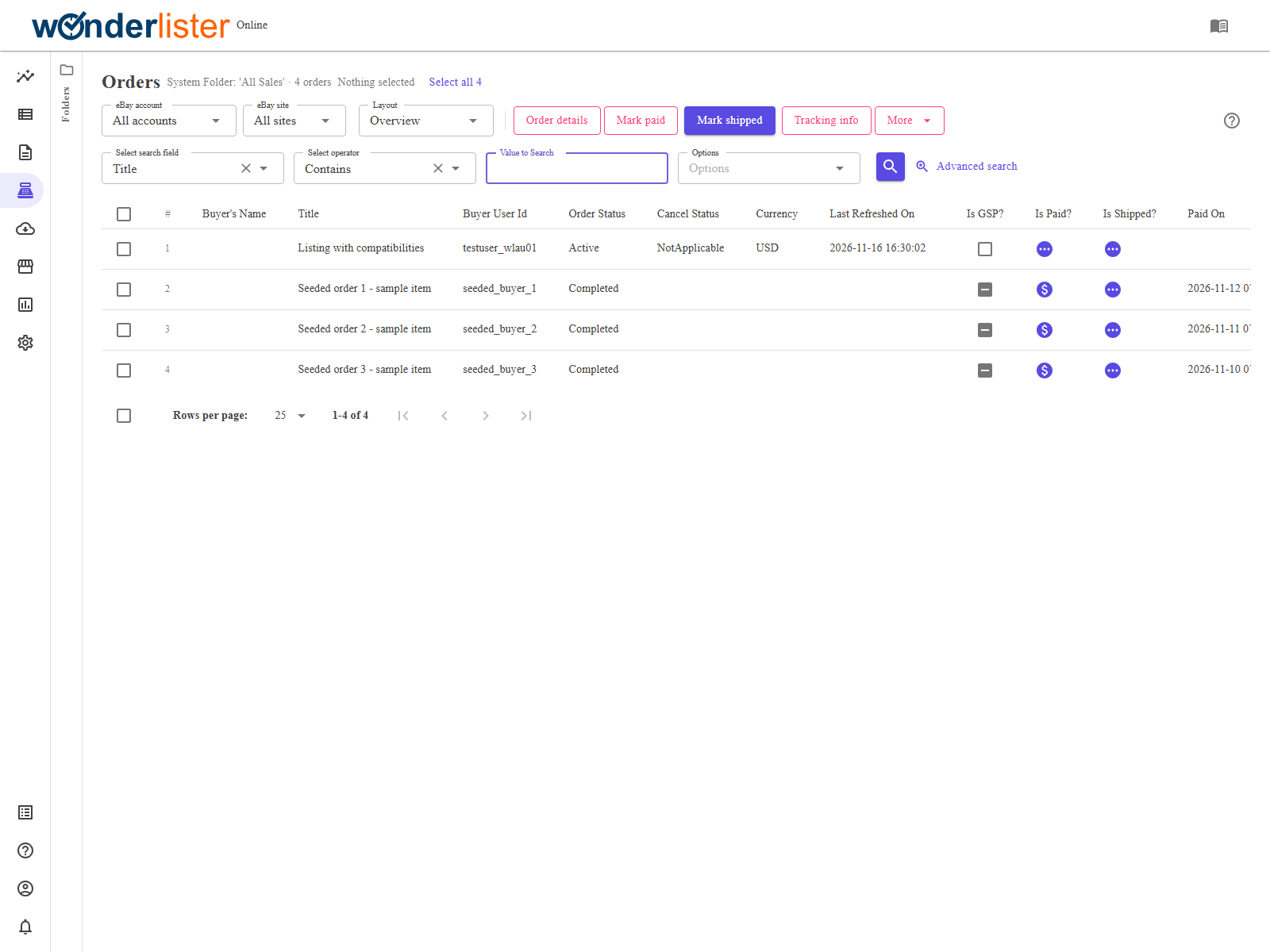
The parts of the page
| Part | What it is |
|---|---|
| The folders | The Folders strip down the left opens when you move the mouse over it, and can be pinned open. System folders WonderLister maintains for you, your own folders, and saved searches. Selecting one fills the grid with it. The folders work as on Listings. |
| The heading | Orders, then the folder or search you are looking at and how many orders it holds — for example System Folder: ‘All Sales’ · 3 orders — then what is selected, with Select all and Clear. Worth a glance when the grid holds less than you expect. |
| eBay account, eBay site and Layout | Dropdowns that narrow the grid to one account and site, and choose which columns it shows. |
| The actions | Order details, Mark paid, Mark shipped, Tracking info, More and the ? menu. See Orders Actions. |
| The search bar | Always shown. See Search Bar. Advanced search beside it searches on several fields. |
| The grid | The orders, numbered in the # column. Which columns appear is decided by your layout. Double-click a row to see its order details. |

Where orders come from
You do not enter orders here. They are brought in from eBay: a first import when you link an account on Manage eBay Accounts, and from then on as new orders arrive. Choose More › Refresh from eBay to re-read the selected orders, and look at the Activity log to see whether an import ran and whether it worked.
The usual jobs
| Job | How |
|---|---|
| See everything about one order | Select it and click Order details. |
| Record a payment | Mark paid. |
| Record a dispatch | Mark shipped, then Tracking info so eBay and the buyer get the number. |
| Leave feedback | More › Leave feedback, on one order or on a selection. |
| Contact a buyer | More › Message buyer. |
| Paperwork | More › Invoices for invoices, More › Pick ticket report for picking. |
| Get the data out | More › Export to Excel, then choose the dates to cover. The file downloads when it is ready. |
| Tidy up | More › Archive takes old orders out of the everyday views; More › Unarchive brings them back. |
| Record that a consignor was paid | Open the order’s row Actions menu and choose Mark consignor paid. See below. |
The row Actions menu
The three dots in the Actions column open a menu for that one order; right-clicking the row opens the same menu. It acts on that order only, whatever else is selected. What it offers depends on the order — Mark paid is not offered for an order already paid, for example:
- Order details, Mark paid, Mark shipped, Tracking info, Leave feedback, Refresh from eBay
- Add to folder, Remove from folder
- Mark consignor paid, Mark consignor unpaid
- Archive — offered once an order is paid and shipped — and Unarchive
Recording that a consignor was paid
When you sell an item for a consignor, you can note on the order that you have paid them their share.
- Find the order in the grid.
- Click the three dots in its Actions column.
- Choose Mark consignor paid. The page says Submitting request…, then 1 sale(s) marked as paid to the consignor.
To undo it, choose Mark consignor unpaid from the same menu; the page says 1 sale(s) marked as not paid to the consignor. The menu offers whichever of the two applies. Add the Is Consignor Paid? column to your layout to see the setting in the grid.
Narrowing what you are looking at
- A folder — click it in the folder list.
- A search — the search bar for one field, Advanced search for several.
- An account or site — the eBay account and eBay site dropdowns.
- An order — sort by a field, or pick a Layout that shows the column you need.
Permissions
The page needs the Manage Sales? permission, or an administrator account. Staff permissions are set on Staff Accounts.
FAQ
Why isn’t an order from eBay here?
Check that its marketplace is ticked on eBay Sites and its account is linked. Then look at the Activity log to see whether the import ran, and use More › Refresh from eBay.
Why is the grid nearly empty?
Read the heading. It names the folder or search you are in. Check the eBay account and eBay site dropdowns too — set to one account or site, they narrow the grid.
Where have my old orders gone?
They may be archived. Archived orders are left out of most views; select them and use More › Unarchive to bring them back.
Does marking an order shipped tell eBay?
Yes — the point of doing it here rather than on eBay is that WonderLister and eBay stay in step. Add the tracking number with Tracking info so the buyer gets it too.
Where is Mark consignor paid?
In each order’s row Actions menu, not in More.
Can I add an order by hand?
No. Orders come from eBay.
Support
For further assistance you can:
- Email support@wonderlister.com
- Use the Contact Us page inside the application
← Back to the User Guide index
Or go to Support, the FAQs, or contact us.