
← All WonderLister user guides
The Reports page is where you ask what your selling has actually done: what sold, what tax
was collected, what each consignor is owed, and what eBay’s category tree looks like for a marketplace. Four
reports, listed down the left, each opening in the panel beside it.
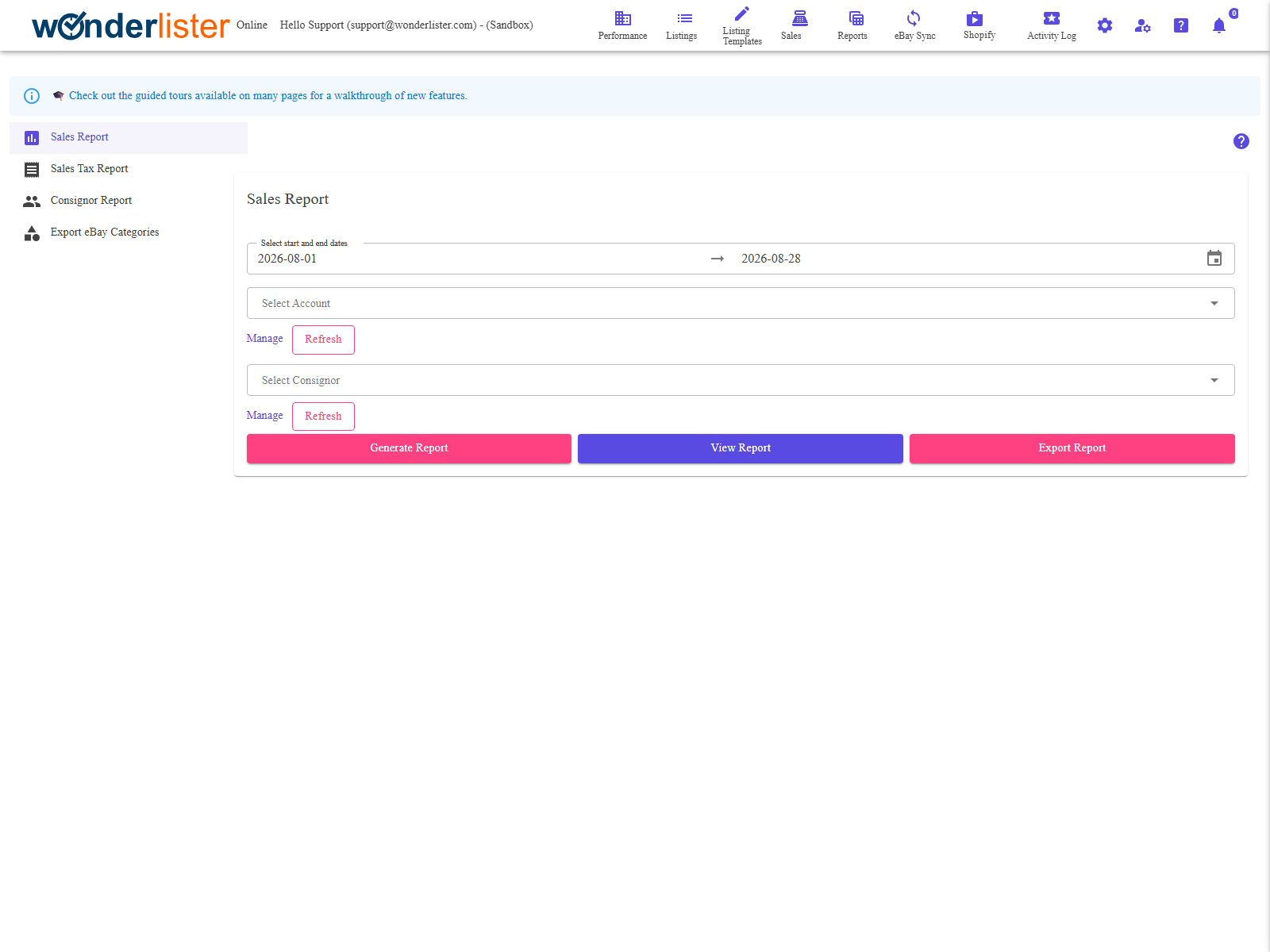
Where to find it
Open Reports from the top bar. Sales Report is chosen for you.
The four reports
| Report | What it answers |
|---|---|
| Sales Report | What sold in a period, for an eBay account, optionally for one consignor. |
| Sales Tax Report | What tax was collected in a period. Dates only — there is nothing else to narrow it by. |
| Consignor Report | What a consignor sold and what they are owed, and it can produce a statement to send them. |
| Export eBay Categories | Not a sales report at all: it exports eBay’s category tree for a site. See Export eBay Categories. |
The dates
Each of the first three opens with Select start and end dates already filled in with
the first of the current month to today. Click it to open the calendar and drag out a
range, or type the dates — the field is editable and the format is yyyy-MM-dd. The
calendar’s own buttons are Clear, Cancel and Ok; only
Ok keeps what you picked.
the 31st.
The buttons, and what each of them really does
| Button | What it does |
|---|---|
| Generate Report | Queues the report to be built in the background and answers immediately. It does not show you anything — the message says the report was queued and to watch Activity Logs for progress. Use it for a long period. |
| View Report | Builds the report now and opens it in a dialog on top of this page. This is the one to press for an ordinary month. |
| Export Report | Produces a file and starts the download. On the Sales and Consignor reports only. |
| Generate Statement | Consignor Report only. Produces the statement document for the consignor you chose, and downloads it. |
while you wait. Generate hands the work to a background task and tells you nothing more — you find the
result through Activity Logs. Pressing Generate and waiting for a report to
appear on screen is the commonest confusion on this page.
Narrowing a report
| Filter | Where it appears |
|---|---|
| Select Account | Sales Report and Consignor Report. Which eBay account the figures are for. |
| Select Consignor | Consignor Report always; Sales Report only when consignments are part of your subscription. |
| Select Site | Export eBay Categories only — the marketplace whose categories you want. |
How to read a month’s sales
- Open Reports. Sales Report is already selected.
- Click Select start and end dates and pick the month, then Ok.
- Choose the eBay account.
- Click View Report. The report opens over the page.
- Close the dialog, and click Export Report if you want the file as well.
How to send a consignor their statement
- Click Consignor Report in the list on the left.
- Set the dates.
- Choose the eBay account, then the consignor.
- Click View Report to check the figures.
- Click Generate Statement. The statement downloads.
period, the message you get back is informational and no document is produced.
Who can see what
The sales and consignor reports are permission-controlled. A staff account without the right to view them is
told You are not authorized to view sales report when it presses View or Export, rather than being
shown an empty report. Permissions are set on Staff Accounts.
FAQ
Activity Logs. To see figures on screen, press View
Report instead.
defaults to the current month, which early in a month holds very little.
Consignor Report is the one to use for consignment figures.
Sales Tax Report for what was collected.
Support
For further assistance you can:
- Email [email protected]
- Use the Contact Us page inside the application
← Back to the User Guide index
Or go to Support, the FAQs, or contact us.