← All WonderLister user guides
Bring in from eBay is where you pull things down from eBay: your listings and orders, the fees eBay has charged, your store and business policies, feedback, and the reference data listings are built from. It is a page of its own, opened from the left-hand bar. The page has no title at the top — it opens straight onto its list of sections.
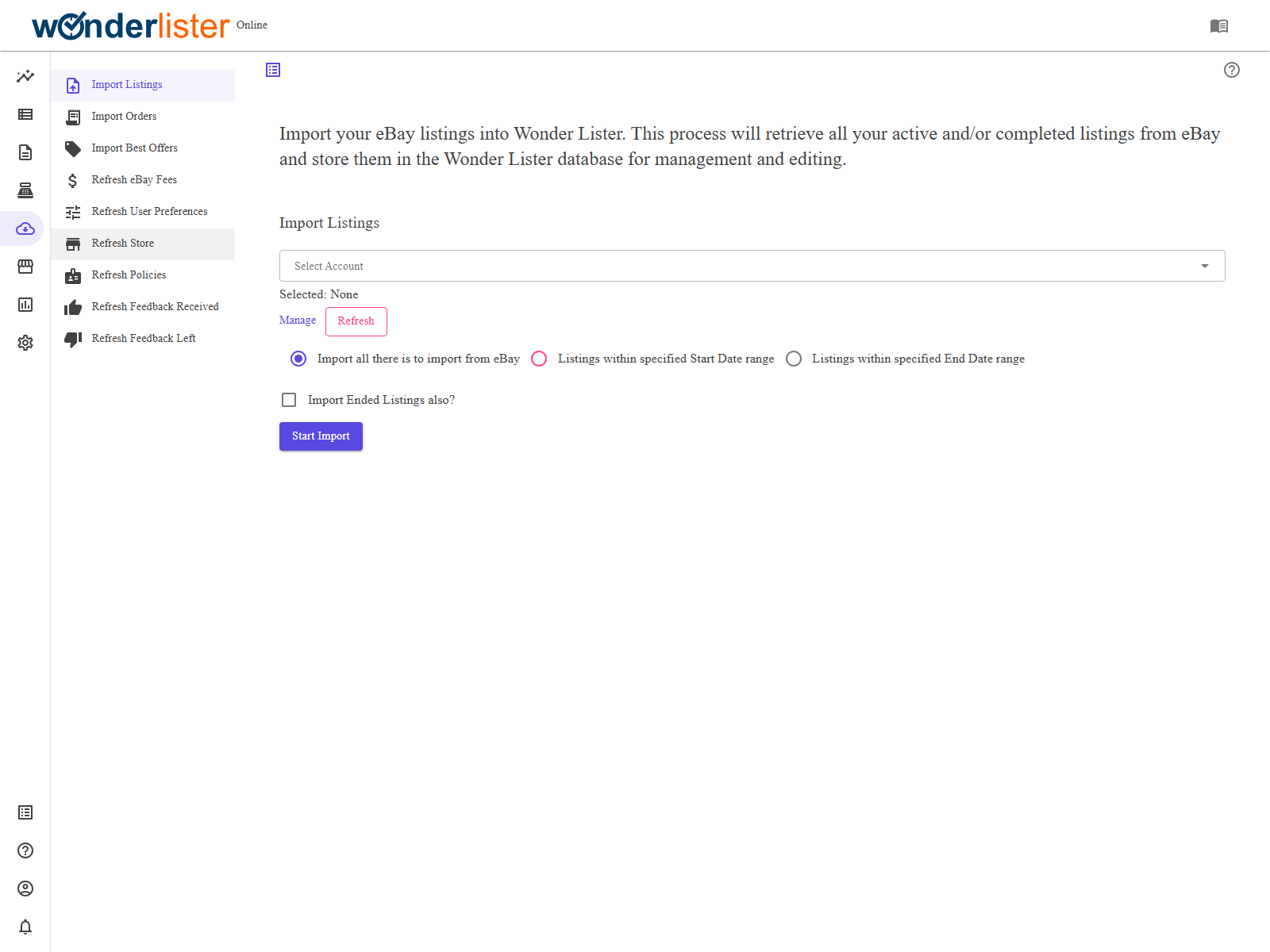
Where to find it
- On the left-hand bar, point at the icons to show their labels.
- Click Bring in from eBay. The page opens on Import Listings.
- Choose a section in the list on the left.
How it is laid out
A list of sections down the left; choosing one shows it on the right. Each section opens with a sentence saying what it brings down, then its controls — usually a Start Refresh or Start Import button, sometimes with a Select Account or Select Site picker above it — because the work itself happens in the background once you press it. Two buttons sit at the top right of the page: Show Activity Log opens the Activity log, and Help opens the help for the section you are on.
The sections
| Section | What it brings down |
|---|---|
| Import Listings | Your listings from eBay. |
| Import Orders | Your orders. |
| Import Best Offers | Offers buyers have made. |
| Refresh eBay Fees | What eBay has charged you, so profit figures are real. |
| Refresh User Preferences | Your seller settings as eBay holds them. |
| Refresh Store | Your eBay Store and its categories. |
| Refresh Policies | Your payment, shipping and return policies. |
| Refresh Feedback Received | Feedback buyers have left you. |
| Refresh Feedback Left | Feedback you have left. |
| Refresh eBay Details | eBay’s own reference data. Desktop only. |
| Refresh Categories | The category tree and its features. Desktop only. |
| Refresh Item Condition Policies | Which conditions each category allows. Desktop only. |
| Refresh Regulatory Policies | What each category requires by law. Desktop only. |
| Refresh Compatibilities | The parts-fitment data. Desktop only. |
| Refresh GPSR meta data | The EU product-safety reference data. Desktop only. |
| Refresh List Of Charities | The charities you can donate to from a listing. Desktop only. |
Refresh List Of Charities
The charity picker on a listing offers the charities eBay lists for the US and UK marketplaces, the two it supports charitable giving on. The section explains:
- Fetches the charities eBay lists for the US and UK marketplaces, which are the two it supports charitable giving on. They are what the charity picker offers when you set up a donation on a listing.
- Wonder Lister refreshes them once a week on its own. This starts the same refresh now.
- In the desktop application, click Bring in from eBay on the left-hand bar.
- Choose Refresh List Of Charities at the bottom of the list on the left.
- Press Start Refresh. The page shows The charity refresh has been queued. Watch the Activity Log for the result.
In the online application the charities are kept up to date for you, and where the section is shown it says Wonder Lister refreshes them on its own schedule; there is nothing to start here.
How a refresh runs
- Choose the section in the list on the left.
- If the section has a Select Account or Select Site picker, choose at least one account or site in it. Pressing the button with nothing chosen shows At least one account must be selected or At least one site must be selected.
- Press Start Refresh (or Start Import). The button is disabled while the request is being sent.
- When the request has gone, the page shows Request successfully submitted. You can check the status on the ‘Activity log’ page. The work then goes on in the background — the page does not sit and wait.
- Watch it in the Activity log.
- You are e-mailed when it finishes, unless you have turned those e-mails off in Preferences.
- Running it twice does no harm, but it does no good either while the first run is still going.
What to run, and when
| If | Run |
|---|---|
| Listings on eBay are not in WonderLister | Import Listings |
| An order is missing | Import Orders |
| Profit figures look too good | Refresh eBay Fees |
| A business policy you made on eBay is not offered | Refresh Policies |
| A store category is missing | Refresh Store |
| Feedback is out of date | Refresh Feedback Received or Left |
| A charity is missing from the charity picker (desktop) | Refresh List Of Charities |
FAQ
Why did nothing happen when I pressed Start Refresh?
It runs in the background. Open the Activity log to watch it.
Why are half the sections in the guide not on my screen?
You are in the online application, where seven reference-data sections are not drawn because that data is maintained for you.
Does a refresh overwrite my own changes?
A refresh brings eBay’s version down. Where you have edited a listing and not yet submitted it, see Listing Submissions — an unsubmitted edit deliberately holds the refresh off, so your change is not overwritten.
How long does an import take?
As long as the amount of data needs. eBay returns large results a page at a time and each page is logged, so the Activity log shows the progress.
Where did eBay Sync go?
It is now the Bring in from eBay page on the left-hand bar, with the same sections.
Support
For further assistance you can:
- Email support@wonderlister.com
- Use the Contact Us page inside the application
← Back to the User Guide index
Or go to Support, the FAQs, or contact us.