← All WonderLister user guides
These settings decide what an export contains and how it is split up: which columns are written, whether compatibilities and variations go with them, and how many rows are put in each file. Most of them exist because a large export is memory-hungry and can fail — these are the levers for making one succeed.
Where to find it
The third section of the Customize Views dialog, and the Export to CSV section of Preferences. They are the same settings. The export itself is started from the grid — see Customize Export Listings.
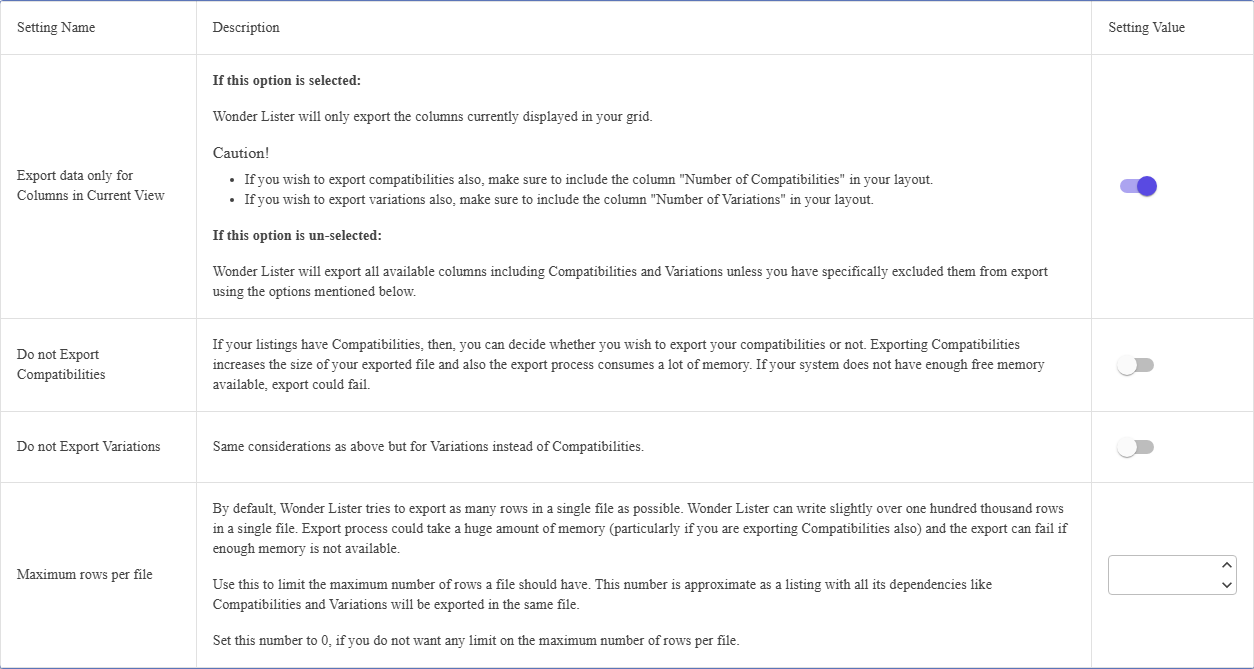
The settings
| Setting | What it does |
|---|---|
| Export data only for Columns in Current View | On: only the columns currently in your grid layout are exported. Off: every available column is exported, including compatibilities and variations unless the two switches below exclude them. |
| Do not Export Compatibilities | Leaves compatibilities out. They make the file considerably larger and the export considerably hungrier for memory; on a machine short of it, that is what makes an export fail. |
| Do not Export Variations | The same, for variations. |
| Maximum rows per file | Splits the export across several files once it passes this many rows. 0 means no limit. The number is approximate — a listing and everything belonging to it always stay in the same file. |
Row limits
There is a ceiling on how many rows one file can usefully hold. In the desktop application WonderLister writes a little over five hundred thousand rows per file; in the online application, a little over a hundred thousand. Setting Maximum rows per file below that splits a large export into several smaller files, each of which opens and processes more easily.
Set it to 0 only when you know the export is small, or when whatever reads the file has no problem with size.
If an export fails
- Exclude compatibilities, then variations. They are the bulk of the memory cost.
- Set a row limit — 50,000 or 100,000 is a reasonable starting point.
- Export fewer listings at a time, using a search or a folder to narrow the selection.
- Turn on “Columns in Current View” and trim the layout to the columns you actually need.
FAQ
Why does my export have no compatibilities in it?
Either Do not Export Compatibilities is on, or Export data only for Columns in Current View is on and your layout has no Number of Compatibilities column.
What do I do if the export runs out of memory?
Exclude compatibilities and variations, set a row limit, and export a smaller selection. Compatibilities are usually the cause.
Why did I get several files instead of one?
Maximum rows per file is set. Raise it, or set it to 0 for no limit.
Why do the files have slightly different row counts?
Expected. The limit is approximate, because a listing is never split across two files — its compatibilities and variations stay with it.
Can I re-import a file I exported?
Yes, but check Update using CSV first. If the export left compatibilities or variations out, an update from it can delete them from your listings.
Support
For further assistance you can:
- Email support@wonderlister.com
- Use the Contact Us page inside the application
← Back to the User Guide index
Or go to Support, the FAQs, or contact us.