
← All WonderLister user guides
A listing template is a listing you have not sent to eBay and do not intend to — it is a
starting point. Build one for a kind of item you sell often, with the category, item specifics, policies,
description and pictures already in place, and every real listing made from it starts complete.
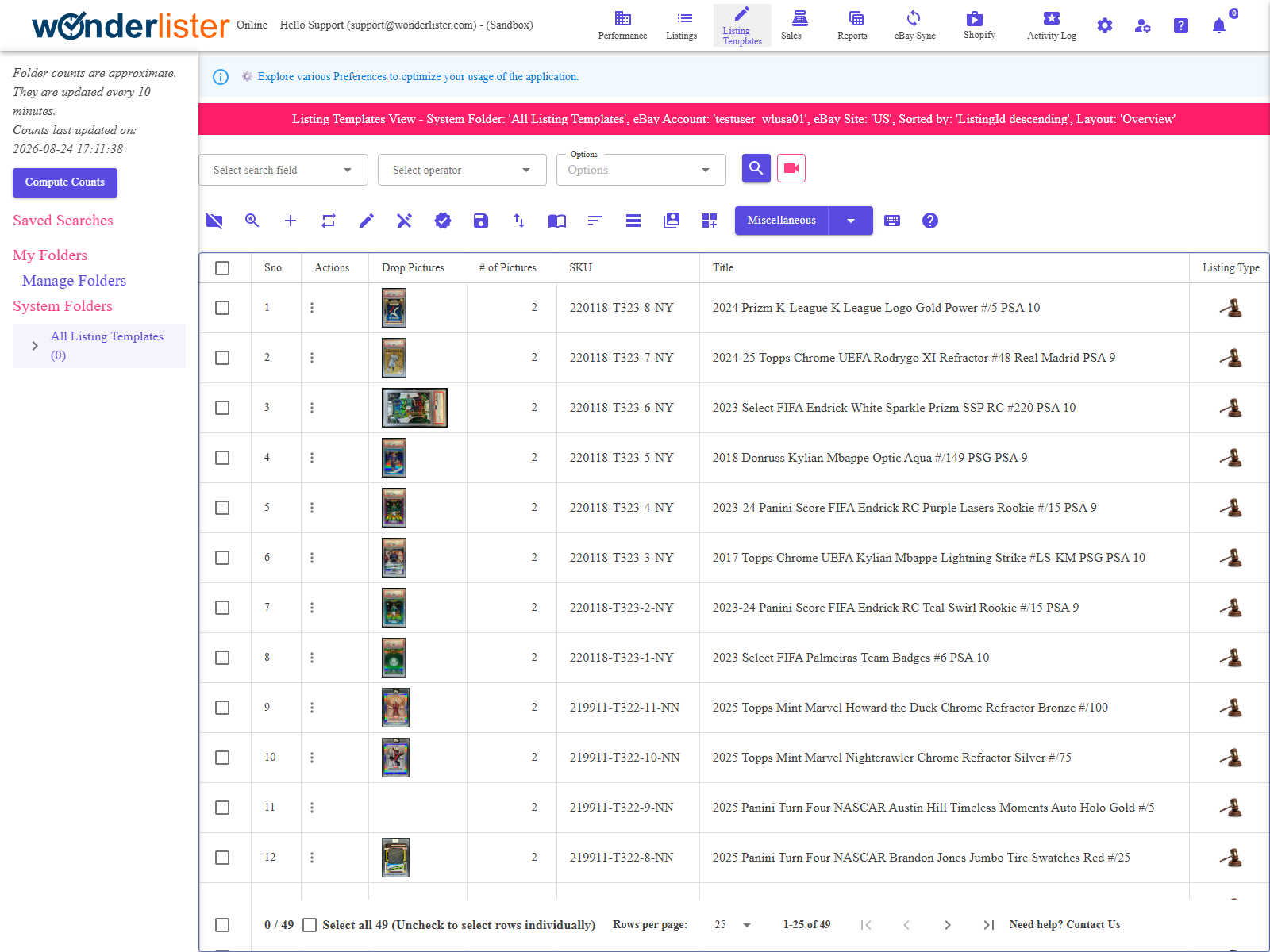
The folder tree, the title bar, the toolbar and the grid — the same shape as Listings.
Templates and listings
| Listing Templates | Listings | |
|---|---|---|
| Goes to eBay? | Never. | Yes, when you submit it. |
| Has an eBay item number? | No. | Once it is live. |
| Edited with | The same editor. | The same editor. |
| What it is for | Making listings. | Selling. |
The two grids are deliberately alike: the same folder tree, the same search, the
same layouts and sorting, and nearly the same toolbar.
The parts of the page
| Part | What it is |
|---|---|
| The folder tree | Down the left. Templates have their own folders, including Work in Progress and Waiting to Upload. |
| The title bar | Reads Listing Templates View – …, naming the folder or search you are looking at. |
| The search bar | See Simple Search. |
| The toolbar | Two layouts — icons or labelled buttons. |
| The grid | Your templates, in the columns your layout names. |
The usual jobs
| Job | How |
|---|---|
| Build a template | Create, then fill it in with the editor. |
| Build one like another | Duplicate. What a duplicate copies is governed by the duplication settings in Preferences. |
| Turn templates into listings | Select them and press Create Listing. The new listings appear on the Listings page ready to submit. |
| Change many at once | Bulk edit — see Bulk Edit Listing Templates. |
| Check one against eBay | Verify with eBay asks eBay whether it would accept the template, without listing anything. |
| Build from a spreadsheet | Create from CSV, and Update from CSV to change them later. |
Verify is worth using on a template. A template is where a category, its required item
specifics and your policies are settled once. Verifying it means every listing made from it starts from
something eBay has already said it would accept.
specifics and your policies are settled once. Verifying it means every listing made from it starts from
something eBay has already said it would accept.
The two working folders
| Folder | What it is for |
|---|---|
| Work in Progress | Templates you are still building. Move to Work in Progress folder on the toolbar puts them there. |
| Waiting to Upload | Templates finished and queued in your own mind for listing. Move to Waiting to Upload folder puts them there. |
Both are conveniences for organising your own work; neither has any meaning to eBay.
FAQ
Q: Will a template ever appear on eBay by itself?
A: No. Templates are never submitted. Create Listing makes real
listings from them, and those are what you submit.
listings from them, and those are what you submit.
Q: I changed a template. Did the listings made from it change?
A: No. A listing made from a template is a copy taken at that moment; the two are
independent from then on. To change existing listings use
bulk edit.
independent from then on. To change existing listings use
bulk edit.
Q: How many listings can I make from one template?
A: As many as you like, and several at once.
Q: My folders here are different from the ones on Listings.
A: They can be. The Allow different folders… setting in
Preferences decides whether the three views share folders or each keeps
its own.
Preferences decides whether the three views share folders or each keeps
its own.
Q: The toolbar looks different from the guide.
A: There are two layouts, switched with Show Toolbar as Group of Buttons in
Main Views. Both are documented.
Main Views. Both are documented.
Support
For further assistance you can:
- Email [email protected]
- Use the Contact Us page inside the application
← Back to the User Guide index
Or go to Support, the FAQs, or contact us.