
← All WonderLister user guides
Applies one change to every listing template you selected. It is the same dialog as
Bulk Edit Listings, working on templates — which makes it a good deal
safer, because a template is never on eBay.
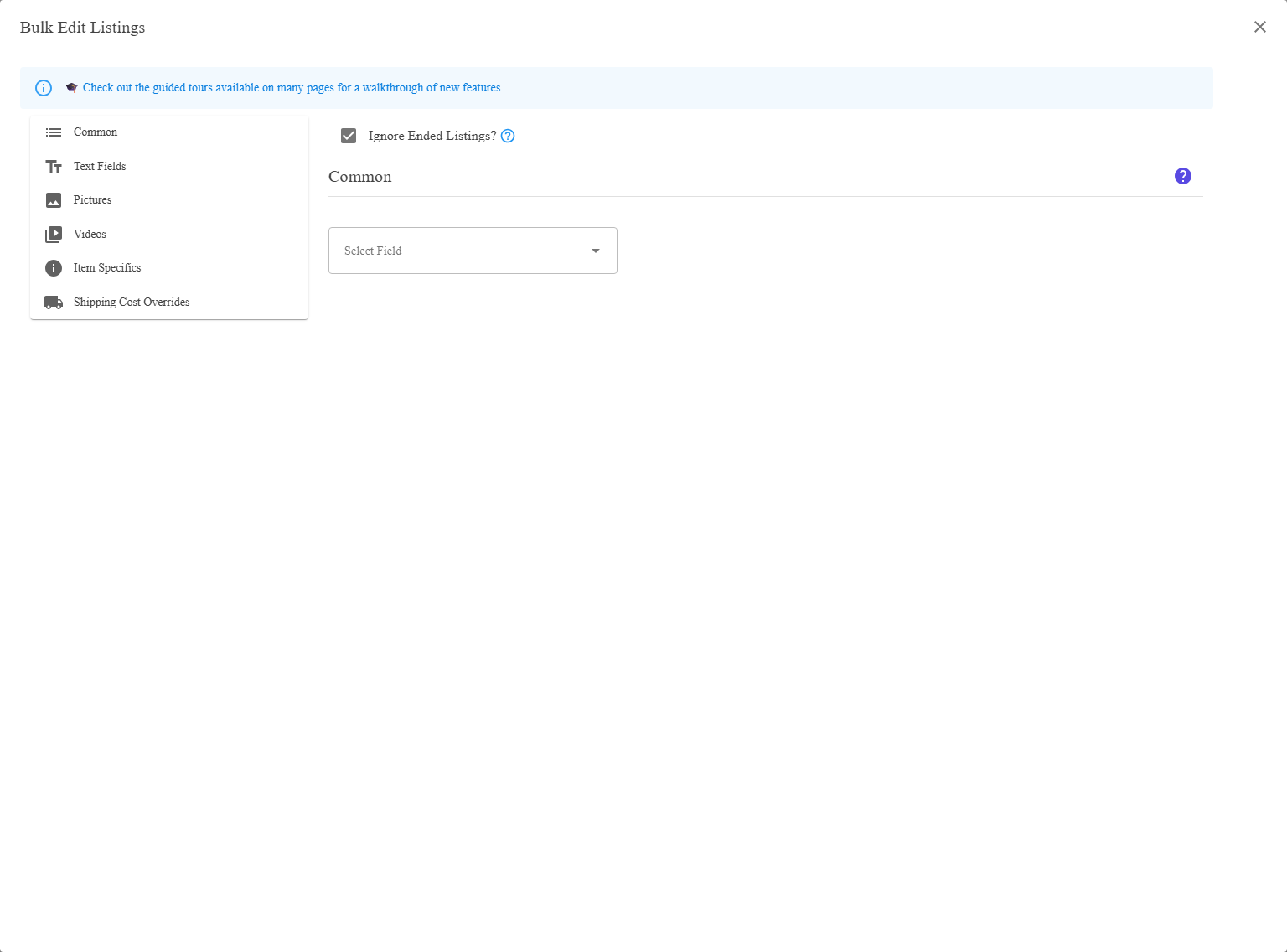
Each change is a row: pick a field, say how to change it, give the value.
Where to find it
Select the templates on Listing Templates, then Bulk Edit
from the toolbar. Everything the dialog can do is described in Bulk Edit.
Nothing here reaches eBay. Templates are never submitted, so a bulk edit on them cannot be
refused by eBay, cannot revise a live listing, and cannot affect a buyer. It is the right place to try a
change you are unsure of.
refused by eBay, cannot revise a live listing, and cannot affect a buyer. It is the right place to try a
change you are unsure of.
What is different about templates
| Because a template is not on eBay | What follows |
|---|---|
| No submission. | The change is made in WonderLister and stops there. The Listing Submissions settings do not come into it. |
| No refusals. | eBay is not asked, so a price or quantity it would reject on a live listing is simply stored. |
| Existing listings are untouched. | A listing made from a template earlier is a copy taken at that moment. Changing the template does not change it. |
The changes people make most often
| Job | How |
|---|---|
| Move a set of templates to new policies | Pick the policy field in Common fields and choose the new one. Every listing made from them afterwards uses it. |
| Change the standard description footer | Description, then Search containing with Replacement mode: Only what matches. |
| Update a brand or attribute | The Item specifics group. |
| Re-price a range | Price, then whichever change mode suits. |
| Add a phrase to titles | Title, then Append or Prepend — watching eBay’s 80-character limit. |
How to use it
- Select the templates in the grid.
- Open Bulk Edit from the toolbar.
- Describe the change, adding as many rows as you need.
- Press Apply Changes.
The work runs in the background — follow it in Activity Logs. There is still
no undo, so a quick trial on one template is worth the minute it takes.
FAQ
Q: Will this change the listings I already made from these templates?
A: No. A listing is a copy taken when it was created, and the two are independent
afterwards. Use Bulk Edit Listings for those.
afterwards. Use Bulk Edit Listings for those.
Q: Can this put anything wrong on eBay?
A: Not by itself. But a template with a bad value will pass it on to every listing
made from it afterwards, so Verify with eBay on a template after a large change is worth
doing.
made from it afterwards, so Verify with eBay on a template after a large change is worth
doing.
Q: Can I undo it?
A: No. Try it on one template first.
Q: Everything I can change — where is that listed?
A: In Bulk Edit.
Support
For further assistance you can:
- Email [email protected]
- Use the Contact Us page inside the application
← Back to the User Guide index
Or go to Support, the FAQs, or contact us.