← All WonderLister user guides
A layout is a saved set of grid columns — which ones are shown, in what order, and how wide. This dialog is where you switch the grid from one to another.
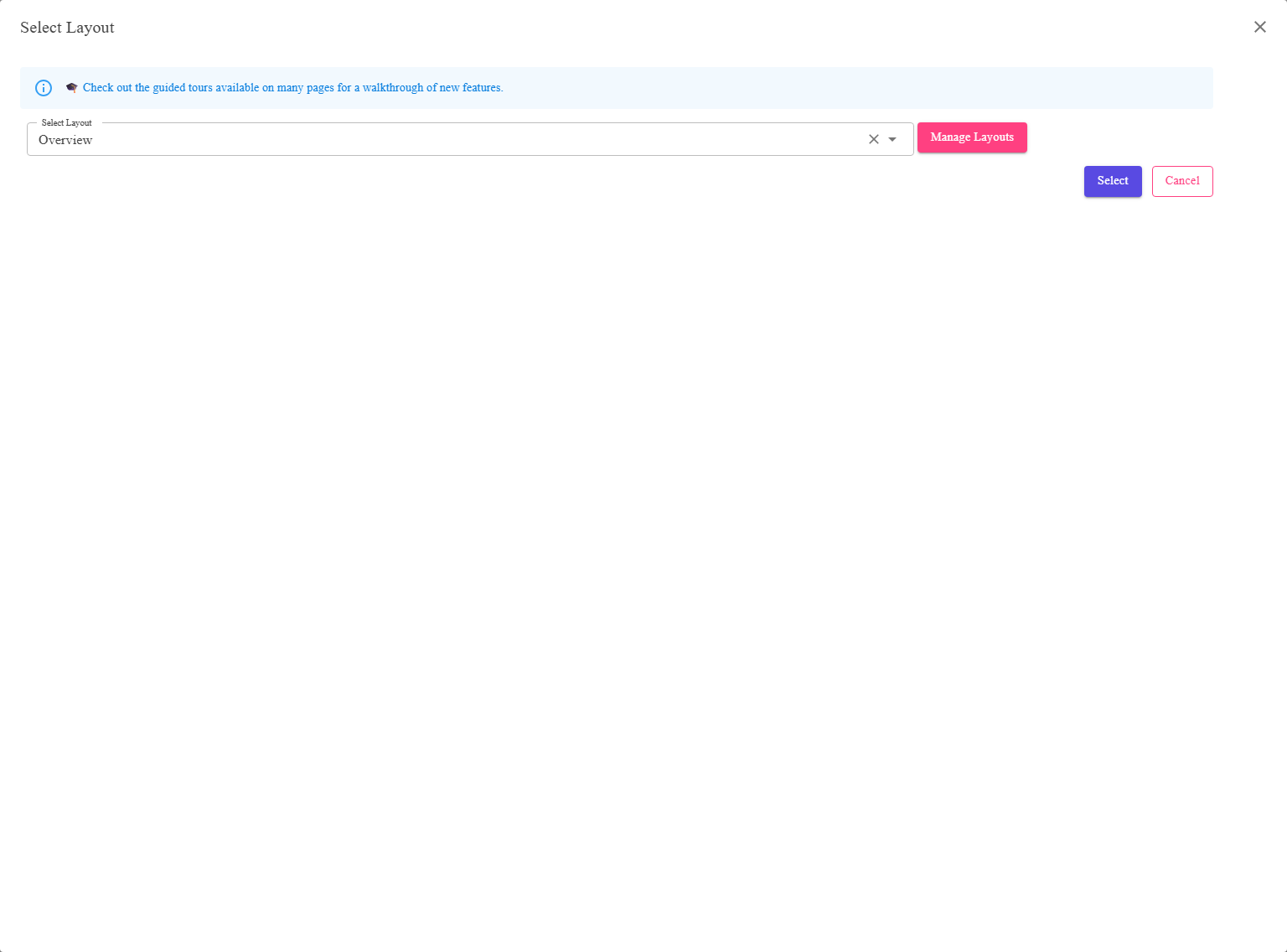
The Select Layout picker showing the layout in use, the Manage Layouts button beside it, and Select and Cancel.
The usual way to switch layouts is the Layout dropdown. On Listings, Listing Templates and Orders, the Layout dropdown above the grid lists the same layouts; choosing one there switches the grid straight away, without this dialog.
Where to find it
- Choose Listings or Templates on the left-hand bar.
- Press
Alt+L. The Select Layout dialog opens.
The Orders page has no shortcut for it; use its Layout dropdown.
How to switch layouts
- Open the dialog as described above.
- Choose a layout in Select Layout.
- Press Select.
What is in the dialog
| Control | What it does |
|---|---|
| Select Layout | The layouts saved for this grid, by name. It opens showing the layout in use. |
| Manage Layouts | Opens Manage Layouts, where layouts are created, edited, renamed and deleted. Come back here to apply one. |
| Select | Applies the chosen layout to the grid. Disabled until you choose one. |
| Cancel | Closes without changing anything. |
Layouts belong to a grid. A layout built for Listings does not appear on Orders — the two grids hold different things, so their columns are different. Each view has its own set.
Why the layout matters beyond appearance
- Exporting. With Export data only for Columns in Current View on, the layout decides what an export contains — see Export to CSV.
- Sorting. Only a column you can see can be sorted by clicking its heading. For anything else use Select Sort Parameters.
- Speed. A layout with far fewer columns draws faster on a large grid.
FAQ
Why isn’t the layout I want in the list?
Either it was built for a different view, or it has not been created yet. Use Manage Layouts.
Why is the Select button grayed out?
Nothing is chosen yet. Pick a layout from the list.
Why is my export missing columns I can see on screen?
Check Export to CSV. Compatibilities and variations need the Number of Compatibilities and Number of Variations columns in the layout when exporting by current view.
Support
For further assistance you can:
- Email support@wonderlister.com
- Use the Contact Us page inside the application
← Back to the User Guide index
Or go to Support, the FAQs, or contact us.