← All WonderLister user guides
Applies one change to every listing you selected. This is the same dialog as Bulk Edit Listing Templates, working on listings — which means the changes can reach eBay. Everything the dialog can do is described in Bulk Edit; this page is about what that means for listings in particular.
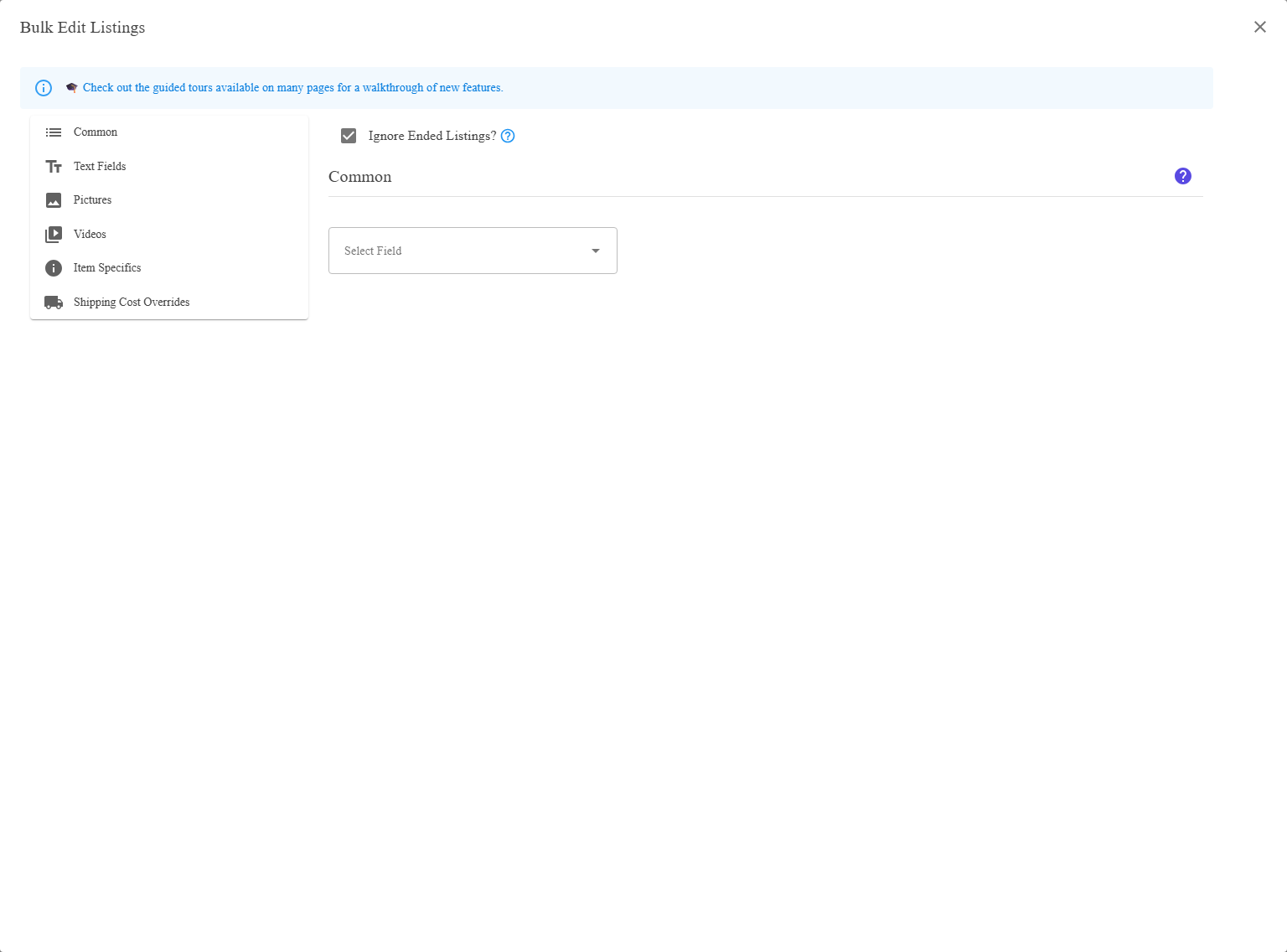
Where to find it
- Click Listings in the bar on the left. The Listings page opens.
- Tick the box beside each listing you want to change, or click Select all N beside the selection line to take in everything that matches the search.
- Click Bulk edit on the toolbar. The Bulk Edit Listings dialog opens.
What is different about listings
| Because a listing may be live | What follows |
|---|---|
| Changes can reach eBay. | An active listing that is changed is normally submitted straight away. Whether that happens is decided by Listing Submissions. |
| eBay may refuse a change. | A price below what eBay allows, a quantity below what has already sold, a field eBay will not let you revise once there are bids — any of these is refused for that listing, and the rest still go through. |
| Ended listings are skipped unless you say otherwise. | Ignore Ended Listings? at the top of the dialog is ticked to start with, and while it is, ended listings in your selection are left alone. Untick it to change them too — the change stays in WonderLister, since there is nothing on eBay to revise, and it matters if you relist later. |
The changes people make most often
| Job | How |
|---|---|
| Put prices up or down | Price, then +/- by fixed percentage. |
| Set a sale price | Price, then Fixed amount. |
| Correct a word in many titles | Title under Text Fields, Find text anywhere, and Replacement mode set to Only the text found. |
| Move to a new business policy | Pick the policy field under Common and choose the new one in Select Policy. |
| Add a line to every description | Description under Text Fields, then Add to the end. |
| Restock | Quantity, then +/- by fixed amount. |
How to use it
- Narrow the grid to the listings you mean, with a folder or a search.
- Select them, and read the count on the selection line.
- Click Bulk edit on the toolbar.
- Describe the change and click Done.
- Check the Fields to change table under the form — it shows each field, how it changes and the new value by name.
- Click Apply Changes. The dialog shows Request successfully submitted. You can check the status on the ‘Activity log’ page.
- Watch it in Activity log.
FAQ
Why did some listings change and others not?
eBay refuses some revisions — a quantity below what has already sold, a field that cannot be changed once there are bids. Open the run in Activity log and click Details to see which ones and why.
Why does WonderLister show my change when eBay does not?
Check Listing Submissions. With automatic submission off, the changed listings are waiting in the Edited – To submit manually folder.
Can I bulk edit ended listings?
Yes — untick Ignore Ended Listings? first, or they are skipped. The change stays in WonderLister — there is nothing on eBay to revise. It applies if you relist.
How many listings can I change at once?
There is no fixed limit. Large runs take longer, and are worth starting when you do not need the result immediately.
Everything I can change — where is that listed?
In Bulk Edit, which describes every field, mode and option in the dialog.
Support
For further assistance you can:
- Email support@wonderlister.com
- Use the Contact Us page inside the application
← Back to the User Guide index
Or go to Support, the FAQs, or contact us.