
← All WonderLister user guides
The Sales page is where your eBay orders live once they have been imported. From here you
mark an order paid or shipped, enter tracking, leave feedback, message the buyer, print invoices and pick
tickets, and file orders into folders. It is laid out exactly like Listings — a
folder tree down the left, a toolbar, and a grid.
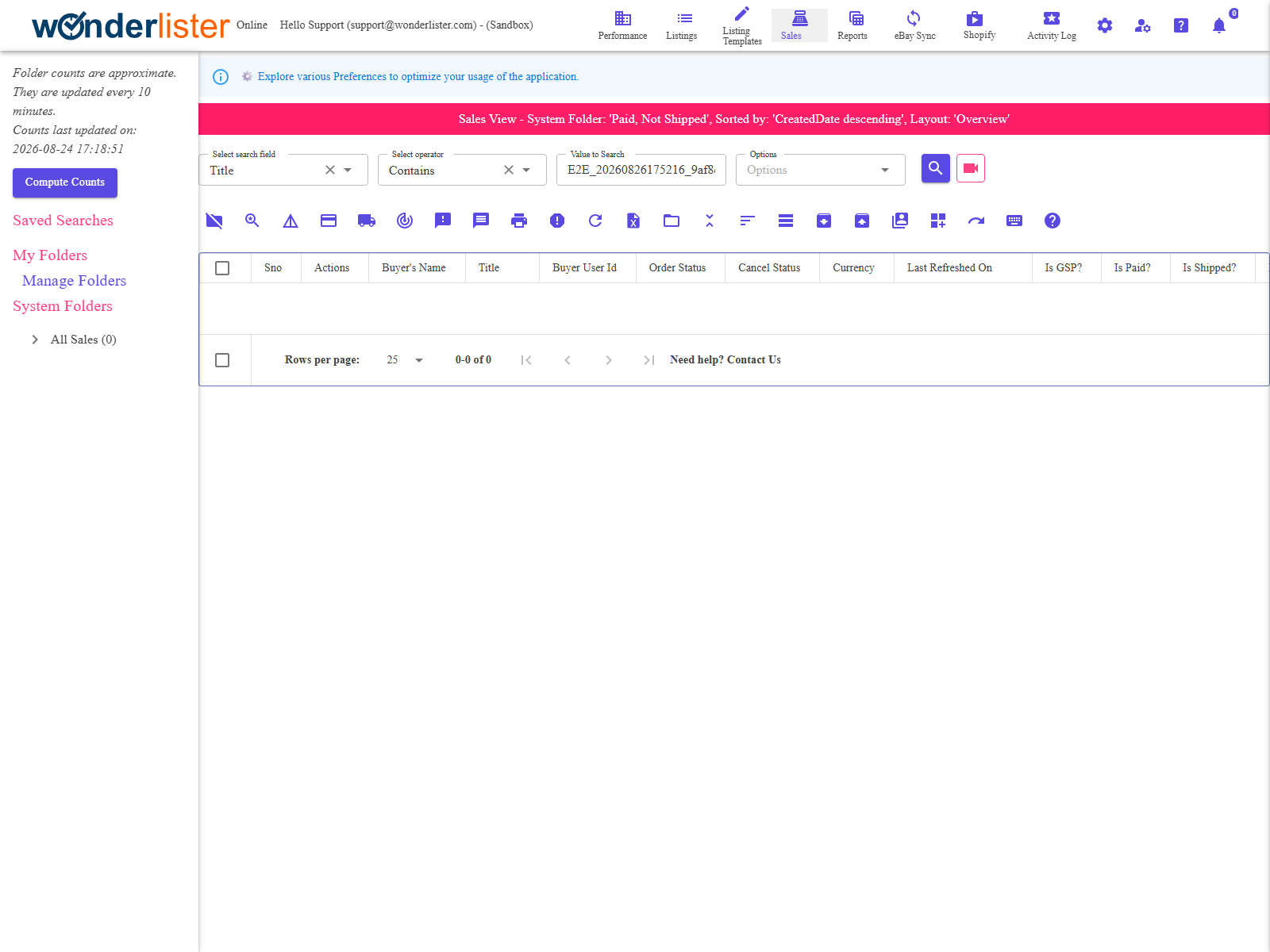
The parts of the page
| Part | What it is |
|---|---|
| The folder tree | Down the left. System folders WonderLister maintains for you, rule-based folders, and your own. Selecting one filters the grid. Show and hide it with the folder icon on the toolbar. |
| The title bar | The dark strip reading Sales View – …, naming the folder or search whose results you are looking at. Worth a glance when the grid holds less than you expect. |
| The search bar | Shown when you ask for it, or always if you have set it so. See Simple Search. |
| The toolbar | Every action. Drawn as icons or as labelled buttons — see the icon toolbar and the labelled-button toolbar. |
| The grid | The orders. Which columns appear is decided by your layout. |

Where sales come from
You do not enter orders here. They are imported from eBay: a bulk import when you first link an account on
Manage eBay Accounts, and from then on as new orders arrive. Use
Refresh from eBay on the toolbar to re-read the selected orders, and
Activity Logs to see whether an import ran and whether it worked.
the marketplaces you configured on eBay Sites. A missing order is very often a
site that was never ticked.
The usual jobs
| Job | How |
|---|---|
| See everything about one order | Select it and press Show Order Details. |
| Record a payment | Mark as Paid. |
| Record a dispatch | Mark as Shipped, then Enter Tracking Info so eBay and the buyer get the number. |
| Leave feedback | Leave Feedback, on one order or on a selection. |
| Contact a buyer | Send Message to Buyer. |
| Paperwork | Invoices for invoices, Pick Ticket Report for picking. |
| Get the data out | Export to Excel. What it writes is governed by Export to CSV. |
| Tidy up | Archive Orders takes old orders out of the everyday views; Unarchive brings them back. |
Narrowing what you are looking at
- A folder — click it in the tree.
- A search — simple search for one field, advanced search for several.
- An account or site — Select Account and Site.
- An order — sort by a field, or change the layout to show the column you need.
Permissions
The page needs the Manage Sales permission, or an administrator account. Staff permissions are set
on Staff Accounts.
FAQ
its account is linked. Then look at Activity Logs to see whether the
import ran, and use Refresh from eBay.
earlier, or an account and site still set from a previous session, will both narrow the grid.
Unarchive Orders to bring them back.
stay in step. Add the tracking number with Enter Tracking Info so the buyer gets it too.
Buttons in Main Views; both are documented.
Support
For further assistance you can:
- Email [email protected]
- Use the Contact Us page inside the application
← Back to the User Guide index
Or go to Support, the FAQs, or contact us.