
← All WonderLister user guides
Listings is the page you will spend most of your time on: every item WonderLister holds
for you, whether it has been to eBay or not. From here you create, edit, verify, submit, refresh and end
listings, file them in folders, search them, and export them.
Where to find it
Choose Listings in the top navigation bar.
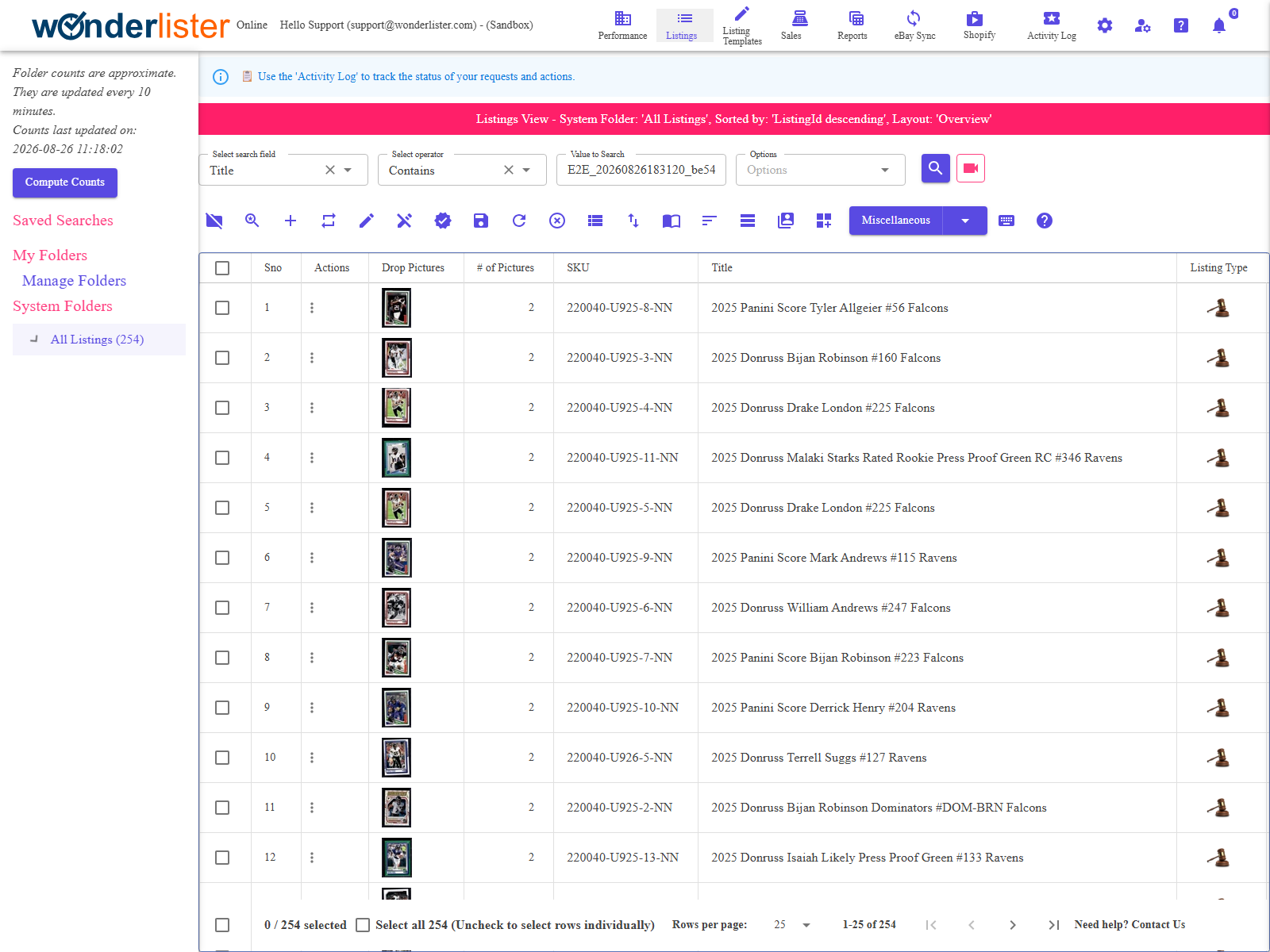
The Listings page: folder tree on the left, title bar, search bar, toolbar, grid, and the footer with the selection count and pager.
The parts of the page
| Area | What it is |
|---|---|
| Folder tree (left) |
Saved Searches, My Folders and System Folders. System folders are WonderLister’s own — All Listings, Waiting to Upload, Work in Progress and the rest; My Folders are yours. Clicking one filters the grid to it. The tree can be hidden with the toolbar’s Show/Hide Folders action. |
| Compute Counts |
Recalculates the numbers beside each folder. The page says so itself: folder counts are approximate and are updated every ten minutes, and it prints when they were last computed. Press this when you want them exact now. |
| Title bar |
The pink strip above the grid. It states exactly what you are looking at — the folder or search, the sort order and the layout — for example Listings View – System Folder: ‘All Listings’, Sorted by: ‘ListingId descending’, Layout: ‘Overview’. |
| Search bar | A field, an operator and a value. See Search Bar. |
| Toolbar |
Every action on the page. Two layouts: icons or labelled buttons. |
| The grid |
One row per listing. The columns shown are decided by the layout — change it with Select Grid Layout, or build your own on Manage Layouts. |
| Actions column | The three-dot menu on each row, described below. |
| Footer |
The selection count (0 / 254 selected), Select all, rows per page, and the pager. |
Selecting listings
- Tick a row’s checkbox to select it. Most toolbar actions work on the selection.
- Click a row to select it; double-click to open it in the editor.
- Select all in the footer selects every listing in the current folder or search, not
just the page you are looking at — the label says how many.
The row Actions menu
The three dots in the Actions column open a menu for that one listing. What it offers
depends on the listing’s state — an unsubmitted draft, a live listing, an ended one — so an action that
makes no sense is simply not there:
- Edit, Duplicate, Delete, Create
Template - Verify with eBay, Submit, Refresh from eBay,
End on eBay, View on eBay - Undo Changes — offered for a live listing that has been edited locally
- Add to folder, Remove from folder, Add to WTU folder,
Add to WIP folder - Manage Pictures, Preview Description, Show Best
Offers, Respond to Questions
A typical day
- Create a listing from scratch, from a template, or by duplicating one.
- Edit it in the listing editor.
- Verify it — eBay reports what it would reject, and it costs nothing.
- Submit it, immediately or scheduled.
- Refresh from eBay to see prices, watchers and quantities.
- End what has not sold, giving a reason.
Submitting is queued, not instant. Verify, Submit, Refresh and End hand the work to a
background queue and return straight away. Watch the Activity Log for
progress and for what eBay replied — the message at the top of the page says the same thing.
background queue and return straight away. Watch the Activity Log for
progress and for what eBay replied — the message at the top of the page says the same thing.
FAQ
Q: Why do folder counts disagree with the grid?
A: They are approximate and recomputed every ten minutes. The panel prints when
they were last updated, and Compute Counts brings them up to date now.
they were last updated, and Compute Counts brings them up to date now.
Q: A toolbar action does nothing.
A: Nearly all of them act on the selection. Tick a row first. Some need exactly
one row.
one row.
Q: Does Delete remove my listing from eBay?
A: No. Delete removes it from WonderLister only. To take it off eBay, use
END on eBay.
END on eBay.
Q: The grid is missing a column I need.
A: Columns come from the layout. Switch layout with Select Grid
Layout, or build one on Manage Layouts.
Layout, or build one on Manage Layouts.
Q: I cannot find a listing I know exists.
A: You are probably inside a folder or a saved search. Click All Listings
in System Folders, then search.
in System Folders, then search.
Q: I submitted and nothing happened.
A: The work is queued and processed in the background. Check the
Activity Log — it records what was sent and what eBay said.
Activity Log — it records what was sent and what eBay said.
Q: Select all only seems to select the page.
A: The footer’s Select all selects the whole folder or search, and
names the number. The header checkbox selects the visible page.
names the number. The header checkbox selects the visible page.
Support
For further assistance you can:
- Email [email protected]
- Use the Contact Us page inside the application
← Back to the User Guide index
Or go to Support, the FAQs, or contact us.