
← All WonderLister user guides
A layout is a saved set of grid columns — which appear, and in what order. This page is
where layouts are built, changed and deleted. To put one to use, see
Select Layout.
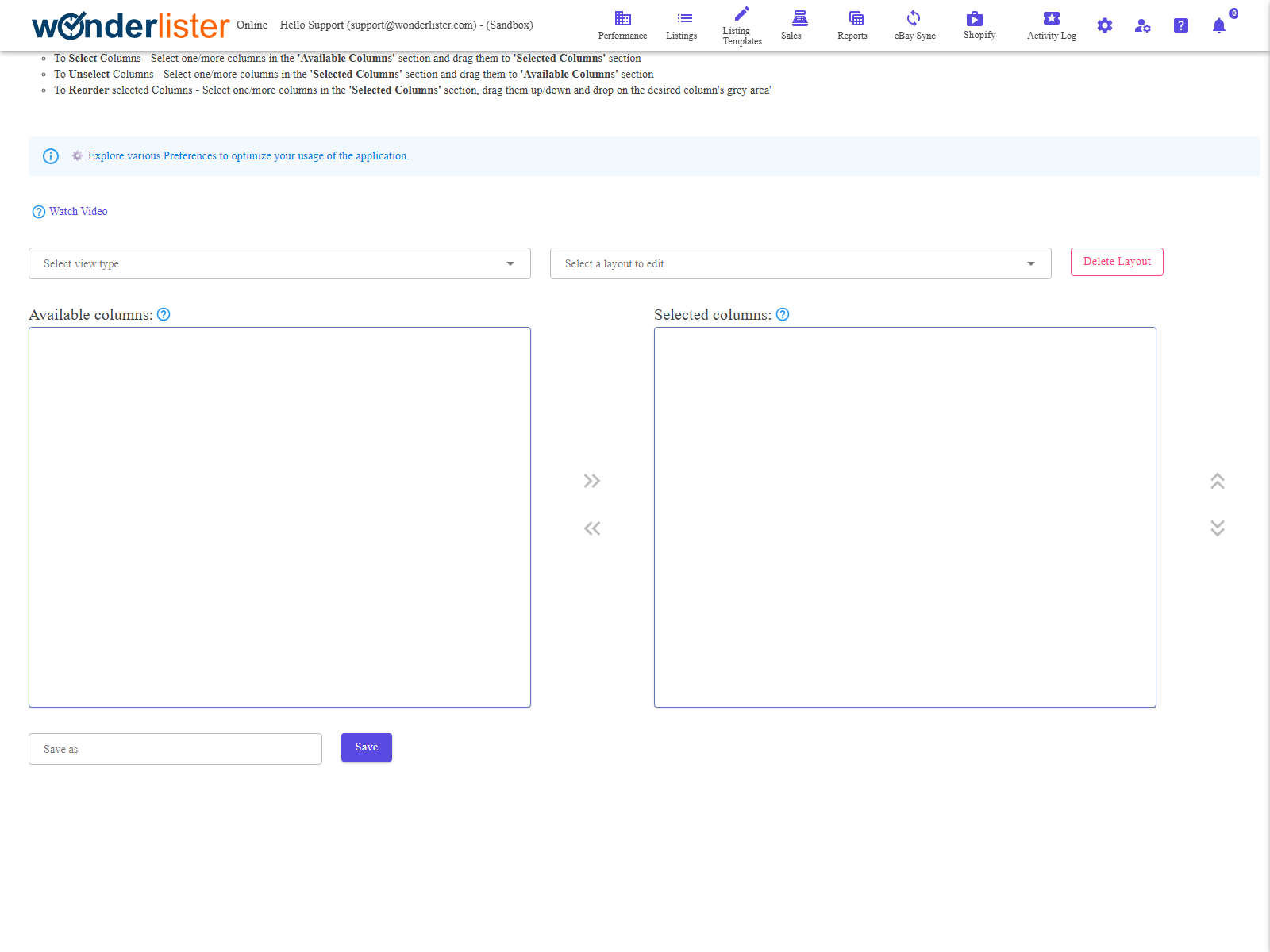
The two pickers at the top, and the available and selected column lists beneath.
How the page works
- To add columns — select one or more in Available Columns and drag them
into Selected Columns. - To remove columns — drag them from Selected Columns back to
Available Columns. - To reorder — drag within Selected Columns and drop on the grey area of
the column you want to sit beside.
The order in Selected Columns is the order the grid will draw them, left to right.
The controls
| Control | What it does |
|---|---|
| Select view type | Which grid the layout is for — Listings, Listing Templates or Sales. The available columns change with it. |
| Select a layout to edit | An existing layout to change. |
| Save as | The name to save under. Type a new name to create a new layout; leave the existing one to overwrite it. |
| Save | Stores the layout. |
| Delete Layout | Deletes the layout in the picker. |
| Watch Video | A short video about layouts. |
Layouts belong to a view. A layout built for Listings does not appear on Sales — the two
grids hold different things. Choose the view type before you start.
grids hold different things. Choose the view type before you start.
Why a layout is worth building
- Exports follow it. With Export data only for Columns in Current View on, the
layout decides what an export contains — including whether compatibilities and variations come with it.
See Export to CSV. - Only visible columns sort by clicking. For anything else use
Select Sort Parameters. - Fewer columns draw faster on a large grid.
How to build one
- Choose the view type.
- Drag the columns you want into Selected Columns, and order them.
- Type a name in Save as.
- Press Save.
- Apply it from the grid, with Select Layout.
FAQ
Q: I saved a layout but the grid has not changed.
A: Saving does not apply it. Go to the grid and choose it in
Select Layout.
Select Layout.
Q: A column I need is not in the available list.
A: Check the view type — the columns offered are the ones that grid has.
Q: How do I copy a layout?
A: Open it, then type a different name in Save as and save. The
original is untouched.
original is untouched.
Q: My export is missing compatibilities.
A: When exporting by current view, the layout must include the Number of
Compatibilities column — and Number of Variations for variations. See
Export to CSV.
Compatibilities column — and Number of Variations for variations. See
Export to CSV.
Support
For further assistance you can:
- Email [email protected]
- Use the Contact Us page inside the application
← Back to the User Guide index
Or go to Support, the FAQs, or contact us.