← All WonderLister user guides
Customize Views is the settings dialog you reach from the main grids. It gathers the settings that govern how those grids look and behave, what a CSV update and a CSV export do, what happens when you save an active listing, and how many pictures a bulk drop assigns to each item.
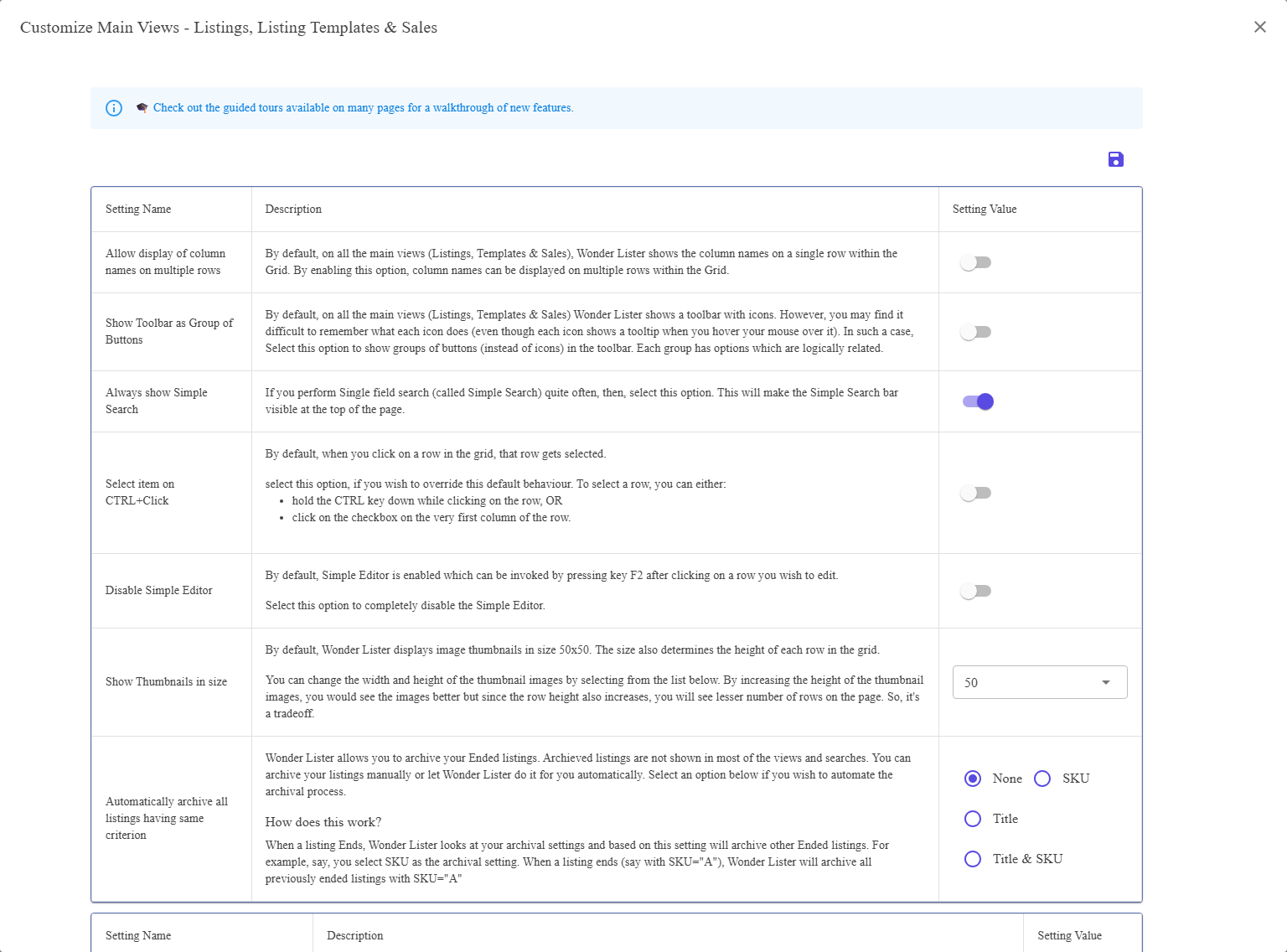
Where to find it
- Choose Listings, Templates or Orders on the left-hand bar.
- Press More in the row of buttons above the grid.
- Under View, choose Customize views.
The five sections
| Section | What it covers |
|---|---|
| Main Views | How the Listings, Listing Templates and Orders grids look and behave — column headings, row selection, the Simple Editor, thumbnail size, and automatic archiving. |
| Update using CSV | Whether a spreadsheet update is allowed to touch compatibilities and variations. Read this one before your first CSV update. |
| Export to CSV | Which columns an export writes, whether compatibilities and variations go with them, and how many rows to put in each file. |
| Listing Submissions | Whether saving an active listing sends it to eBay straight away, and whether price and quantity are included when it does. |
| Bulk assign pictures | How many pictures each item gets when you drop a batch of them onto a selection. |
Saving
There is a save icon at the top right of the dialog and a Save Changes button at the bottom; they do the same thing and both save every section, not only the one you are looking at. Nothing is stored until you press one of them.
Permissions
The dialog is drawn only for an account administrator or a staff account granted Manage Preferences; anyone else is told they are not permitted and shown nothing. Staff permissions are set on Staff Accounts.
FAQ
Is this different from Preferences?
No — these five sections are the same settings, on the same account. Preferences adds the sections this dialog leaves out, such as the editor’s hidden fields and folder behavior.
Why did nothing happen after I changed a setting and closed the dialog?
Closing does not save. Use the save icon at the top or Save Changes at the bottom.
Do these settings apply to Listing Templates and Orders as well as Listings?
The Main Views section applies to all three grids. The other four apply to the operations they name.
Why does the dialog say I am not permitted?
You are signed in as a staff account without the Manage Preferences permission. The account owner grants it on Staff Accounts.
Support
For further assistance you can:
- Email support@wonderlister.com
- Use the Contact Us page inside the application
← Back to the User Guide index
Or go to Support, the FAQs, or contact us.