
← All WonderLister user guides
A layout is a saved set of grid columns — which ones are shown, in what order, and how
wide. This dialog is where you switch the grid from one to another.
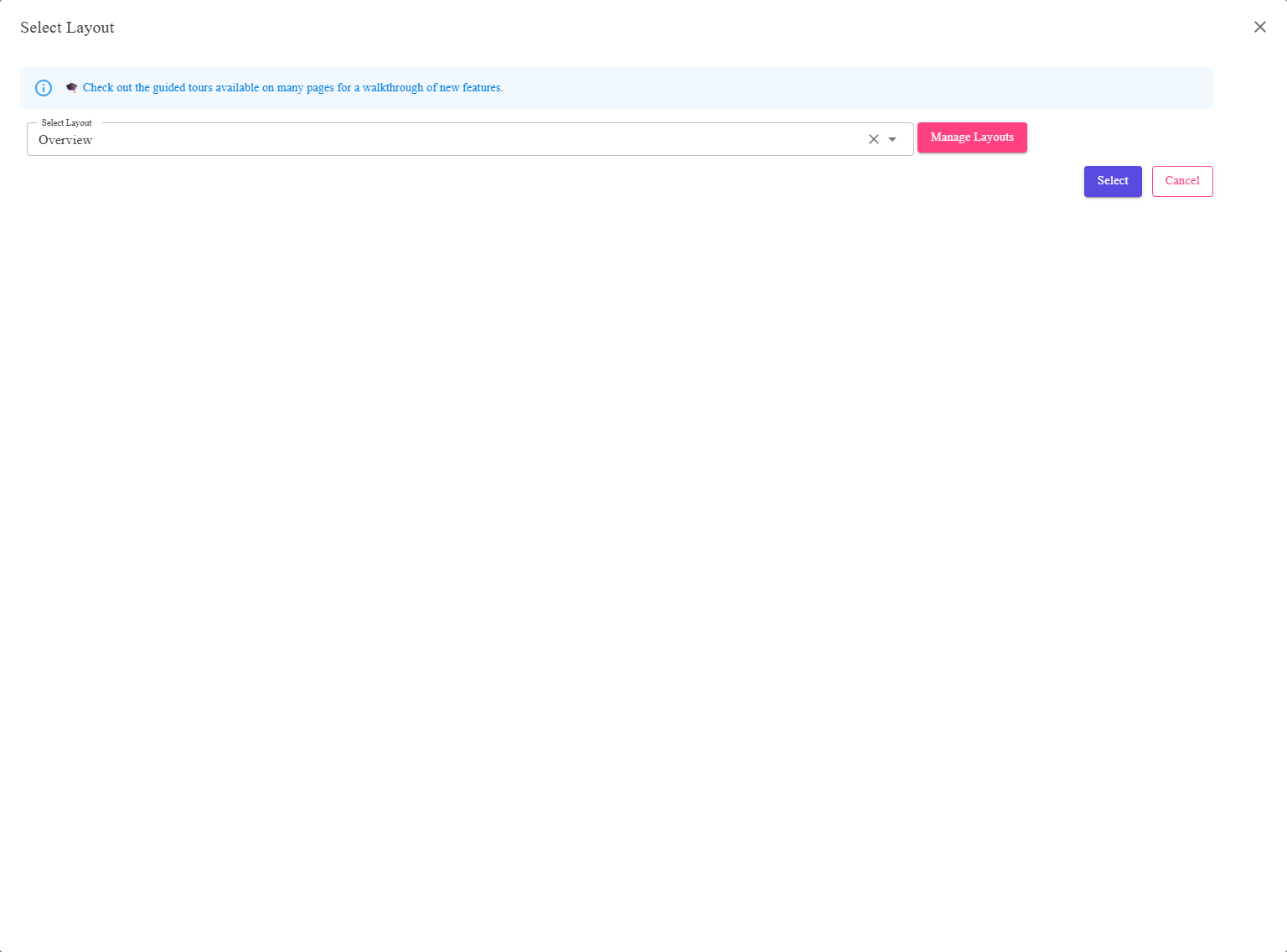
A single picker, a way through to Manage Layouts, and Select or Cancel.
Where to find it
Select Grid Layout on the toolbar of Listings,
Listing Templates or Sales.
What is in the dialog
| Control | What it does |
|---|---|
| Select Layout | The layouts saved for this grid, by name. It can be cleared, which takes the grid back to its default columns. |
| Manage Layouts | Opens Manage Layouts, where layouts are created, edited, renamed and deleted. Come back here to apply one. |
| Select | Applies the chosen layout to the grid. Disabled until you choose one. |
| Cancel | Closes without changing anything. |
Layouts belong to a view. A layout built for Listings does not appear on Sales — the two
grids hold different things, so their columns are different. Each view has its own set.
grids hold different things, so their columns are different. Each view has its own set.
Why the layout matters beyond appearance
- Exporting. With Export data only for Columns in Current View on, the layout
decides what an export contains — see Export to CSV. - Sorting. Only a column you can see can be sorted by clicking its heading. For anything
else use Select Sort Parameters. - Speed. A layout with far fewer columns draws faster on a large grid.
FAQ
Q: The layout I want is not in the list.
A: Either it was built for a different view, or it has not been created yet. Use
Manage Layouts.
Manage Layouts.
Q: How do I get back to the default columns?
A: Clear the picker rather than choosing another layout.
Q: The Select button is greyed out.
A: Nothing is chosen yet. Pick a layout from the list.
Q: My export is missing columns I can see on screen.
A: Check Export to CSV. Compatibilities
and variations need the Number of Compatibilities and Number of Variations columns in
the layout when exporting by current view.
and variations need the Number of Compatibilities and Number of Variations columns in
the layout when exporting by current view.
Support
For further assistance you can:
- Email [email protected]
- Use the Contact Us page inside the application
← Back to the User Guide index
Or go to Support, the FAQs, or contact us.