← All WonderLister user guides
Records that an order has been dispatched, and on what date. Doing it here rather than on eBay keeps WonderLister and eBay in step.
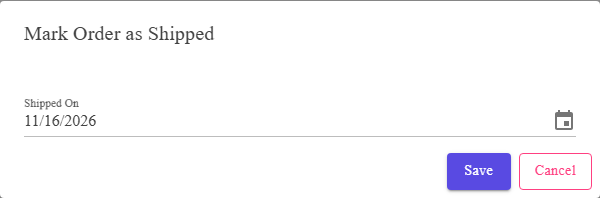
Where to find it
- Click Orders in the bar on the left. The Orders page opens.
- Tick the box beside each order you have sent. More than one order can be marked at a time.
- Click Mark shipped on the toolbar. The Mark Order as Shipped dialog opens.
What it asks
| Field | What it is |
|---|---|
| Shipped On | The dispatch date. Pick it from the calendar or type it. |
| Save | Records the dispatch. |
| Cancel | Closes without recording anything. |
How to use it
- Pick the date the parcel went in Shipped On.
- Click Save. The dialog shows Order successfully marked as Shipped.
Leaving the date empty shows Shipped date must be entered; a date in the future shows Shipped date/time can not be in the future.
Why the date matters
eBay measures your dispatch time against the handling time promised in the shipping policy, and that feeds your seller standards. Enter the date the parcel really went, not the date you got round to recording it.
FAQ
Can I mark several orders shipped at once?
Yes. Select them all before opening the dialog; they take the same date.
Why does the buyer say they have no tracking number?
Marking shipped does not send one. Use Tracking info on the toolbar — see Enter Tracking Info.
What if I entered the wrong date?
Run it again with the right one.
Does eBay find out?
Yes — recording dispatch here is what keeps eBay’s record and yours the same.
Support
For further assistance you can:
- Email support@wonderlister.com
- Use the Contact Us page inside the application
← Back to the User Guide index
Or go to Support, the FAQs, or contact us.