← All WonderLister user guides
Records the carrier and tracking number for one or more orders and passes them to eBay, which is what puts the tracking link in front of the buyer.
Where to find it
- Click Orders in the bar on the left. The Orders page opens.
- Tick the box beside each order.
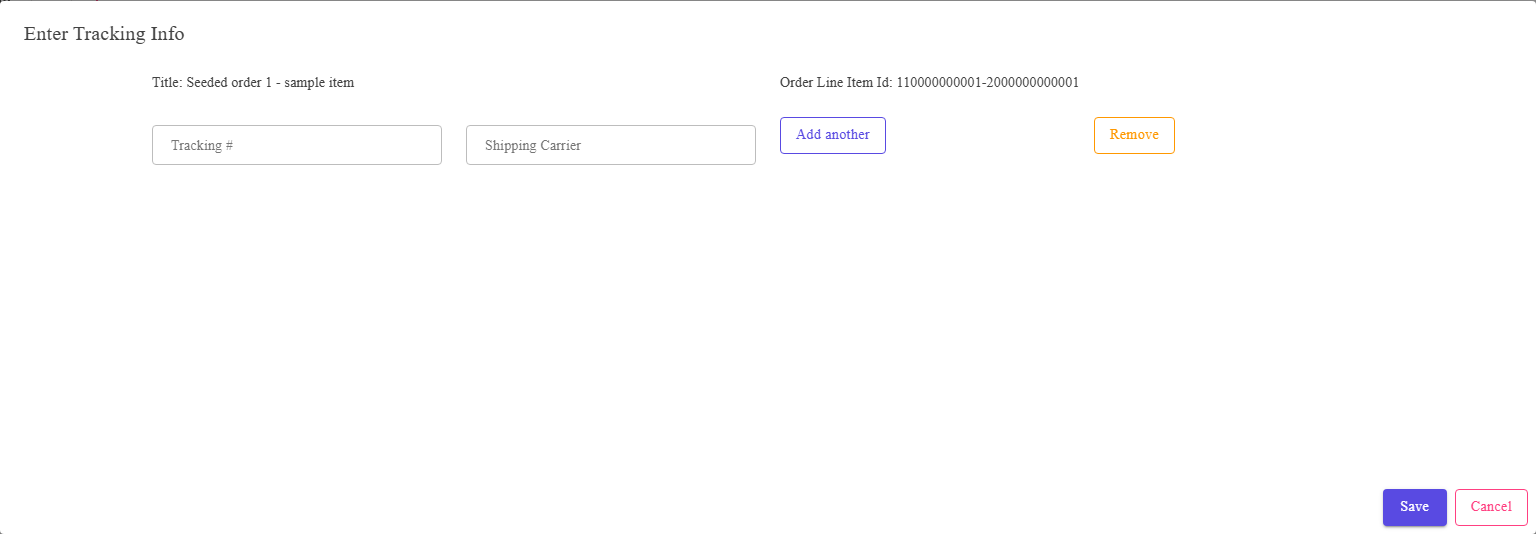
- Click Tracking info on the toolbar. The Enter Tracking Info dialog opens.
How it is laid out
One block per selected order, each showing that order’s title and line item id and its own tracking fields — see Enter Tracking Info (one order) for what a block contains. At the foot of the dialog:
| Button | What it does |
|---|---|
| Save | Stores every block at once and sends the numbers on. |
| Cancel | Closes without saving anything, including blocks you had filled in. |
How to use it
- Mark the orders shipped first, with Mark shipped on the toolbar (see Mark Order as Shipped).
- Select the same orders and click Tracking info.
- Fill in the number and carrier in each block.
- Click Save.
FAQ
Do I have to mark the order shipped first?
They are separate actions and either can be done first, but shipped-then-tracking is the order the buyer expects to see.
Why can’t the buyer track the parcel?
Check that the carrier is filled in as well as the number, and check the number for typos.
Can I paste numbers in from a spreadsheet?
Not into this dialog. For large volumes, ask support about the CSV routes.
What happens to the blocks I filled in if I press Cancel?
They are gone — Cancel discards the whole dialog.
Support
For further assistance you can:
- Email support@wonderlister.com
- Use the Contact Us page inside the application
← Back to the User Guide index
Or go to Support, the FAQs, or contact us.