
← All WonderLister user guides
These settings govern the three main grids together: Listings,
Listing Templates and Sales. They decide how the
toolbar is drawn, how a row is selected, how tall the rows are, and what happens to an ended listing.
Where to find it
The first section of the Customize Views dialog, and the
Main Views section of Preferences. They are the same
settings.
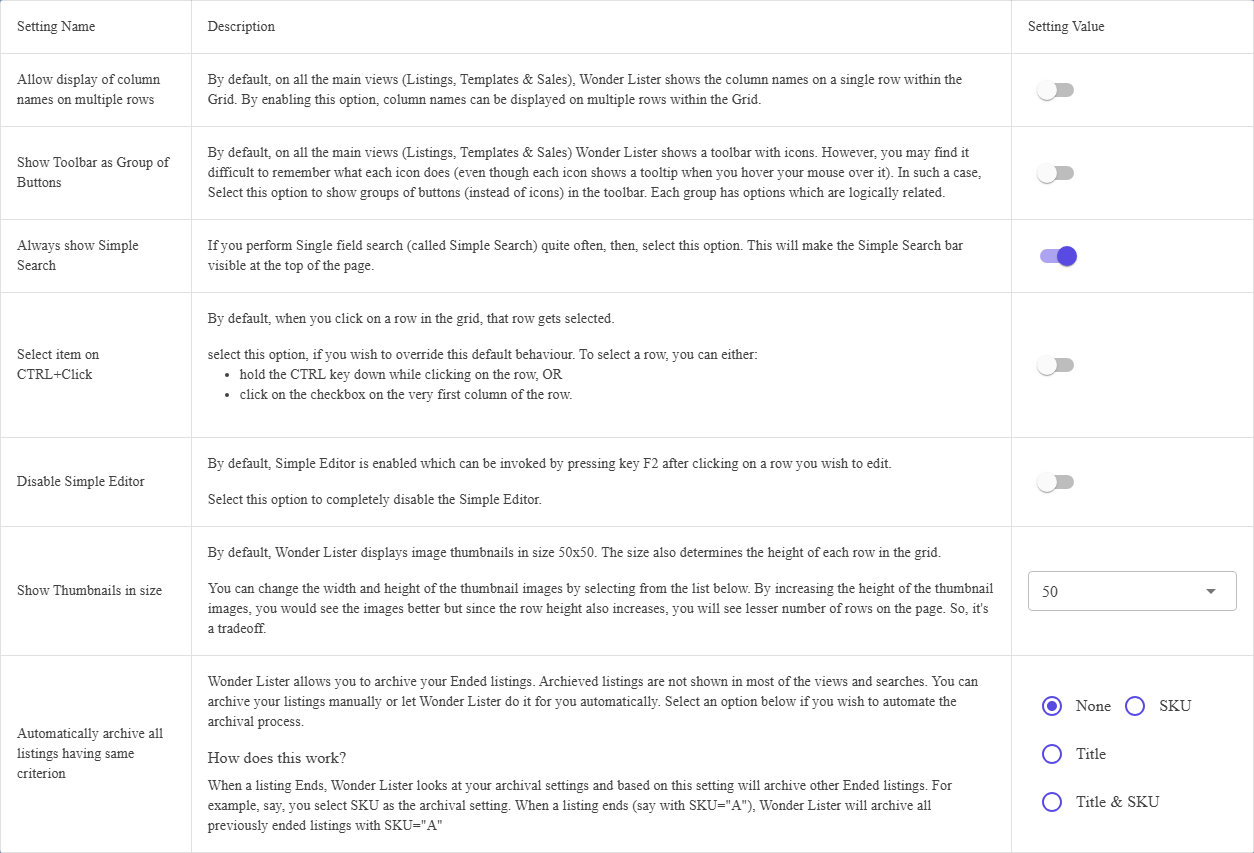
The settings
| Setting | What it does |
|---|---|
| Allow display of column names on multiple rows | Column headings are normally kept to a single line. Turn this on and a long heading wraps onto several, which makes narrow columns readable at the cost of a taller header. |
| Show Toolbar as Group of Buttons | Switches the toolbar between its two layouts: icons by default, or named buttons grouped by what they are for. See the icon toolbar and the labelled-button toolbar — every action exists in both, only its position changes. |
| Always show Simple Search | Keeps the single-field search bar at the top of the page instead of hiding it behind the magnifier. Worth turning on if you search constantly. With it on, the toolbar drops its Simple Search icon, because the bar is already there. |
| Select item on CTRL+Click | Normally clicking anywhere on a row selects it. Turn this on and a plain click no longer selects — you either hold CTRL while clicking, or click the checkbox in the first column. Use itif you keep changing your selection by accident. |
| Disable Simple Editor | The Simple Editor is the cut-down editor that opens in a dialog when you select a row and pressF2. This turns it off entirely. |
| Show Thumbnails in size | 25, 50, 100, 150 or 200 pixels; 50 is the default. The thumbnail size also sets the row height, so a bigger picture means fewer rows on screen — that is the trade. |
| Automatically archive all listings having same criterion | None, SKU, Title, or Title & SKU. See below. |
Editor section of Preferences, and it is one setting — turning
it on in either place turns it on in both.
Automatic archiving
Archiving takes an ended listing out of most views and searches without deleting it. You can archive by hand,
or have WonderLister do it for you when a listing ends.
| Option | What happens when a listing ends |
|---|---|
| None | Nothing. Archive by hand. This is the default. |
| SKU | Every previously ended listing with the same SKU is archived. |
| Title | Every previously ended listing with the same title is archived. |
| Title & SKU | Both must match before a listing is archived. |
So if you choose SKU and a listing with SKU A ends, every earlier ended listing
with SKU A is archived. The rule only ever applies to listings that have already ended —
nothing live is touched.
FAQ
both are documented — icons and
labelled buttons.
top of the page and the toolbar icon that used to summon it is no longer drawn.
CTRL whileclicking, or use the checkbox in the first column.
so 25 or 50 fits far more on screen than 200.
views and searches leave archived listings out. Set the option back to None if you would
rather archive by hand.
have already ended.
Support
For further assistance you can:
- Email [email protected]
- Use the Contact Us page inside the application
← Back to the User Guide index
Or go to Support, the FAQs, or contact us.