
← All WonderLister user guides
Where an invoice template is written — the invoice your buyers get. It works exactly like the
description template editor: HTML, plus tags that are replaced
with the real order details when the invoice is produced.
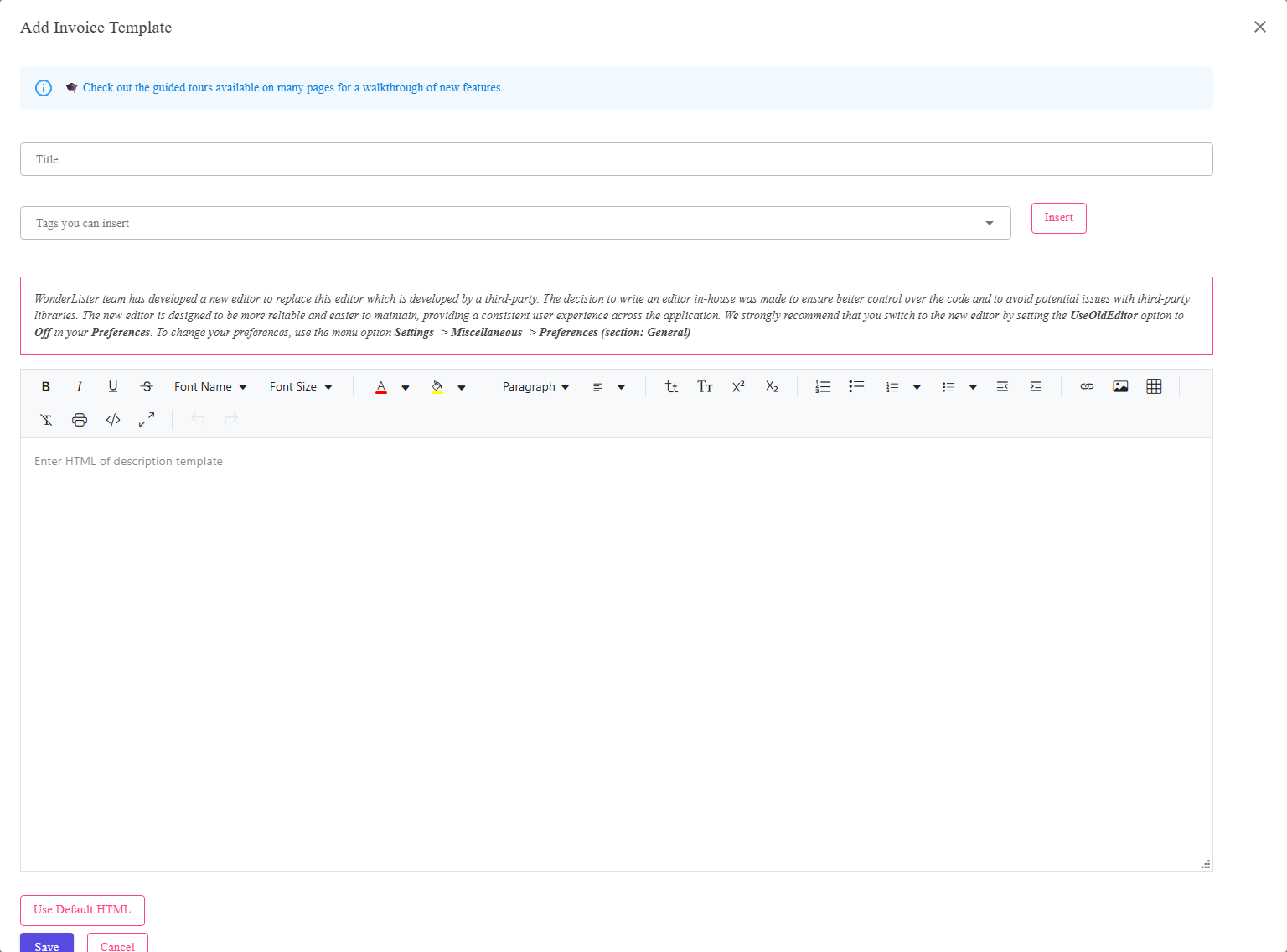
The title, the tag picker with Insert, Use Default HTML, and the HTML editor.
Where to find it
The Invoice Templates page, from the settings menu. Add a new template or edit an existing one.
What is in the editor
| Control | What it does |
|---|---|
| Title | What the template is called. |
| Tags you can insert | The tags available — the order number, the buyer, the lines, the totals. Managed on Invoice Template Tags. |
| Insert | Puts the chosen tag in at the cursor. |
| Use Default HTML | Replaces what is in the box with WonderLister’s own ready-made invoice. The quickest way to start — and the way back if an edit has gone wrong. |
| The HTML box | The invoice itself. |
| Save | Stores the template. |
| Cancel | Closes without saving. |
Use Default HTML overwrites what is in the box. It does not merge. Copy anything you want to
keep before pressing it.
keep before pressing it.
How to build one
- Press Use Default HTML to start from a working invoice.
- Change the parts that are yours — the heading, your address, your payment terms.
- Insert tags where the order’s own details belong.
- Save, then preview it from the Invoice Templates page.
Where invoices are produced
From the Sales page: select the orders and press Invoices on the
toolbar.
FAQ
Q: I have made a mess of the HTML.
A: Use Default HTML puts the standard invoice back, and you can start
again.
again.
Q: My invoice is missing the order total.
A: A total appears because a tag puts it there. Insert the tag for it.
Q: Can I have different invoices for different accounts?
A: Create as many templates as you need and choose the right one when producing the
invoices.
invoices.
Q: Is this the invoice eBay sends?
A: No. eBay has its own. This one is produced by WonderLister from the
Sales page.
Sales page.
Support
For further assistance you can:
- Email [email protected]
- Use the Contact Us page inside the application
← Back to the User Guide index
Or go to Support, the FAQs, or contact us.