
← All WonderLister user guides
These settings decide what an export contains and how it is split up: which columns are written, whether
compatibilities and variations go with them, and how many rows are put in each file. Most of them exist
because a large export is memory-hungry and can fail — these are the levers for making one succeed.
Where to find it
The third section of the Customize Views dialog, and the
Export to CSV section of Preferences. They are the same
settings. The export itself is started from the grid — see
Customize Export Listings.
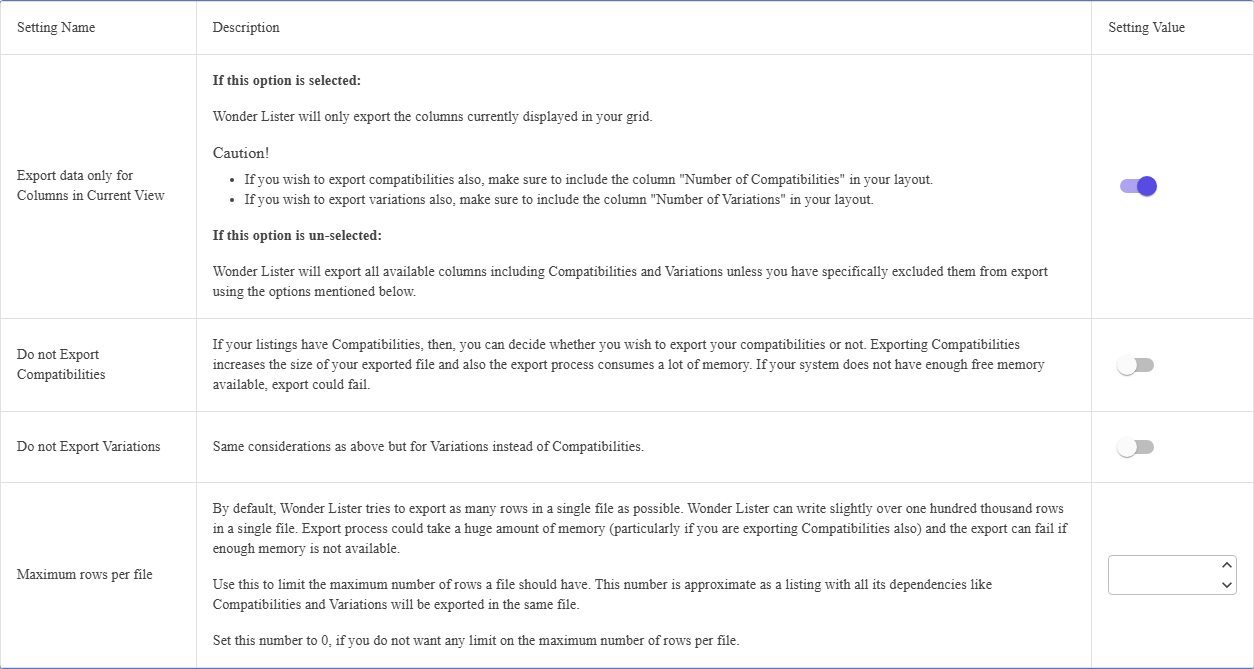
The settings
| Setting | What it does |
|---|---|
| Export data only for Columns in Current View | On: only the columns currently in your grid layout are exported. Off: every available column is exported, including compatibilities and variations unless the two switches below exclude them. |
| Do not Export Compatibilities | Leaves compatibilities out. They make the file considerably larger and the export considerably hungrier for memory; on a machine short of it, that is what makes an export fail. |
| Do not Export Variations | The same, for variations. |
| Maximum rows per file | Splits the export across several files once it passes this many rows. 0 means no limit.The number is approximate — a listing and everything belonging to it always stay in the same file. |
the export writes only what your layout holds — so if you want compatibilities you must have the
Number of Compatibilities column in the layout, and for variations the Number of Variations
column. Without them the export is quietly main rows only. Grid layouts are managed on
Manage Layouts.
Row limits
There is a ceiling on how many rows one file can usefully hold. In the desktop application it is Microsoft
Excel’s limit of a little over a million rows; in the online application WonderLister writes a little over a
hundred thousand rows per file. Setting Maximum rows per file below that splits a large
export into several smaller files, each of which opens and processes more easily.
Set it to 0 only when you know the export is small, or when whatever reads the file has no
problem with size.
If an export fails
- Exclude compatibilities, then variations. They are the bulk of the memory cost.
- Set a row limit — 50,000 or 100,000 is a reasonable starting point.
- Export fewer listings at a time, using a search or a folder to narrow the selection.
- Turn on “Columns in Current View” and trim the layout to the columns you actually need.
FAQ
Export data only for Columns in Current View is on and your layout has no
Number of Compatibilities column.
selection. Compatibilities are usually the cause.
0 for no limit.files — its compatibilities and variations stay with it.
Update using CSV first. If the export left
compatibilities or variations out, an update from it can delete them from your listings.
Support
For further assistance you can:
- Email [email protected]
- Use the Contact Us page inside the application
← Back to the User Guide index
Or go to Support, the FAQs, or contact us.