
← All WonderLister user guides
Customize Views is the settings dialog you reach from the main grids. It gathers the
settings that govern how those grids look and behave, what a CSV update and a CSV export do, what happens
when you save an active listing, and how many pictures a bulk drop assigns to each item.
Where to find it
On the Listings page, open Customize Views from the toolbar —
it is under Miscellaneous in the icon layout and in the views
group in the labelled-button layout.
you can reach them without leaving the grid you are working in; Preferences
shows the same five sections alongside everything else, and changing a setting in one place changes it in
the other.
The five sections
| Section | What it covers |
|---|---|
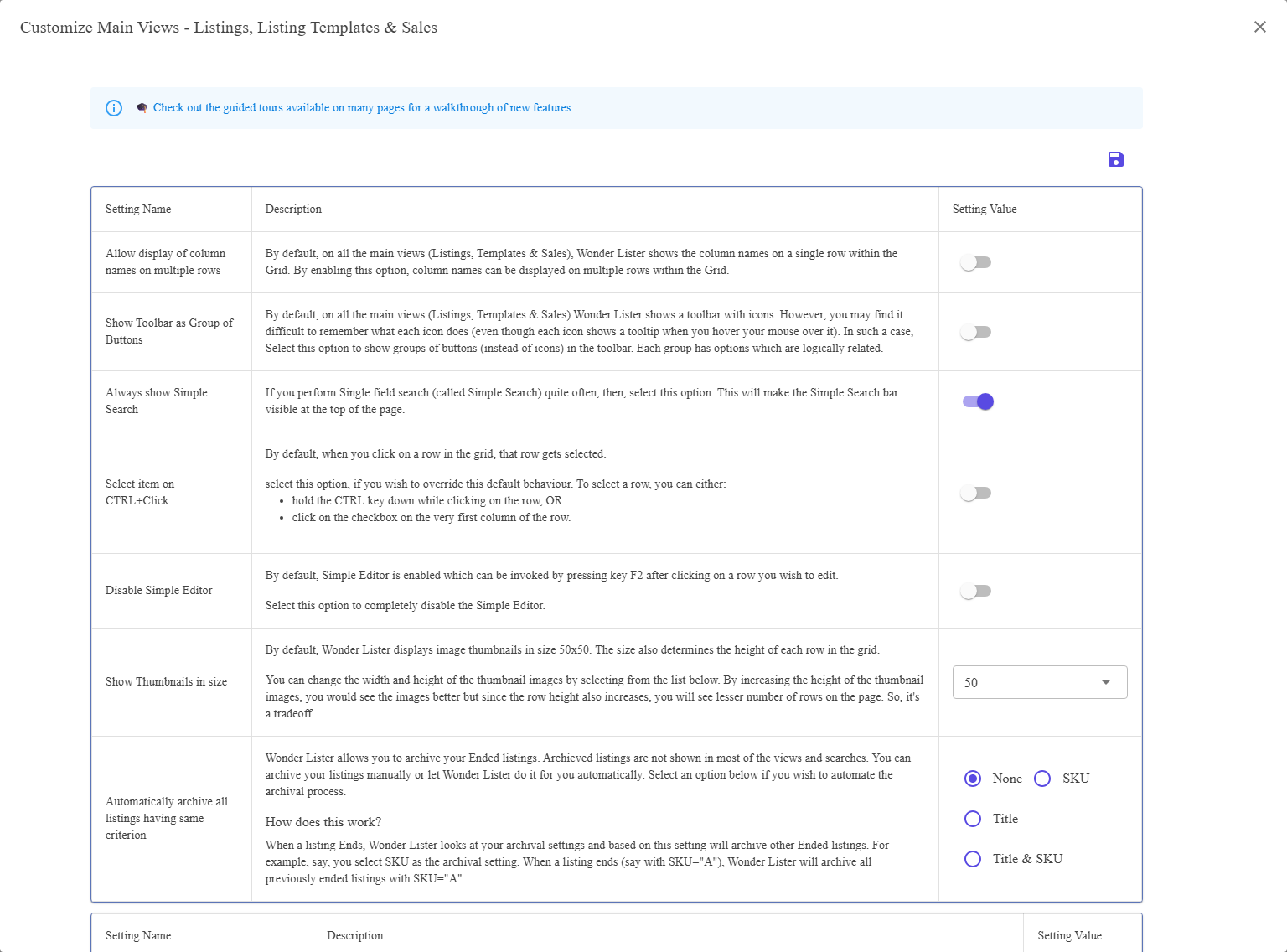
| Main Views | How the Listings, Listing Templates and Sales grids look and behave — the toolbar layout, the search bar, row selection, thumbnail size, and automatic archiving. |
| Update using CSV | Whether a spreadsheet update is allowed to touch compatibilities and variations. Read this one before your first CSV update. |
| Export to CSV | Which columns an export writes, whether compatibilities and variations go with them, and how many rows to put in each file. |
| Listing Submissions | Whether saving an active listing sends it to eBay straight away, and whether price and quantity are included when it does. |
| Bulk assign pictures | How many pictures each item gets when you drop a batch of them onto a selection. |
Saving
There is a save icon at the top right of the dialog and a Save Changes button at the
bottom; they do the same thing and both save every section, not only the one you are looking at.
Nothing is stored until you press one of them.
Permissions
The dialog is drawn only for an account administrator or a staff account granted Manage Preferences;
anyone else is told they are not permitted and shown nothing. Staff permissions are set on
Staff Accounts.
FAQ
adds the sections this dialog leaves out, such as the editor’s hidden fields and folder behaviour.
Save Changes at the bottom.
apply to the operations they name.
permission. The account owner grants it on Staff Accounts.
Support
For further assistance you can:
- Email [email protected]
- Use the Contact Us page inside the application
← Back to the User Guide index
Or go to Support, the FAQs, or contact us.