← All WonderLister user guides
A layout is a saved set of grid columns — which appear, and in what order. This page is where layouts are built, changed and deleted. To put one to use, choose it in the Layout dropdown above the grid on Listings, Listing Templates or Orders.
Where to find it
- Choose Settings on the left-hand bar.
- Choose Layouts in the list of settings.
The Manage Layouts button in the Select Layout dialog opens it too.
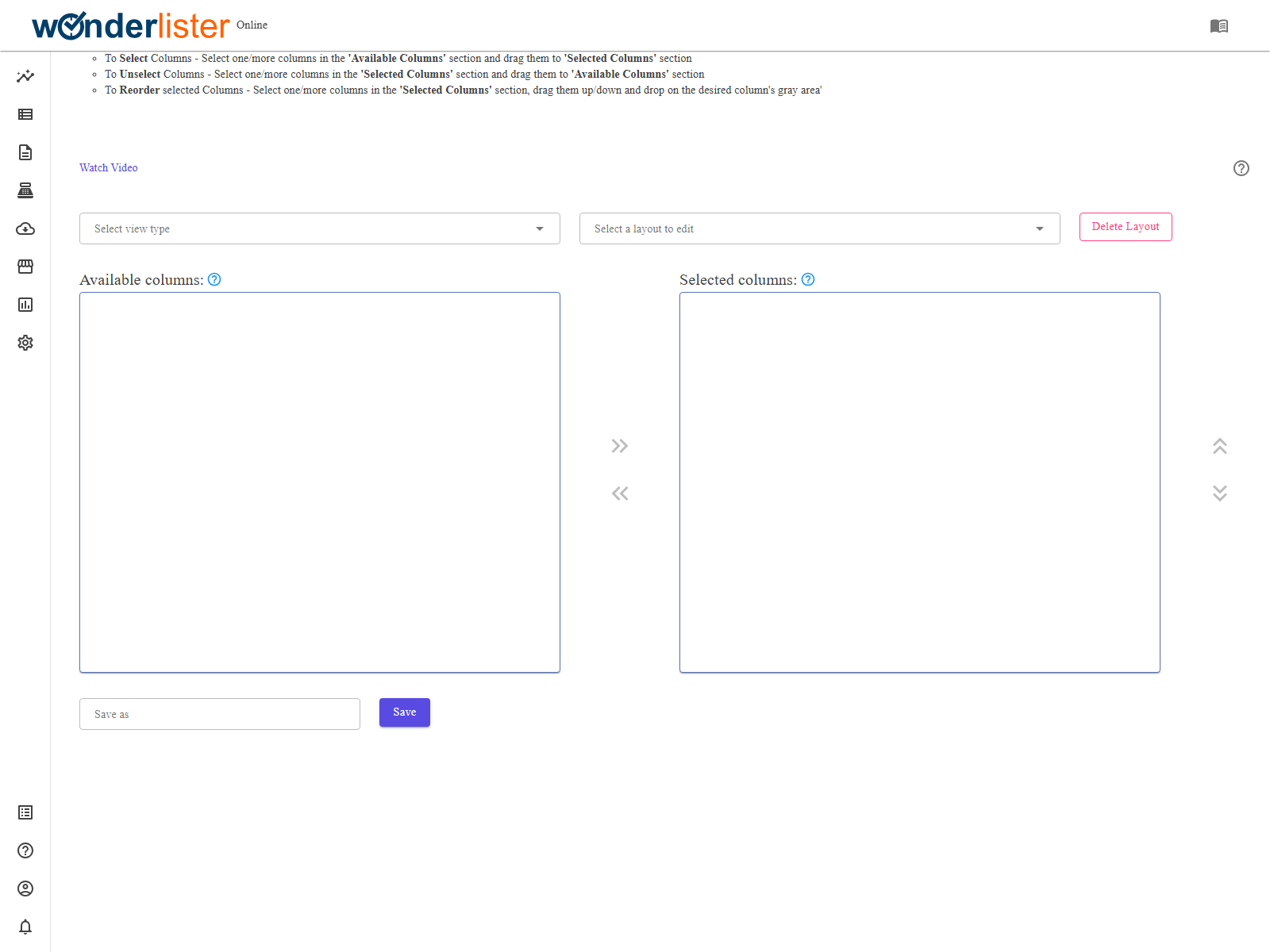
How the page works
- To add columns — select one or more in Available Columns and drag them into Selected Columns.
- To remove columns — drag them from Selected Columns back to Available Columns.
- To reorder — drag within Selected Columns and drop on the gray area of the column you want to sit beside.
The order in Selected Columns is the order the grid will draw them, left to right.
The controls
| Control | What it does |
|---|---|
| Select view type | Which grid the layout is for — Listings, Listing Templates or Sales. The available columns change with it. |
| Select a layout to edit | An existing layout to change. |
| Save as | The name to save under. Type a new name to create a new layout; leave the existing one to overwrite it. |
| Save | Stores the layout. |
| Delete Layout | Deletes the layout in the picker. |
| Watch Video | A short video about layouts. |
Why a layout is worth building
- Exports follow it. With Export data only for Columns in Current View on, the layout decides what an export contains — including whether compatibilities and variations come with it. See Export to CSV.
- Only visible columns sort by clicking. For anything else use Select Sort Parameters.
- Fewer columns draw faster on a large grid.
How to build one
- Choose the view type.
- Drag the columns you want into Selected Columns, and order them.
- Type a name in Save as.
- Press Save.
- Apply it from the grid: choose it in the Layout dropdown.
FAQ
Why hasn’t the grid changed after I saved a layout?
Saving does not apply it. Go to the grid and choose it in the Layout dropdown.
Why isn’t a column I need in the available list?
Check the view type — the columns offered are the ones that grid has.
How do I copy a layout?
Open it, then type a different name in Save as and save. The original is untouched.
Why is my export missing compatibilities?
When exporting by current view, the layout must include the Number of Compatibilities column — and Number of Variations for variations. See Export to CSV.
Support
For further assistance you can:
- Email support@wonderlister.com
- Use the Contact Us page inside the application
← Back to the User Guide index
Or go to Support, the FAQs, or contact us.