← All WonderLister user guides
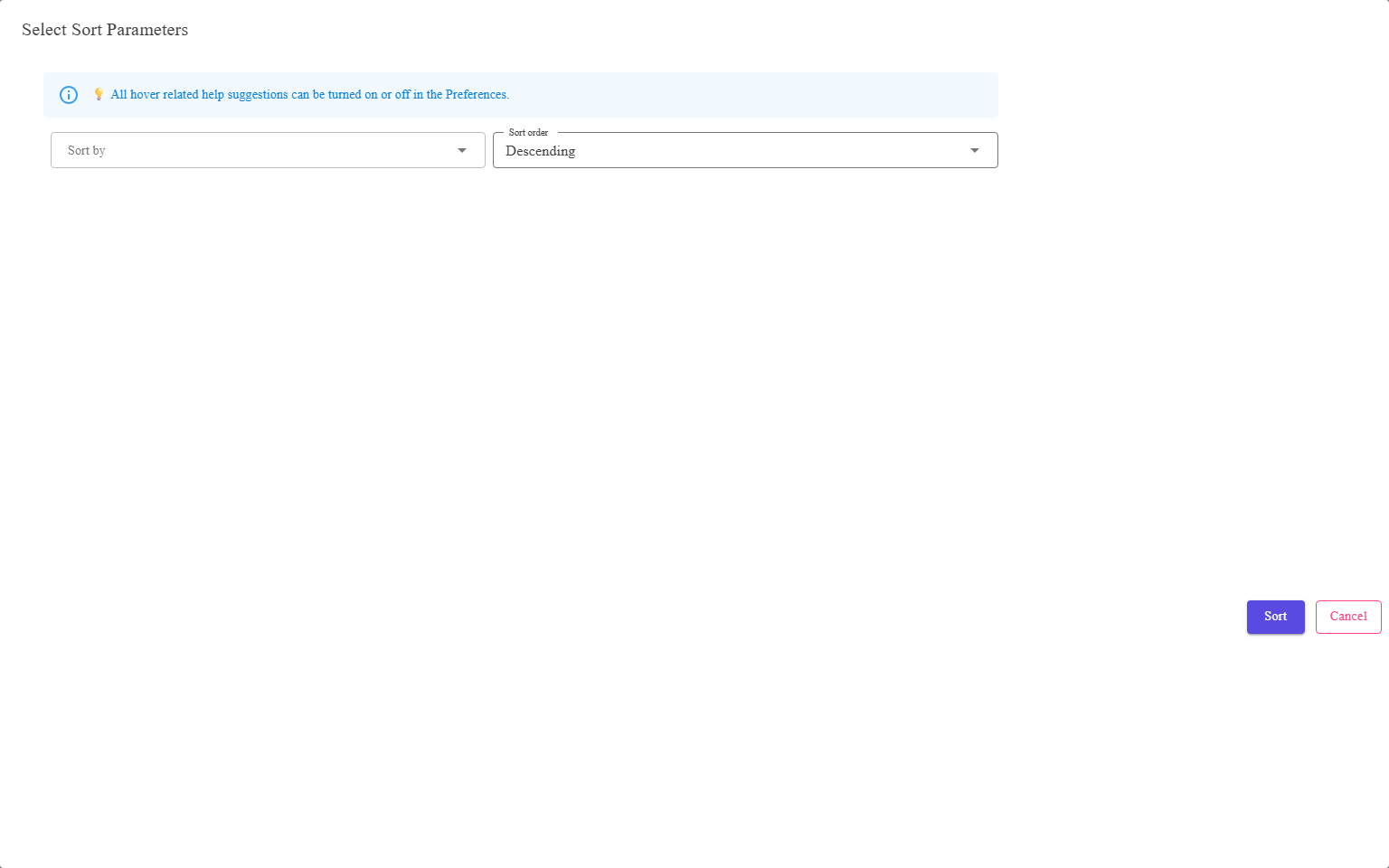
Sorts the whole grid by a field of your choosing. Clicking a column heading sorts too, but only by a column you can see; this dialog reaches every sortable field, whether or not your layout shows it.
Where to find it
- Choose Listings, Templates or Orders on the left-hand bar.
- Press More in the row of buttons above the grid.
- Under View, choose Sort. The Select Sort Parameters dialog opens.
It works the same way on Listings, Listing Templates and Orders.
How to sort
- Open the dialog as described above.
- Choose the field in Sort by.
- Choose Ascending or Descending in Sort order.
- Press Sort.
What is in the dialog
| Control | What it does |
|---|---|
| Sort by | The field to sort on. The list is the sortable fields for this grid, under the same names the column headings use. |
| Sort order | Ascending or Descending. |
| Sort | Applies it and closes. |
| Cancel | Closes without changing the order. |
When to use it rather than a column heading
- The field you want to sort on is not in your layout.
- You want to be explicit about the direction rather than clicking twice to find out.
- You are about to bulk assign pictures, which requires the grid to be sorted by Listing Id — see Bulk assign pictures.
FAQ
Why isn’t the field I want offered?
Not every field can be sorted on. If one you need is missing, tell support which field and which grid.
Can I sort by two fields at once?
Not from this dialog — it takes one field and one direction.
Why was my sort lost when I searched?
A new search fetches a fresh result. Apply the sort again afterwards.
Why does clicking a column heading sometimes give a different order?
A heading sorts by that column; this dialog sorts by the field you name, applied to the whole result. On a grid showing one page of many, that is the one to use.
Support
For further assistance you can:
- Email support@wonderlister.com
- Use the Contact Us page inside the application
← Back to the User Guide index
Or go to Support, the FAQs, or contact us.