← All WonderLister user guides
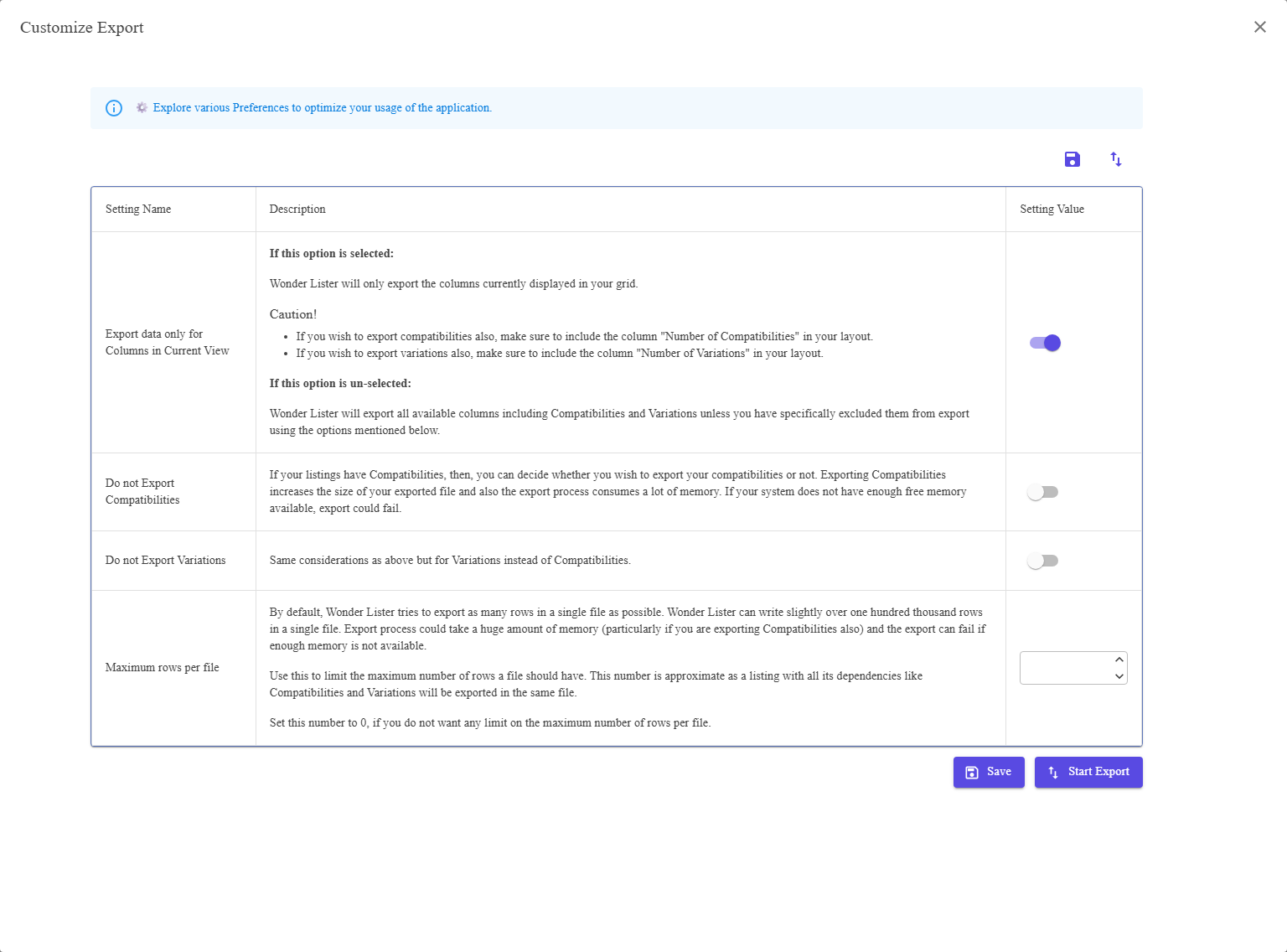
The dialog that starts an export — and lets you settle how it should behave first, without leaving for the settings pages and losing your selection.
Where to find it
- Click Listings (or Templates) in the bar on the left.
- Tick the box beside each item you want to export, or click Select all N beside the selection line for the whole search.
- Click More on the toolbar, then under Files click Export to CSV. The Customize Export dialog opens.
What is in it
The same four settings as the Export to CSV section of Preferences — Export data only for Columns in Current View, Do not Export Compatibilities, Do not Export Variations and Maximum rows per file. They are the same settings on the same account, shown here so you can check them at the moment they matter.
The buttons
| Button | What it does |
|---|---|
| Save | Stores the settings, without exporting. They will be used next time too. |
| Start Export | Runs the export on your selection. |
Both appear twice — as icons at the top right and as buttons at the foot. They do the same thing.
How to use it
- Select what you want to export — a folder or a search is the usual way.
- Click More, then Export to CSV on the toolbar.
- Check the settings.
- Click Start Export. The page shows Preparing export file(s). When done, an email will be sent containing the link(s) to download the exported file(s). It runs in the background; watch it in Activity log.
FAQ
Why did the export fail?
Large exports are memory-hungry, and compatibilities are usually the cause. Exclude them, set a row limit, and export a smaller selection — Export to CSV has the full list of things to try.
Do the settings here change my Preferences?
Yes if you click Save — they are the same settings.
Where does the file go?
The export runs in the background. When it finishes you are sent an email with the link or links to download the file or files, and Activity log records the run.
Can I re-import the file I exported?
Yes, but read Update using CSV first — a file with no compatibility or variation rows can delete them from your listings.
Support
For further assistance you can:
- Email support@wonderlister.com
- Use the Contact Us page inside the application
← Back to the User Guide index
Or go to Support, the FAQs, or contact us.