← All WonderLister user guides
Adds or changes one custom field — a field of your own for something WonderLister has no box for.
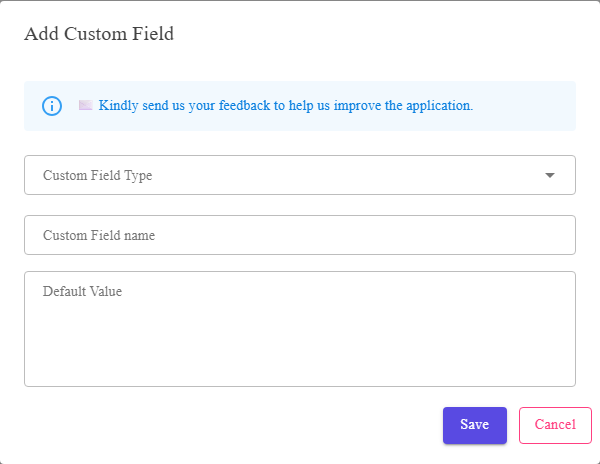
Three fields: the type, the name, and an optional default.
Where to find it
Add or Edit on the Custom Fields page.
The fields
| Field | What it is |
|---|---|
| Custom Field Type | What the field belongs to — Products (listings and listing templates), Sales (orders) or Consignors. This decides where the field will appear. |
| Custom Field name | What the field is called. It becomes a column you can add to a layout, a field you can search on, and a column in exports. |
| Default Value | What a new item starts with in this field. Optional — leave it empty for a field that is different every time. |
Choose the type carefully. A field’s type decides which records carry it, and a field created against the wrong one has to be created again against the right one.
Naming a field
The name is what you will see in the editor, in the search field list, in layouts and at the top of an export column. Short and specific beats long and vague — Lot No rather than Number.
FAQ
Can I change a field’s type later?
The type is what the field hangs off. Create a new field of the right type and move the data.
Does the default value fill in fields on items I already have?
No — it applies to new ones. Use Bulk Edit for existing items.
How many custom fields can I have?
As many as you need. Group related ones with Custom Field Groups so the editor stays readable.
Support
For further assistance you can:
- Email support@wonderlister.com
- Use the Contact Us page inside the application
← Back to the User Guide index
Or go to Support, the FAQs, or contact us.