
← All WonderLister user guides
A custom field group gathers related custom fields under one heading, so a long list of
your own fields reads as a few tidy sections rather than one wall.
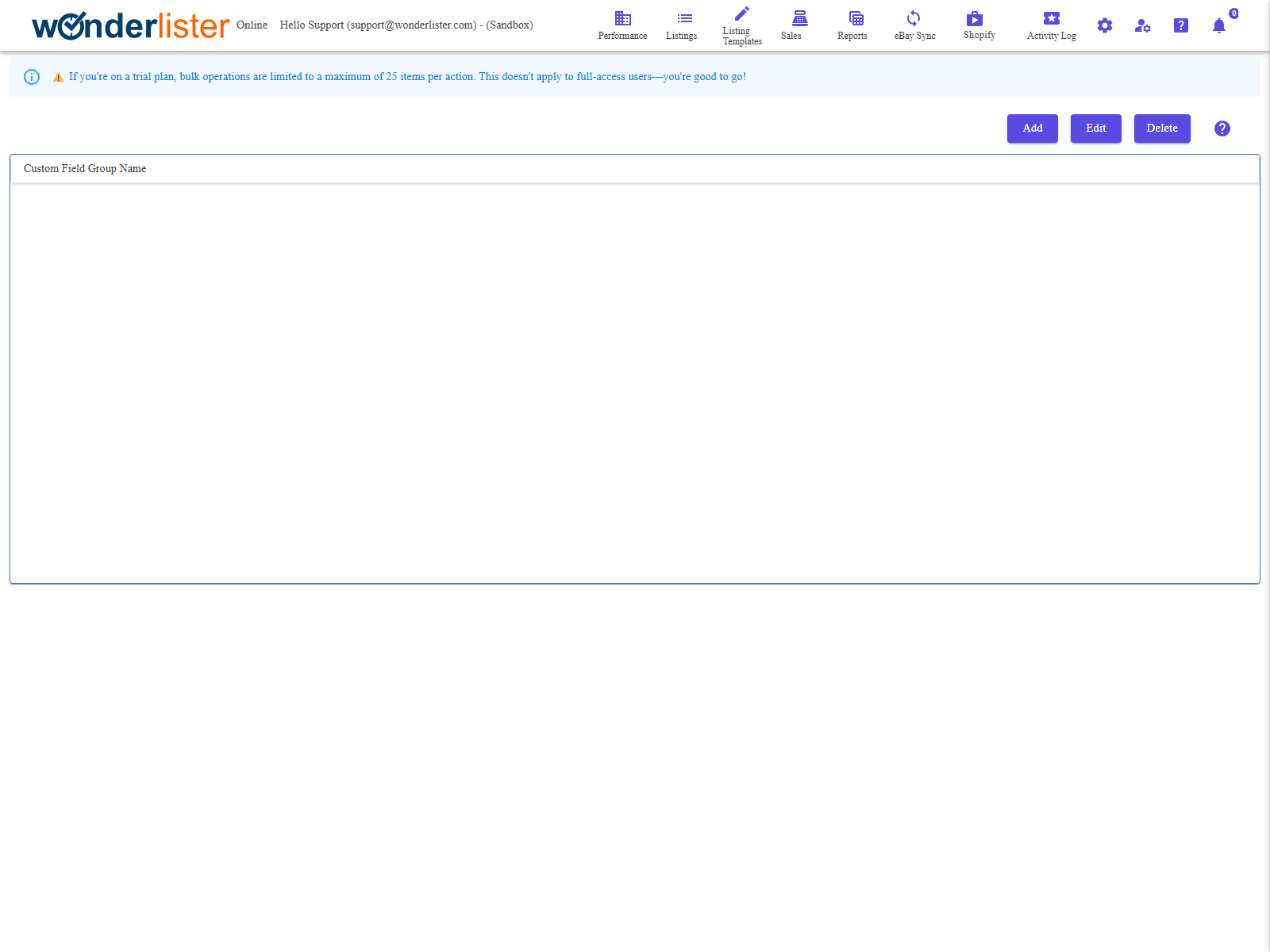
The toolbar, the groups, and the fields in the selected group.
The toolbar
| Button | What it does |
|---|---|
| Add | Opens the group editor on a new group. |
| Edit | Opens it on the selected group. |
| Delete | Deletes the selected group. |
The columns
| Column | What it shows |
|---|---|
| Custom Field Group Name | The group’s name. |
| Custom Field Type | Whether the group is for Products, Sales or Consignors fields. |
| Custom Field Name | The fields in the selected group. |
Deleting a group does not delete its fields. The grouping goes; the fields and everything
stored in them stay. They are still on Custom Fields.
stored in them stay. They are still on Custom Fields.
How to use groups
- Create the fields first, on Custom Fields.
- Create a group of the same type.
- Put the fields in it in the group editor.
FAQ
Q: Can a field be in more than one group?
A: Groups are a way of tidying the fields you have; keep each field in the one group
where it belongs and the editor stays readable.
where it belongs and the editor stays readable.
Q: A field is not offered when I build a group.
A: A group can only hold fields of its own type. A Products group cannot
hold a Sales field.
hold a Sales field.
Q: Do I have to use groups?
A: No. They earn their keep once you have more than a handful of fields.
Support
For further assistance you can:
- Email [email protected]
- Use the Contact Us page inside the application
← Back to the User Guide index
Or go to Support, the FAQs, or contact us.