
← All WonderLister user guides
Bulk edit applies the same change to every item you selected — a price rise across a folder,
a word swapped out of a hundred titles, a policy changed on everything from one account. You describe the
change once and it is carried out in the background.
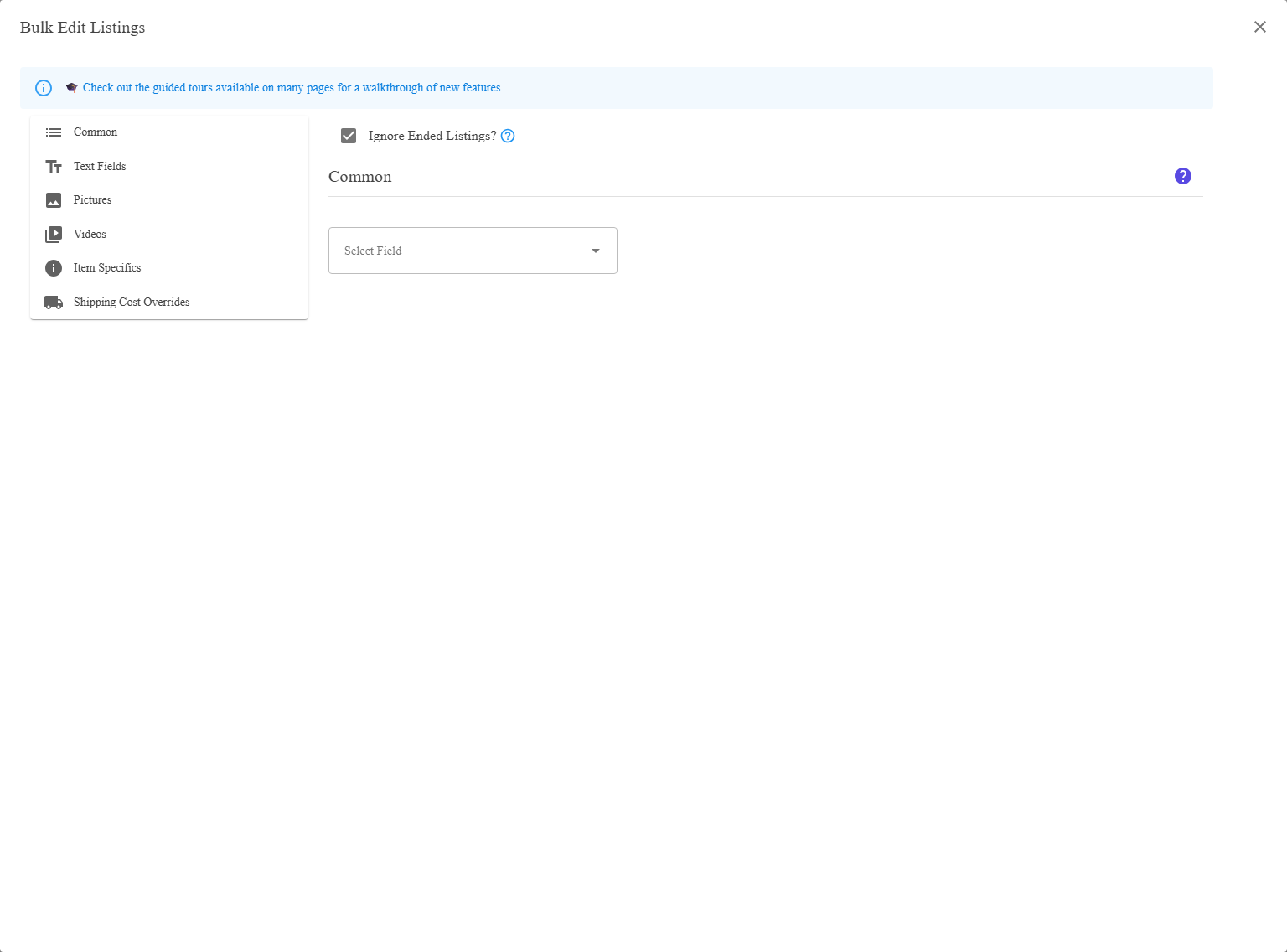
Where to find it
Select the rows, then Bulk Edit on the toolbar of Listings or
Listing Templates. The two are documented separately as
Bulk Edit Listings and
Bulk Edit Listing Templates, because what is worth changing
differs.
header checkbox to select everything, the change reaches every item matching the current search or folder,
not only the page on screen. Read the count before you press Apply.
The four kinds of change
| Group | What it covers |
|---|---|
| Common fields | Price, quantity, policies, format, condition, storage location — anything with one value per item. |
| Text fields | Title, subtitle, SKU, description — fields where you may want to add to, or search within, the text rather than replace it. |
| Pictures | Adding, replacing and removing pictures and video. |
| Item specifics | The category-driven attributes — brand, colour, size and the rest. |
Common fields
Pick a field in Select Field, then give the new value. Two fields ask a further question.
Price
| Price Change Mode | What it does |
|---|---|
| Plus/minus by specified amount | Adds the amount to every price. A negative number takes it off. |
| Plus/minus by specified percentage | Raises or lowers each price by a percentage of itself. |
| Set to specified value | Gives every selected item the same price. |
Quantity
| Quantity Change Mode | What it does |
|---|---|
| Plus/minus specified value | Adds to, or takes from, each item’s quantity. |
| Set to specified value | Gives every selected item the same quantity. |
Text fields
Pick the field, then a Change Option saying how to change the text.
| Change Option | What it does |
|---|---|
| Append | Puts your text on the end of what is there. |
| Prepend | Puts it at the front. |
| Replace | Throws the existing text away and uses yours. |
| Search starting with | Acts only where the field starts with what you typed in Search for. |
| Search ending with | Acts only where it ends with it. |
| Search containing | Acts wherever the text appears. |
The three Search… options add three more controls:
| Control | What it does |
|---|---|
| Search for | The text to look for. |
| Match case? | Whether capitals have to match. |
| Replace with | What to put in its place. Leave it empty to delete the matched text. |
| Replacement mode | Only what matches swaps just the matched text and leaves the rest of the field alone. Entire value throws the whole field away and replaces it. |
Large” into “Blue Gadget Large” when you replace Widget with Gadget. Entire value
turns it into “Gadget” — the whole title, gone. They are one dropdown apart.
Pictures and video
| Action | What it does |
|---|---|
| Add Pictures | Adds to the pictures each item already has. |
| Replace Pictures | Removes the existing pictures and uses yours instead. |
| Remove Pictures | Takes pictures away. |
| Add/Replace Video | Sets the item’s video. |
| Remove Video | Takes the video off. Cancel Remove Video undoes that before you apply. |
eBay caps how many pictures a listing may have, so adding to items that are already near the limit will be
refused for those items. Pictures on a single listing are managed in the editor’s
Pictures section and in Manage Pictures.
Item specifics
| Control | What it does |
|---|---|
| Item specific name | The attribute to set — Brand, Colour, and so on. |
| New value(s) | What to set it to. Some attributes accept more than one value. |
Which item specifics an item can have is decided by its eBay category, so a bulk change across items in
different categories will only reach the ones where that attribute applies.
Shipping cost overrides
| Control | What it does |
|---|---|
| Remove Domestic Cost Overrides? | Clears per-listing domestic shipping prices, so the shipping policy’s own rates apply again. |
| Remove International Cost Overrides? | The same for international services. |
How to use it
- Select the items in the grid. Use a folder or a search to get exactly the set you want.
- Open Bulk Edit from the toolbar.
- Add a change — pick the field, the mode, and the value.
- Add more changes if you want; several are applied in one pass.
- Press Apply Changes.
look at the result before doing it to a thousand.
What happens next
The work runs in the background, so a large bulk edit does not hold up the application. Watch it in
Activity Logs, and you are e-mailed when it finishes unless you have turned
those e-mails off in Preferences.
Whether changed active listings go to eBay by themselves depends on
Listing Submissions. With automatic submission off,
they wait in the Edited – To submit manually folder.
FAQ
just the visible page. Check the count before applying.
matches is the one that swaps just the matched text.
If it has finished, check Listing Submissions;
with automatic submission off the listings are waiting in Edited – To submit manually.
item’s category cannot be set on it.
They are applied together.
Support
For further assistance you can:
- Email [email protected]
- Use the Contact Us page inside the application
← Back to the User Guide index
Or go to Support, the FAQs, or contact us.