
← All WonderLister user guides
Brings your eBay orders down into the Sales page. It runs by itself when you link an
account and as new orders arrive; this is how you run it again over a period of your choosing.
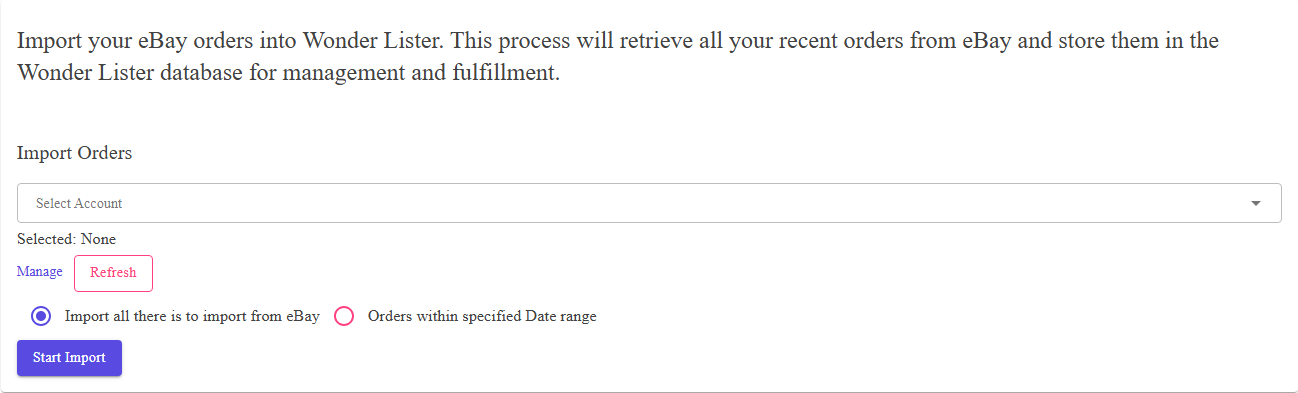
Where to find it
Open eBay Sync from the application bar and choose
Import Orders.
The controls
| Control | What it does |
|---|---|
| Select start and end dates | Limits the import to orders placed in that range. |
| Clear | Empties the date range. |
| Start Import | Queues the import. |
| Cancel | Stops an import that is running. |
eBay’s API, so a range reaching into the distant past will return what eBay still holds and no more.
How an import runs
Pressing Start Import queues the work and gives you the application back. eBay returns large
results a page at a time, and each page is recorded — so
Activity Logs shows how far it has got, not just whether it finished. You are
e-mailed when it completes, unless you have turned those e-mails off in
Preferences.
FAQ
marketplace is ticked on eBay Sites.
version already has them and an import brings them back down unchanged.
imported.
Support
For further assistance you can:
- Email [email protected]
- Use the Contact Us page inside the application
← Back to the User Guide index
Or go to Support, the FAQs, or contact us.