← All WonderLister user guides
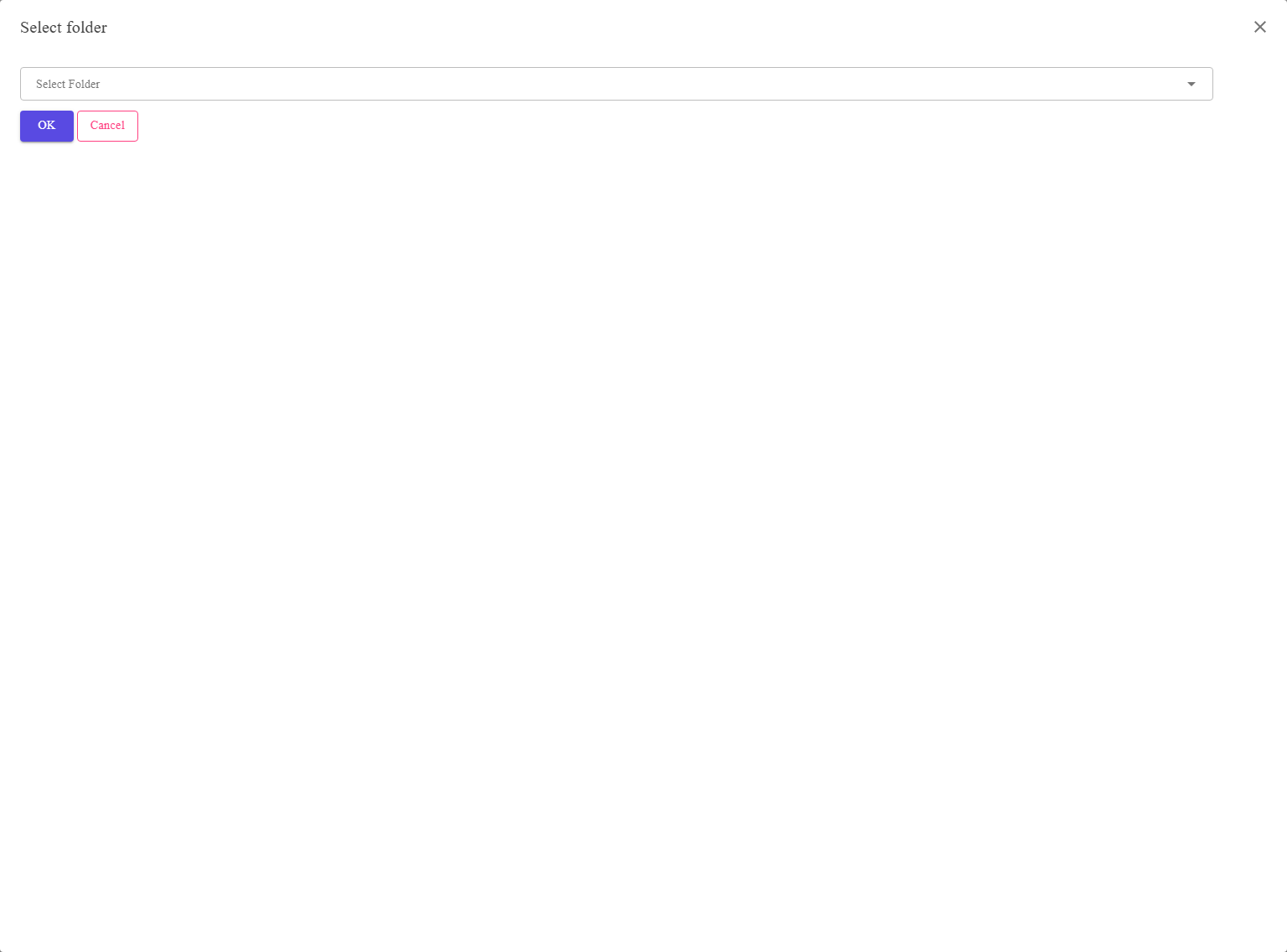
Asks which of your own folders to use. It appears whenever an action needs a folder as its answer — adding the selected rows to a folder, or taking them out of one.
Where to find it
- Choose Listings, Templates or Orders on the left-hand bar.
- Select the rows in the grid.
- Press More in the row of buttons above the grid.
- Under Folders, choose Add to folder or Remove from folder. The Select folder dialog opens.
It works the same way on Listings, Listing Templates and Orders.
Using it
- Select the rows in the grid first — the dialog acts on what is selected.
- Open More and, under Folders, choose Add to folder or Remove from folder.
- Choose the folder in the Select Folder dropdown. A folder inside another is listed under its full path, Parent > Child.
- Press OK.
Pressing OK without choosing a folder does nothing at all — it is treated as Cancel, rather than acting on a folder you did not name.
Only folders with nothing inside them
Items can only be filed into a folder that has no sub-folders — a leaf. The dropdown offers only those, so a parent folder you can see in the folder list is missing here. That is the reason.
When there is nothing to choose
The dropdown is never shown empty. In its place the dialog shows one of these messages:
| Message | What to do |
|---|---|
| Your folders could not be loaded, so there is nothing to choose from. Close this and try again. | The list of folders did not arrive. Press Cancel and choose the action again. |
| You have no folders that can hold items. A folder with subfolders cannot, so add a subfolder, or create a folder of your own on Manage Folders. | None of your folders can take an item — you have none yet, or every one has sub-folders. Create one on Manage Folders. |
One folder or several?
By default an item lives in one folder at a time: adding it to a second takes it out of the first. That is the Ensure one item (Listing, Listing Template, Order) can be in one folder only setting in the Folders section of Preferences, which is on to begin with. Turn it off to let an item belong to several folders at once.
FAQ
Why is there a message where the dropdown should be?
You have no folder that can hold items yet, or your folders could not be loaded. Create folders on Manage Folders — the Manage link beside My folders in the folder list opens it.
Why can’t I see the Active folder in here?
It is a system folder. WonderLister decides what is in it from the state of your listings, so nothing can be filed into it by hand.
Why is a folder I use every day missing from this dialog?
Either the action needs a folder with no sub-folders and yours has some, or the folder belongs to a different view. Folders can be made view-specific — see the Folders section of Preferences.
Why did nothing happen when I pressed OK?
No folder was selected, which is treated as canceling. Choose one and press OK again.
Why did adding to a folder remove the item from another one?
That is the default — one item, one folder. Turn Ensure one item (Listing, Listing Template, Order) can be in one folder only off in Preferences to allow several.
Support
For further assistance you can:
- Email support@wonderlister.com
- Use the Contact Us page inside the application
← Back to the User Guide index
Or go to Support, the FAQs, or contact us.