← All WonderLister user guides
The questions buyers and other eBay members have asked about one of your listings, and where you answer them.
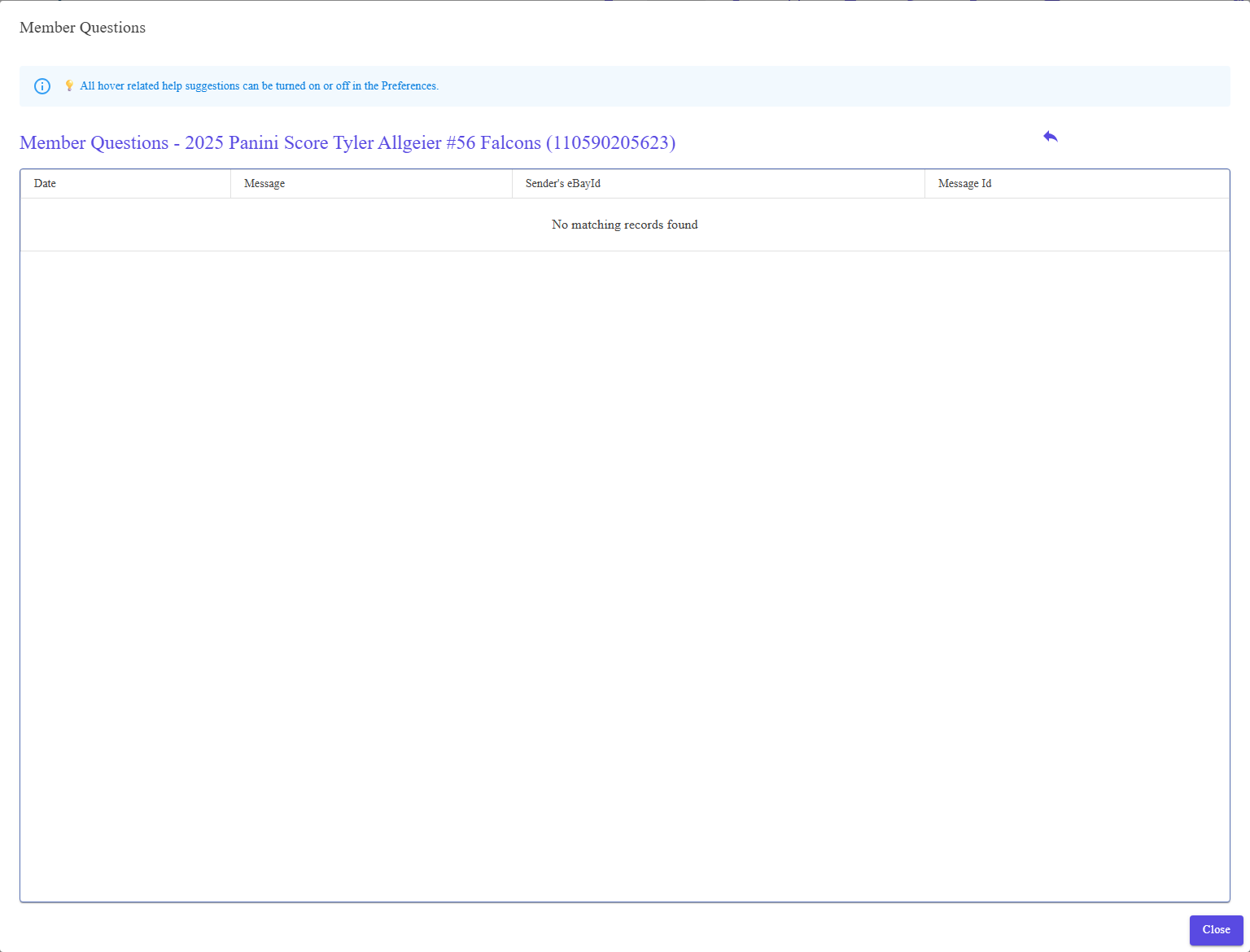
Where to find it
- Click Listings in the bar on the left.
- Tick the box beside the listing.
- On the toolbar, click More, then under Listing click Respond to questions. The Member Questions dialog opens.
The heading names the item and its eBay item number, so you can be sure which listing you are looking at.
What is in it
| Item | What it is |
|---|---|
| The heading | Member Questions, the item title, and the eBay item number. |
| Respond | The reply arrow beside the heading. Select a message first. |
| The message list | Every question on this listing, with its Date, Message, Sender’s eBayId and Message Id. One is selected at a time. |
| Close | Closes the dialog. |
How to answer
- Select the message in the list.
- Click Respond — the reply arrow. A dialog headed Your response to the item opens, showing the question.
- Type your reply in the Response box.
- Click OK. The reply goes to the member through eBay.
FAQ
Why does Respond do nothing?
Select a message in the list first — the button acts on the selected one. With none selected you are told Please select a message.
Is this the same as messaging a buyer about an order?
No. This is questions about a listing. For an order, use More › Order › Message buyer on the Orders page.
Why isn’t a question I can see on eBay here?
Questions are read from eBay for the selected listing. Refresh the listing with More › eBay › Refresh from eBay, and check Activity log for a failed fetch.
Can I answer several at once?
No — one message at a time, since each needs its own answer.
Support
For further assistance you can:
- Email support@wonderlister.com
- Use the Contact Us page inside the application
← Back to the User Guide index
Or go to Support, the FAQs, or contact us.