
← All WonderLister user guides
Asks which of your own folders to use. It appears whenever an action needs a folder as its answer — adding
the selected rows to a folder, or taking them out of one.
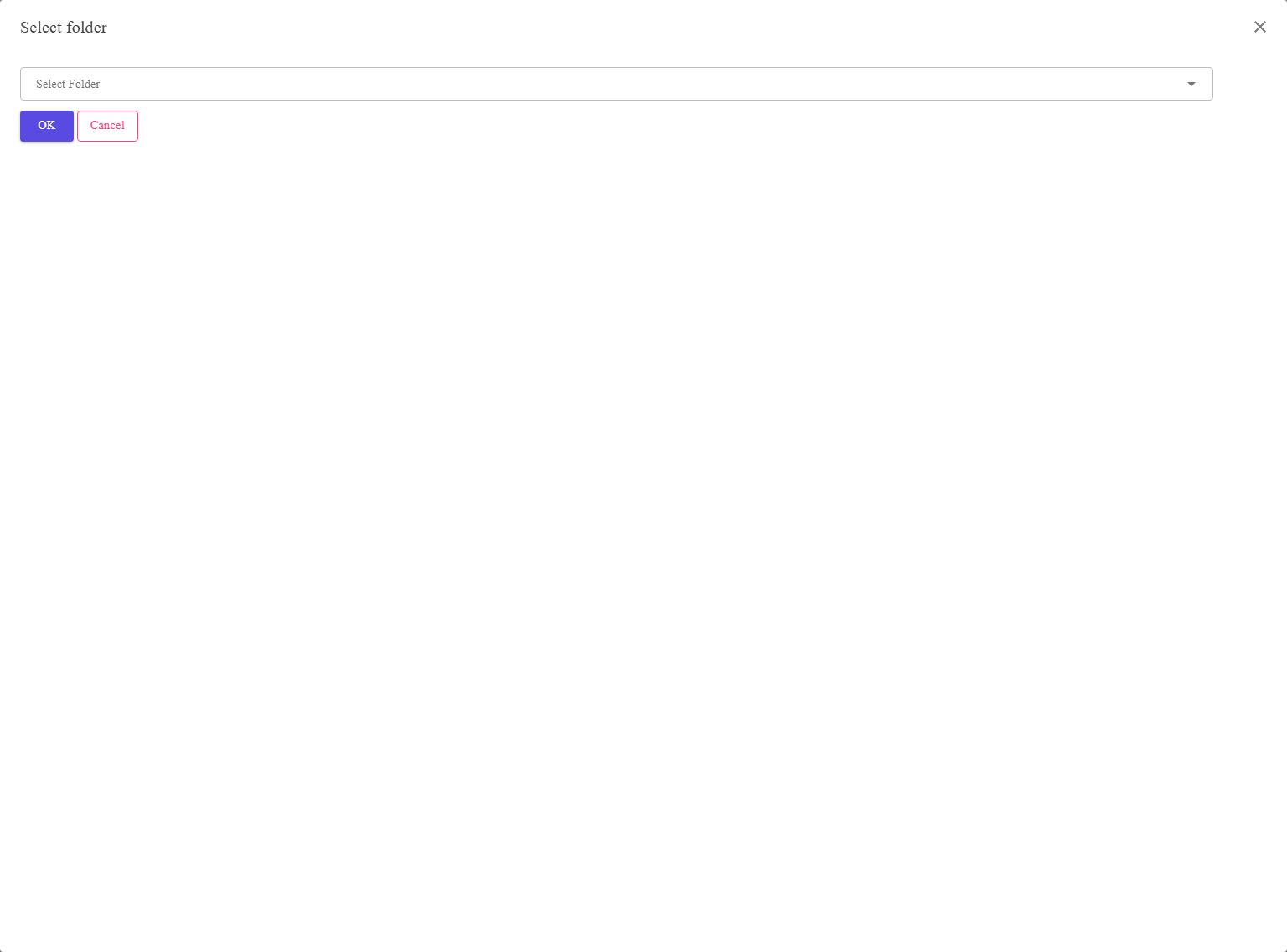
Where it comes from
Folder Actions on the toolbar of Listings,
Listing Templates or Sales — Add to
Folder and Remove from Folder both raise it.
Ended, Edited – To submit manually and the rest — and rule-based folders are maintained by
the application from the state of your listings. Nothing can be filed into one by hand, so they are not in
this tree. Folders you created are, and only those.
Using it
- Select the rows in the grid first — the dialog acts on what is selected.
- Open Folder Actions and choose Add to Folder or Remove from Folder.
- Pick the folder in the tree. Expand a parent to reach the folders inside it.
- Press OK.
Pressing OK without choosing a folder does nothing at all — it is treated as
Cancel, rather than acting on a folder you did not name.
Some actions want a folder with nothing inside it
A few actions can only file into a folder that has no sub-folders — a leaf. When that is the case
the tree shows only those, so a parent folder you can see elsewhere may be missing here. That is the reason.
One folder or several?
By default an item lives in one folder at a time: adding it to a second takes it out of the first. That is
the Ensure one item can be in one folder only setting in the Folders section of
Preferences, which is on to begin with. Turn it off to let
an item belong to several folders at once.
FAQ
Manage Folders, or from the folder tree beside the grid.
listings, so nothing can be filed into it by hand.
folder belongs to a different view. Folders can be made view-specific — see the
Folders section of Preferences.
again.
one folder only off in Preferences to allow
several.
Support
For further assistance you can:
- Email [email protected]
- Use the Contact Us page inside the application
← Back to the User Guide index
Or go to Support, the FAQs, or contact us.