
← All WonderLister user guides
The questions buyers and other eBay members have asked about one of your listings, and where you answer
them.
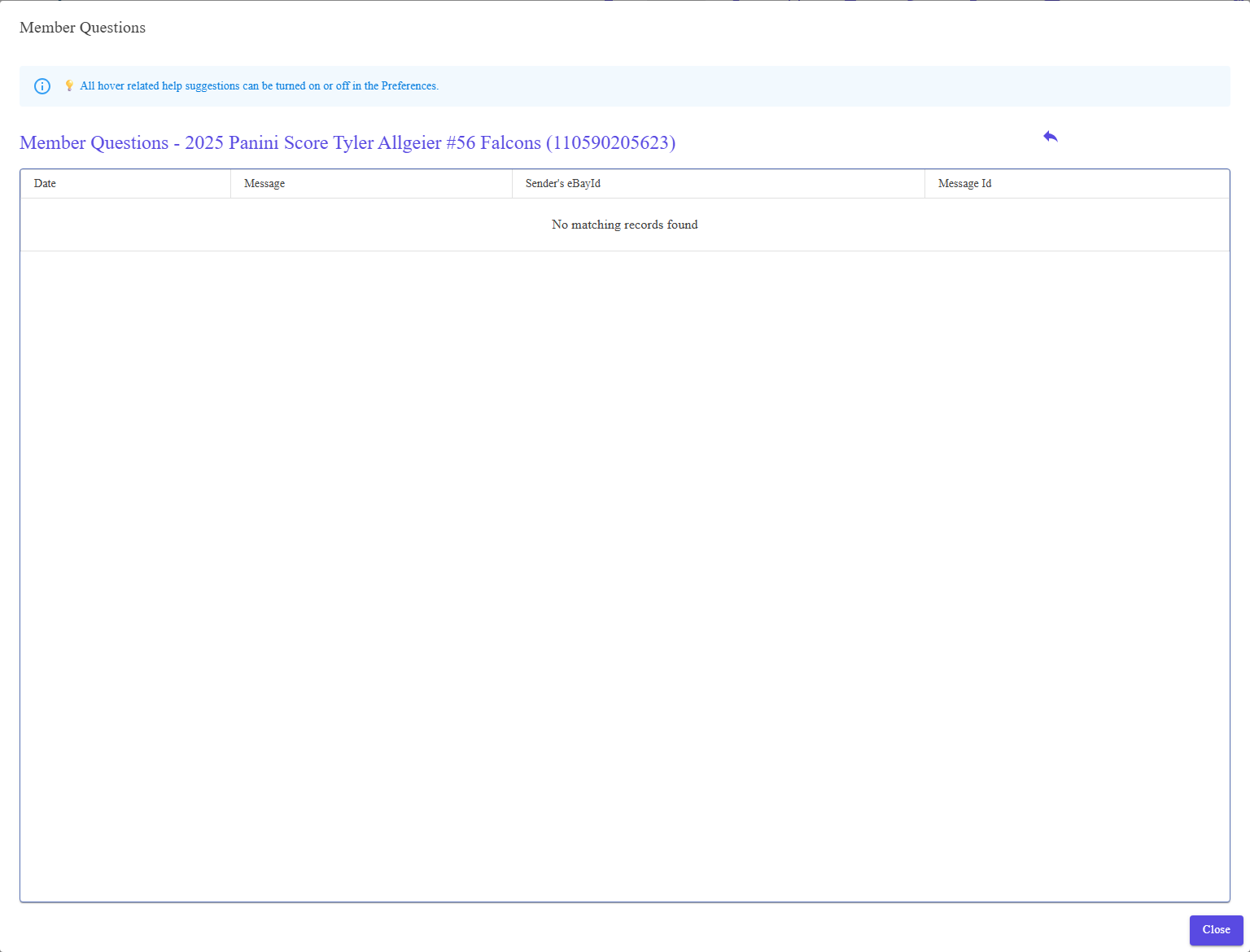
The item the questions are about, the Respond button, and the messages themselves.
Where to find it
Select the listing on Listings, then Respond to Questions from
the toolbar. The heading names the item and its eBay item number, so you
can be sure which listing you are looking at.
What is in it
| Item | What it is |
|---|---|
| The heading | Member Questions, the item title, and the eBay item number. |
| Respond | The reply button. Select a message first. |
| The message list | Every question on this listing. One is selected at a time. |
How to answer
- Select the message in the list.
- Press Respond.
- Write the reply and send it. It goes to the member through eBay.
Answering promptly is part of your seller standards. eBay watches how quickly sellers reply
to member questions, so this is worth checking as a matter of routine rather than only when you notice one.
to member questions, so this is worth checking as a matter of routine rather than only when you notice one.
FAQ
Q: Respond does nothing.
A: Select a message in the list first — the button acts on the selected one.
Q: Is this the same as messaging a buyer about an order?
A: No. This is questions about a listing. For an order, use Send
Message to Buyer on the Sales page.
Message to Buyer on the Sales page.
Q: A question I can see on eBay is not here.
A: Questions are read from eBay for the selected listing. Refresh the listing, and
check Activity Logs for a failed fetch.
check Activity Logs for a failed fetch.
Q: Can I answer several at once?
A: No — one message at a time, since each needs its own answer.
Support
For further assistance you can:
- Email [email protected]
- Use the Contact Us page inside the application
← Back to the User Guide index
Or go to Support, the FAQs, or contact us.