
← All WonderLister user guides
A tag is a placeholder you put in a description template that is replaced with real content
when a listing is sent to eBay. This is where a tag is defined.
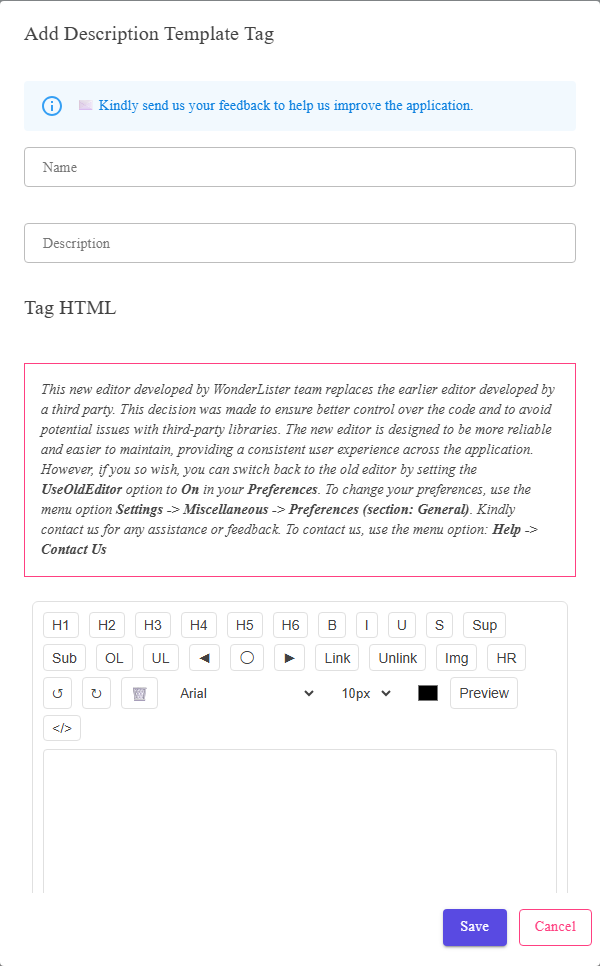
The tag name, its description, and the HTML the tag stands for.
Where to find it
The Description Template Tags page, from the settings menu. Add a new tag or edit an existing one.
The fields
| Field | What it is |
|---|---|
| Name | The tag’s name — how it appears in the Tags you can insert list in the template editor. |
| Description | What the tag is for, so you can tell two similar ones apart later. |
| The HTML box | The HTML the tag stands for — what gets put into the description in its place. |
| Save | Stores the tag. |
| Cancel | Closes without saving. |
What tags are for
- A block you reuse across templates — your postage table, your returns wording, a
footer. Change it once and every template carrying the tag follows. - A piece of layout you would otherwise retype in each template.
A tag is worth making the moment the same block appears in two templates. That is the point
at which changing it in one place and forgetting the other becomes possible.
at which changing it in one place and forgetting the other becomes possible.
FAQ
Q: Where do I use a tag?
A: In the Description Template Editor —
choose it in Tags you can insert and press Insert.
choose it in Tags you can insert and press Insert.
Q: If I change a tag, do my listings change?
A: The templates using it pick the change up, but a listing already on eBay shows what
was sent last time. Resubmit it.
was sent last time. Resubmit it.
Q: Can a tag contain another tag?
A: Keep tags to self-contained blocks of HTML. Nesting them makes what a template will
produce hard to predict.
produce hard to predict.
Q: What happens if I delete a tag a template uses?
A: The template is left referring to something that no longer exists. Edit the
templates first.
templates first.
Support
For further assistance you can:
- Email [email protected]
- Use the Contact Us page inside the application
← Back to the User Guide index
Or go to Support, the FAQs, or contact us.