← All WonderLister user guides
This page lists the compatibility sets you have saved, so you can see what is in each one, rename it, or delete the ones you no longer use. A compatibility set is a saved list of the vehicles a part fits; you save one with Save as Set in a listing’s Compatibilities section.
Where to find it
- Click Settings in the bar on the left.
- Under Organize, click Compatibility Sets.
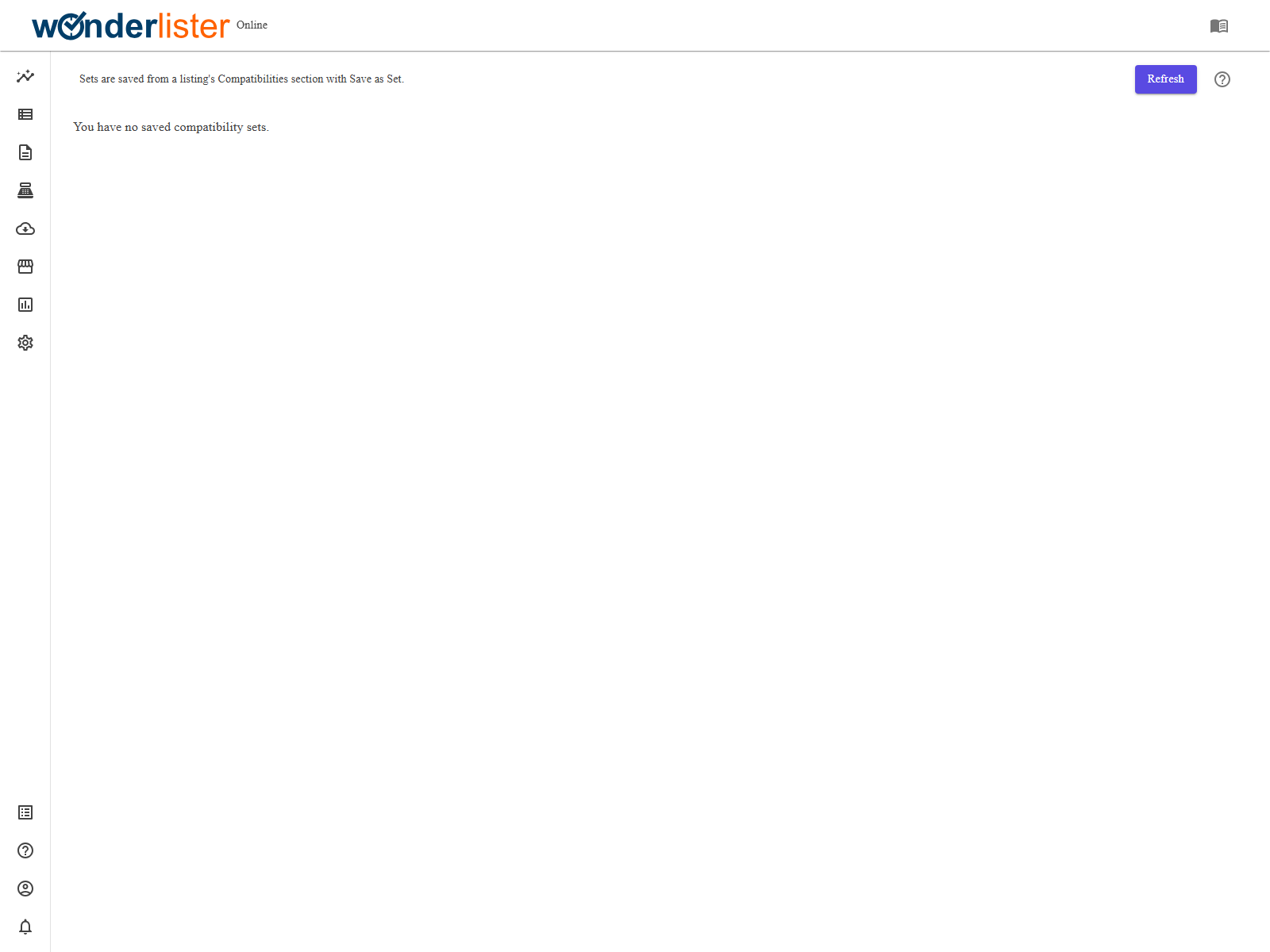
Until you have saved a set, the page shows You have no saved compatibility sets.
What is on it
| Column or control | What it does |
|---|---|
| Name | The name you gave the set. |
| Vehicle Type | The kind of vehicle the set is for, such as cars and trucks or motorcycles. |
| Saved From | The listing or template the set was saved from. The set’s vehicles are that listing’s vehicles. |
| Date Created | When the set was saved. |
| View vehicles (eye icon) | Shows every vehicle in the set. |
| Rename (pencil icon) | Gives the set a new name. Names must be unique. |
| Delete (trash can icon) | Removes the set, after you confirm. Listings that used it keep their vehicles. |
| Refresh | Loads your sets again. |
The names in brackets are the tooltips that appear when you point at each icon in the Actions column.
How to see the vehicles in a set
- Find the set’s row.
- Click View vehicles (the eye icon). A dialog titled Vehicles in “set name“ opens, with the number of vehicles at the top and one row per vehicle.
- Click Close when you are done.
How to rename a set
- Click Rename (the pencil icon) on the set’s row. The Rename Compatibility Set dialog opens with the current name in Set name.
- Type the new name.
- Click Save. The page shows Renamed to “new name”., with the name you typed.
How to delete a set
- Click Delete (the trash can icon) on the set’s row. A box titled Delete Compatibility Set? asks: Delete the compatibility set “set name”? Listings that used it keep their vehicles.
- Click Delete to go ahead, or Never mind to keep the set.
- After a delete, the page shows Deleted “set name”., with your set’s name in the quotation marks.
FAQ
How do I change the vehicles in a set?
A set always shows the vehicles of the listing it was saved from (see Saved From). Change the vehicles on that listing, or build the list you want on any listing and save it as a new set.
Why can’t I rename a set to a name I already use?
Each set needs its own name, so you can tell them apart when you pick one.
I deleted the listing a set was saved from. What happened to the set?
The set is deleted with it. Listings that used the set keep their vehicles.
Support
For further assistance you can:
- Email support@wonderlister.com
- Use the Contact Us page inside the application
← Back to the User Guide index
Or go to Support, the FAQs, or contact us.