
← All WonderLister user guides
The Pictures & Videos section of the listing editor holds the images buyers see on
the eBay item page, in the order they will see them, together with any video attached to the listing.
Where to find it
Open a listing in the editor and scroll to Pictures & Videos, or click it in the
editor’s left-hand section list.
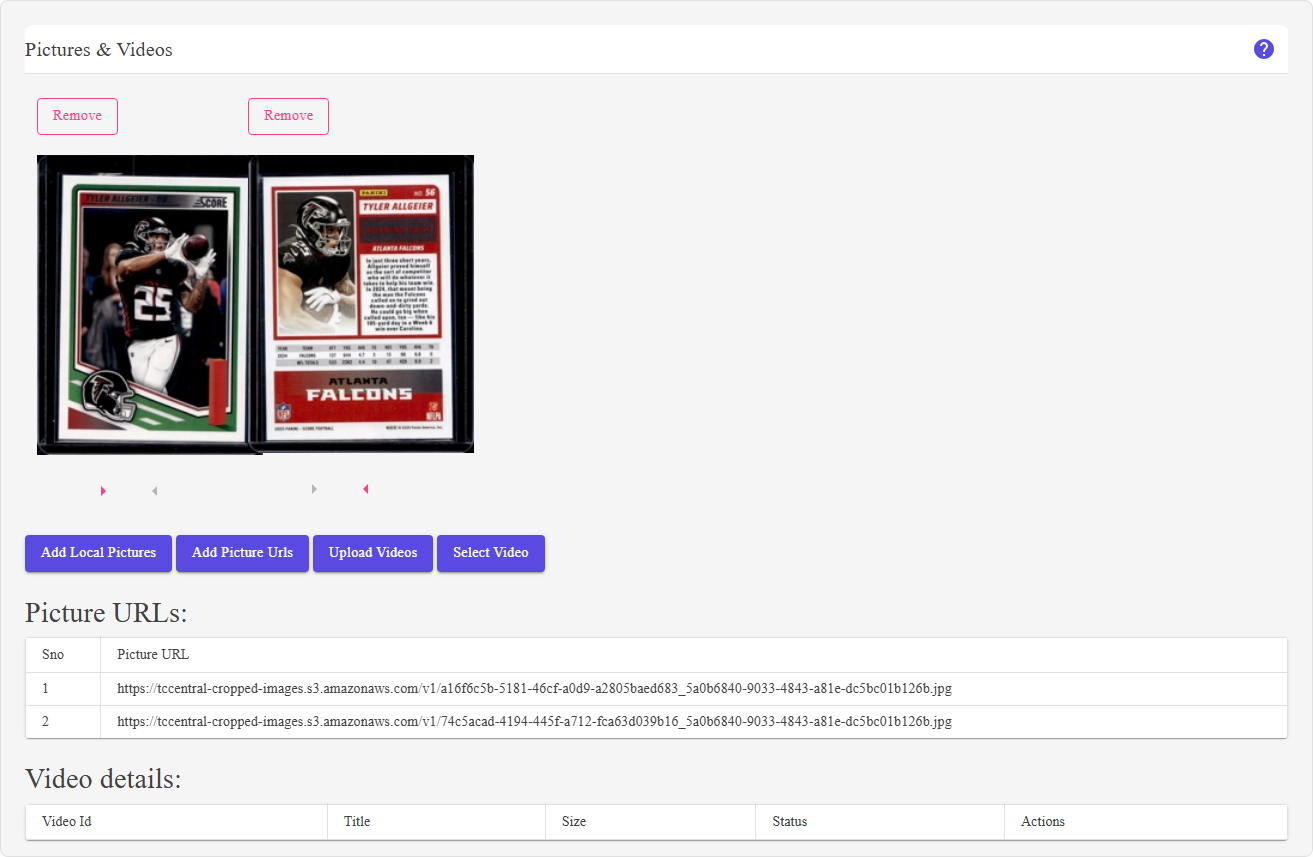
Each picture is a thumbnail with Remove above it and left/right arrows below it. The four buttons underneath add pictures and videos.
What is on this section
| Control | What it does |
|---|---|
| The thumbnails |
Every picture on the listing, laid out left to right in the order eBay will show them. The first one is the gallery image — the picture that appears in eBay search results. |
| Remove (above each picture) | Takes that picture off the listing. |
| Move Left / Move Right (arrows under each picture) |
Move the picture one place earlier or later. The left arrow is disabled on the first picture and the right arrow on the last, because there is nowhere for them to go. |
| Add Local Pictures | Opens the upload dialog, for image files on this computer. |
| Add Picture Urls | Opens Add Picture URLs, for images already hosted somewhere on the web. |
| Upload Videos | Opens the video upload dialog. |
| Select Video | Opens the video picker, to attach a video you have already uploaded rather than uploading it again. |
| Picture URLs / video details | Listed below the buttons — the addresses of the pictures on the listing, and the details of any attached video. |
The whole section can be hidden. If Hide pictures is on in the editor options in
Preferences, this section is not drawn at all.
Preferences, this section is not drawn at all.
How to use it
- Add the pictures. Use Add Local Pictures for files on this machine,
or Add Picture Urls for images already on the web. - Put the best picture first. Use the arrows to move it to the front — that is the
image buyers see in search results. - Remove anything that does not help with Remove.
- Attach a video if you have one, with Upload Videos or
Select Video. - Save the listing from the editor toolbar.
FAQ
Q: Which picture does eBay use as the gallery image?
A: The first one. Use the arrows to move the picture you want to the front.
Q: Why is one of the arrows greyed out?
A: The left arrow is disabled on the first picture and the right arrow on the last —
they are already at the end of the row.
they are already at the end of the row.
Q: The section is not in my editor.
A: Hide pictures is on in your editor Preferences.
Q: I selected too many pictures and got a warning.
A: See Excessive Pictures
Selected — eBay caps the number of images on a listing, and the warning appears before you go past
it.
Selected — eBay caps the number of images on a listing, and the warning appears before you go past
it.
Q: Can I assign pictures to many listings at once?
Support
For further assistance you can:
- Email [email protected]
- Use the Contact Us page inside the application
← Back to the User Guide index
Or go to Support, the FAQs, or contact us.