
← All WonderLister user guides
A consignor policy is what you charge for selling someone else’s goods. It can be a flat
amount per listing, a commission on the sale, or a set of bands where a bigger sale attracts a different
rate. WonderLister applies the policy when an item sells and reports what the consignor is owed.
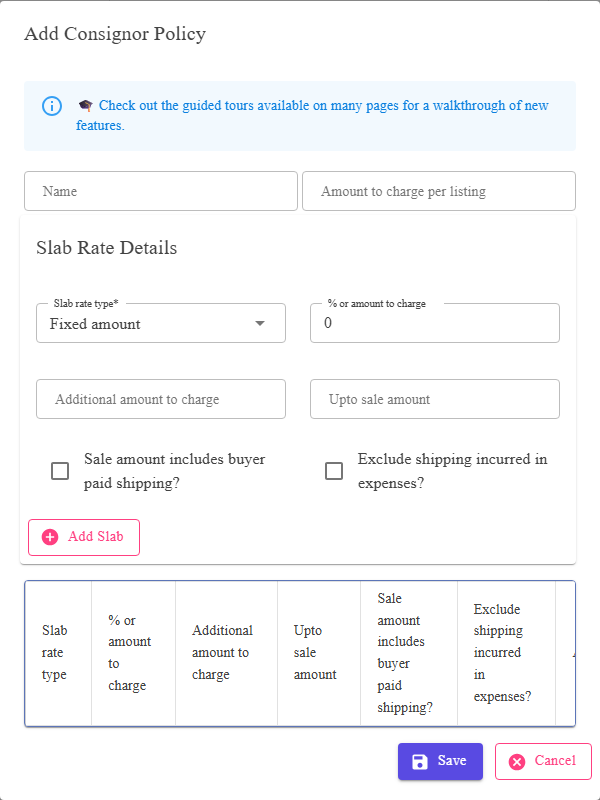
The policy name and the per-listing charge, above the bands.
Where to find it
The Consignor Policies page, from the settings menu. Add a new policy or edit an existing one.
The policy itself
| Field | What it is |
|---|---|
| Name | What you call this set of terms. It is what you will pick from on a listing, so name it for the terms — “20% over £50”, not “Policy 3”. |
| Amount to charge per listing | A flat fee charged for listing the item at all, whether or not it sells. Leave it at zero if you only charge commission. |
The bands
Each band says what to charge up to a given sale amount. Add as many as the terms need; the
Actions column removes one.
| Field | What it is |
|---|---|
| Slab rate type | Whether this band charges a percentage of the sale or a fixed amount. |
| % or amount to charge | The figure, read according to the rate type above. |
| Additional amount to charge | A fixed amount on top of the percentage — the usual way to write “15% plus £2”. |
| Upto sale amount | The ceiling of this band. A sale at or below it is charged at this band’s rate; above it, the next band applies. |
| Sale amount includes buyer paid shipping? | Whether the postage the buyer paid counts towards the sale amount the commission is worked out on. |
| Exclude shipping incurred in expenses? | Whether what postage actually cost you is left out of the expenses deducted before the consignor’s share. |
The two shipping questions are where consignment disputes come from. They decide whether
postage counts towards the commission and whether your postage cost is deducted before the consignor is paid.
Settle them with the consignor in words before you set them here.
postage counts towards the commission and whether your postage cost is deducted before the consignor is paid.
Settle them with the consignor in words before you set them here.
How to build a banded policy
- Name it for the terms it expresses.
- Set the per-listing fee, or leave it at zero.
- Add a band for the lowest range — its rate, and the sale amount it runs up to.
- Add further bands for higher amounts.
- Answer the two shipping questions on each band.
- Save, then choose the policy on a listing with
Select Consignor Policy.
FAQ
Q: I only take a flat percentage. Do I need bands?
A: One band is enough — set its rate and give it a ceiling high enough to cover
anything you would sell.
anything you would sell.
Q: Can I charge a fee even when the item does not sell?
A: That is what Amount to charge per listing is.
Q: Which policy does a sale use?
A: The one on the listing when it sold. Changing the policy later does not rewrite
past sales.
past sales.
Q: Can different items for one consignor be on different terms?
A: Yes. The policy is chosen per listing.
Q: Where do I see what this works out to?
A: The consignor report, from Reports.
Support
For further assistance you can:
- Email [email protected]
- Use the Contact Us page inside the application
← Back to the User Guide index
Or go to Support, the FAQs, or contact us.