← All WonderLister user guides
Where your stock physically is. A storage location is a place in your own premises — a shelf, a bin, a unit — that you can then put on a listing, so that picking an order does not mean hunting for the item.
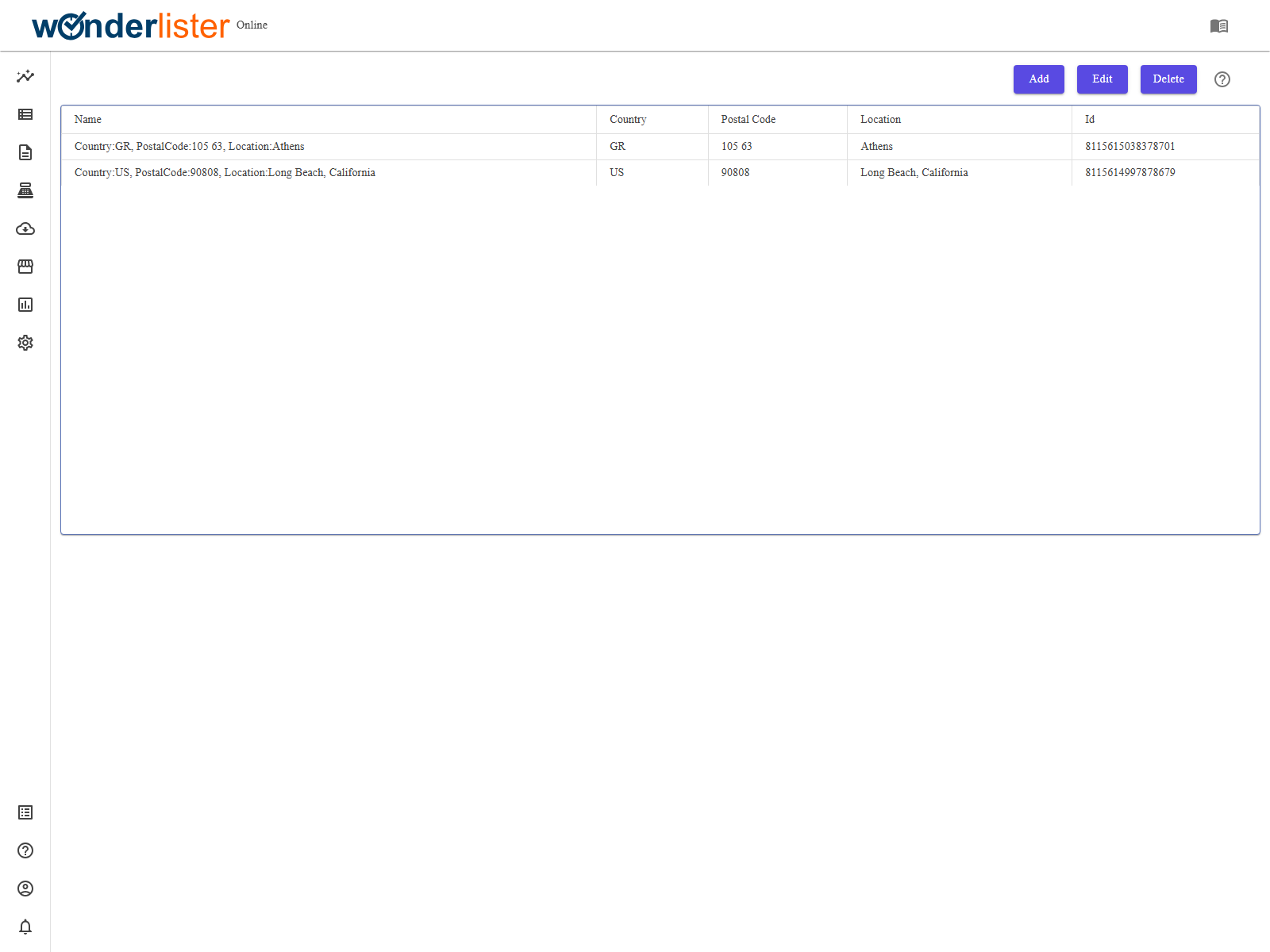
The toolbar
| Button | What it does |
|---|---|
| Add | Creates a new location. |
| Edit | Changes the selected one. |
| Delete | Deletes the selected one. |
The fields
| Field | What it is |
|---|---|
| Id | WonderLister’s identifier for the location. |
| Name | What you call it. This is what you will pick from on a listing, so make it recognizable. |
| Location | Where it is — an address, a room, a description. |
| Country | The country it is in. |
| Postal Code | Its postcode. |
Using a location on a listing
Once a location exists, it can be chosen on a listing — see Select Storage Location. There is also a Storage Location Bin field on the listing itself for the exact shelf or box within the location, which can be hidden from the editor in Preferences if you do not use it.
FAQ
How many locations can I have?
As many as you need. People usually keep them coarse — a room or a unit — and use the bin field on the listing for the exact shelf.
Can I delete a location that listings are using?
Those listings will be left pointing at a location that no longer exists. Move them first.
Does eBay see this?
The location’s country and postcode inform where the item ships from. The name and your bin are yours.
Where is the Storage Location field in the editor?
It can be hidden — check Hide Storage Location Bin in the Editor section of Preferences.
Support
For further assistance you can:
- Email support@wonderlister.com
- Use the Contact Us page inside the application
← Back to the User Guide index
Or go to Support, the FAQs, or contact us.