
← All WonderLister user guides
Your own folders, and the tree they sit in. Folders are how you organise listings, listing templates and
sales into groups that mean something to you — a supplier, a shelf, a consignor, a batch waiting to be
photographed.
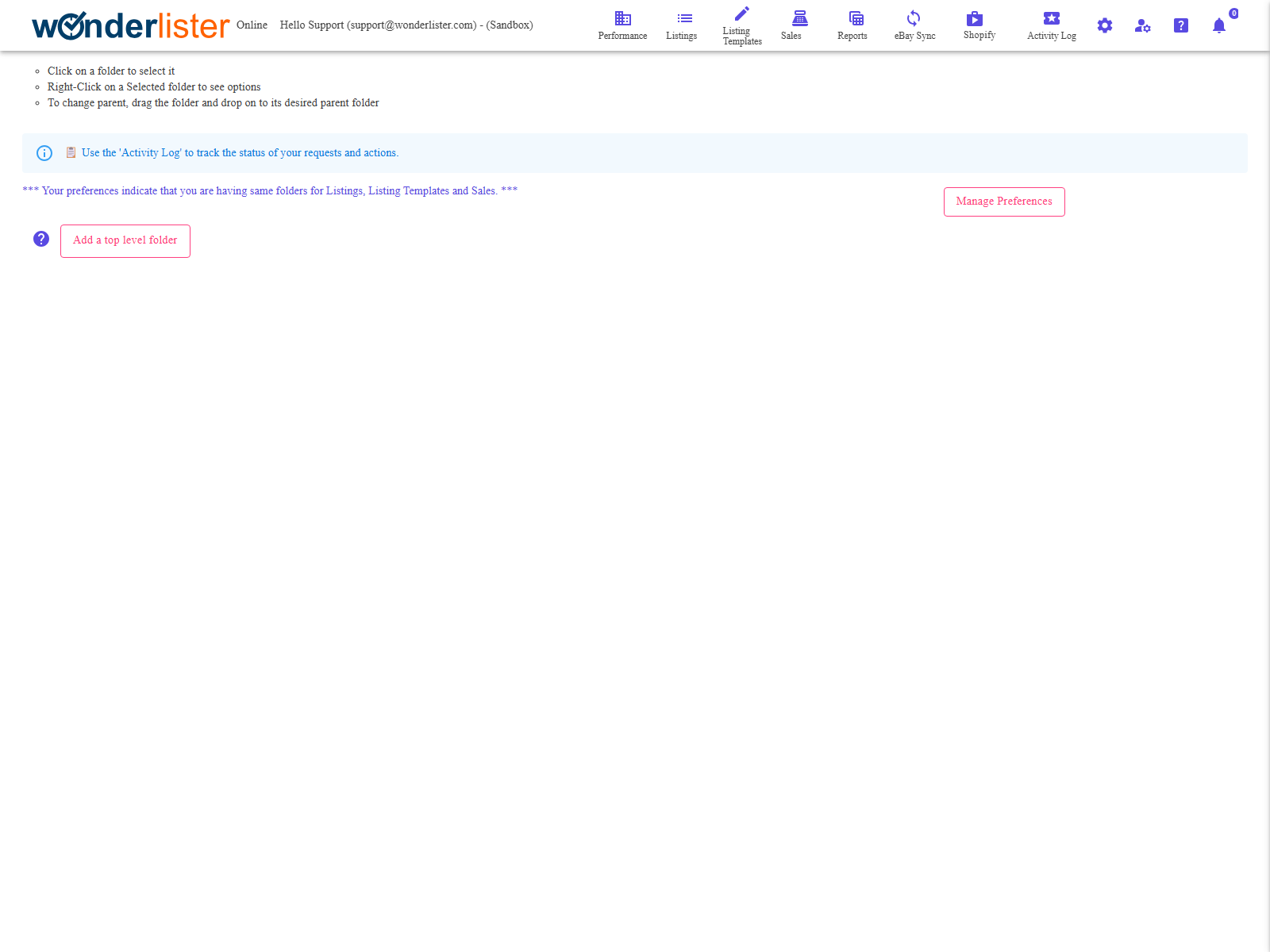
The folder tree, with the view-type picker above it.
How the page works
- Click a folder to select it.
- Right-click a selected folder to see what you can do to it.
- Drag a folder onto another to make it a child of that one.
The controls
| Control | What it does |
|---|---|
| Select View Type | Which view’s folders you are editing — Listings, Listing Templates or Sales. Only shown when your preferences give each view its own folders. |
| Add a top level folder | A new folder at the root of the tree. |
| Add Sub folder | A new folder inside the selected one. |
| Rename folder | Renames the selected folder. |
| Delete folder | Deletes it, after asking. What was filed in it is not deleted — only the filing. |
| Make Top Level | Pulls the selected folder out of its parent and up to the root. |
| Manage Preferences | Jumps to the Folders section of Preferences. |
These are your folders only. WonderLister’s own system folders — Active,
Ended, Edited – To submit manually — and rule-based folders are maintained by the
application from the state of your items, and are not edited here.
Ended, Edited – To submit manually — and rule-based folders are maintained by the
application from the state of your items, and are not edited here.
Shared or separate folders
By default a folder you create exists in all three views. The Allow different folders… setting in the
Folders section of Preferences gives each view its own set
instead — and when it is on, this page shows a Select View Type picker and a note saying so.
Changing that setting hides your existing folders. Folders made under the previous setting
become invisible under the new one, in either direction. They are not deleted, and switching back brings them
into view.
become invisible under the new one, in either direction. They are not deleted, and switching back brings them
into view.
FAQ
Q: Right-clicking does nothing.
A: Select the folder with a left-click first; the menu is on selected
folders.
folders.
Q: If I delete a folder, do I lose the listings in it?
A: No. Deleting a folder removes the filing, not the items.
Q: I cannot see the view-type picker.
A: Your folders are shared across all three views, so there is nothing to choose.
Turn on Allow different folders… in Preferences to separate
them.
Turn on Allow different folders… in Preferences to separate
them.
Q: All my folders have vanished.
A: The Allow different folders… setting has been changed. Switch it back to
see them again.
see them again.
Q: Can an item be in two folders?
A: Only if you turn Ensure one item can be in one folder only
off in Preferences. On — the default — adding an item to
a folder takes it out of any other.
off in Preferences. On — the default — adding an item to
a folder takes it out of any other.
Support
For further assistance you can:
- Email [email protected]
- Use the Contact Us page inside the application
← Back to the User Guide index
Or go to Support, the FAQs, or contact us.