← All WonderLister user guides
Brings your listings down from eBay. It runs by itself when you first link an eBay account; this is how you run it again — after adding a marketplace, or when something on eBay is not in WonderLister.
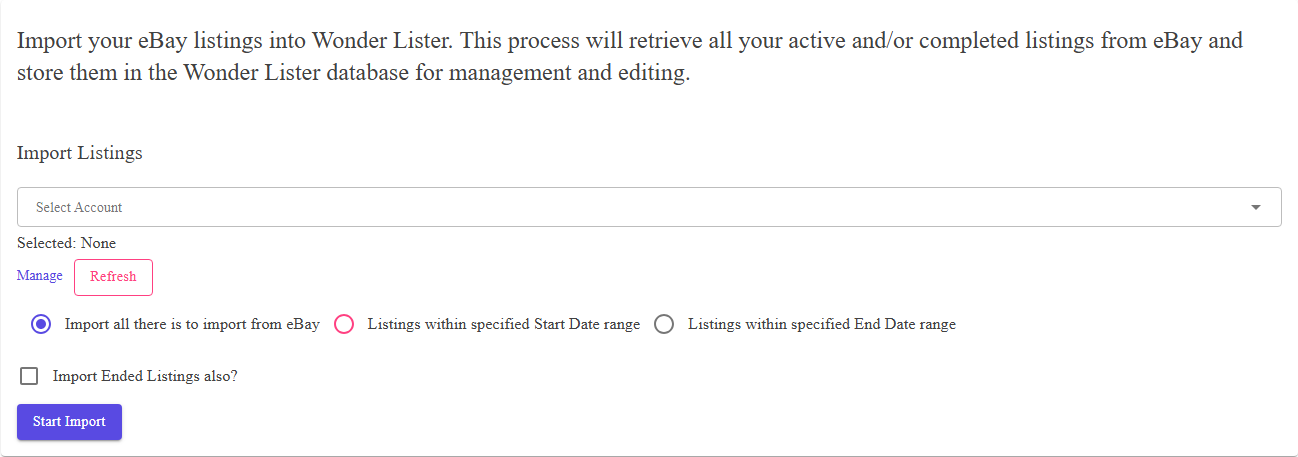
Where to find it
- Click Bring in from eBay on the left-hand bar.
- The page opens on Import Listings. If you have moved to another section, choose Import Listings in the list on the left.
The controls
| Control | What it does |
|---|---|
| Select Account | The eBay accounts to import for. You can tick several. The line beneath it says which are chosen. Manage opens your eBay Accounts so you can link one, and Refresh reloads the list. |
| Import all there is to import from eBay | The default. Imports every listing eBay holds for the account, with no dates. |
| Listings within specified Start Date range | Imports only listings that started between two dates. |
| Listings within specified End Date range | Imports only listings that end (or ended) between two dates. |
| Select start and end dates | Appears only when you choose one of the two date-range options. It starts filled in with the last 119 days, ending today. A range can cover at most 119 days. |
| Import Ended Listings also? | Appears only with Import all there is to import from eBay. Tick it to bring down ended listings as well as active ones. |
| Start Import | Queues the import. |
Once an import has been queued there is no button to stop it; it runs to the end in the background.
How to import
- In Select Account, tick the eBay accounts to import for.
- Choose Import all there is to import from eBay, Listings within specified Start Date range or Listings within specified End Date range.
- If you chose a date range, open Select start and end dates, pick the first and last day, and press Ok. (The picker’s own Clear and Cancel buttons empty the dates or close the picker without changing them.)
- If you chose to import everything and want ended listings too, tick Import Ended Listings also?
- Press Start Import. The page shows Request successfully submitted. You can check the status on the ‘Activity log’ page.
When to use a date range
| Situation | Choice |
|---|---|
| First import after linking an account | Import all there is to import from eBay — you want everything. |
| A handful of recent listings are missing | A date range around the days involved. Much faster. |
| Repairing an old part of your history | A date range around it, rather than re-importing everything. Split a longer period into ranges of 119 days or fewer. |
Messages you may see
| Message | What it means |
|---|---|
| At least one account must be selected | Tick an account in Select Account first. |
| Start date must be selected / End date must be selected | A date-range option is chosen but the range is missing a day. |
| Start date can not be later than end date | The days are the wrong way round. |
| A date range can cover at most 119 days | Shorten the range, and run the import again for the rest. |
How an import runs
Pressing Start Import queues the work and gives you the application back. eBay returns large results a page at a time, and each page is recorded — so the Activity log shows how far it has got, not just whether it finished. You are e-mailed when it completes, unless you have turned those e-mails off in Preferences.
FAQ
Why hasn’t a listing on eBay appeared?
Open the Activity log, find the import and press Details. Under eBay listings in this import it shows how many listings eBay returned, how many were already in WonderLister, how many were sent for import and how many were imported. If any were skipped, a line such as … listing(s) on eBay site(s) … were not imported: those sites are not set up for this account. names the marketplaces, followed by the eBay item numbers that were skipped. Tick those marketplaces on eBay Sites and import again. If your listing is not among the skipped ones, import again with a date range around when it started.
Will importing overwrite my edits?
An import brings eBay’s version down. A listing you have edited and not yet submitted is deliberately held back from refreshes — see Listing Submissions.
It has been running a long time. Can I cancel it?
There is no cancel button — a queued import runs to the end. A large account genuinely takes a while; the Activity log shows which page of the results it has reached.
Will it create duplicates?
No. Listings are matched on eBay’s own item number, so re-importing updates what is already there.
Support
For further assistance you can:
- Email support@wonderlister.com
- Use the Contact Us page inside the application
← Back to the User Guide index
Or go to Support, the FAQs, or contact us.