
← All WonderLister user guides
Applies one change to every listing you selected. This is the same dialog as
Bulk Edit Listing Templates, working on listings — which means
the changes can reach eBay. Everything the dialog can do is described in
Bulk Edit; this page is about what that means for listings in particular.
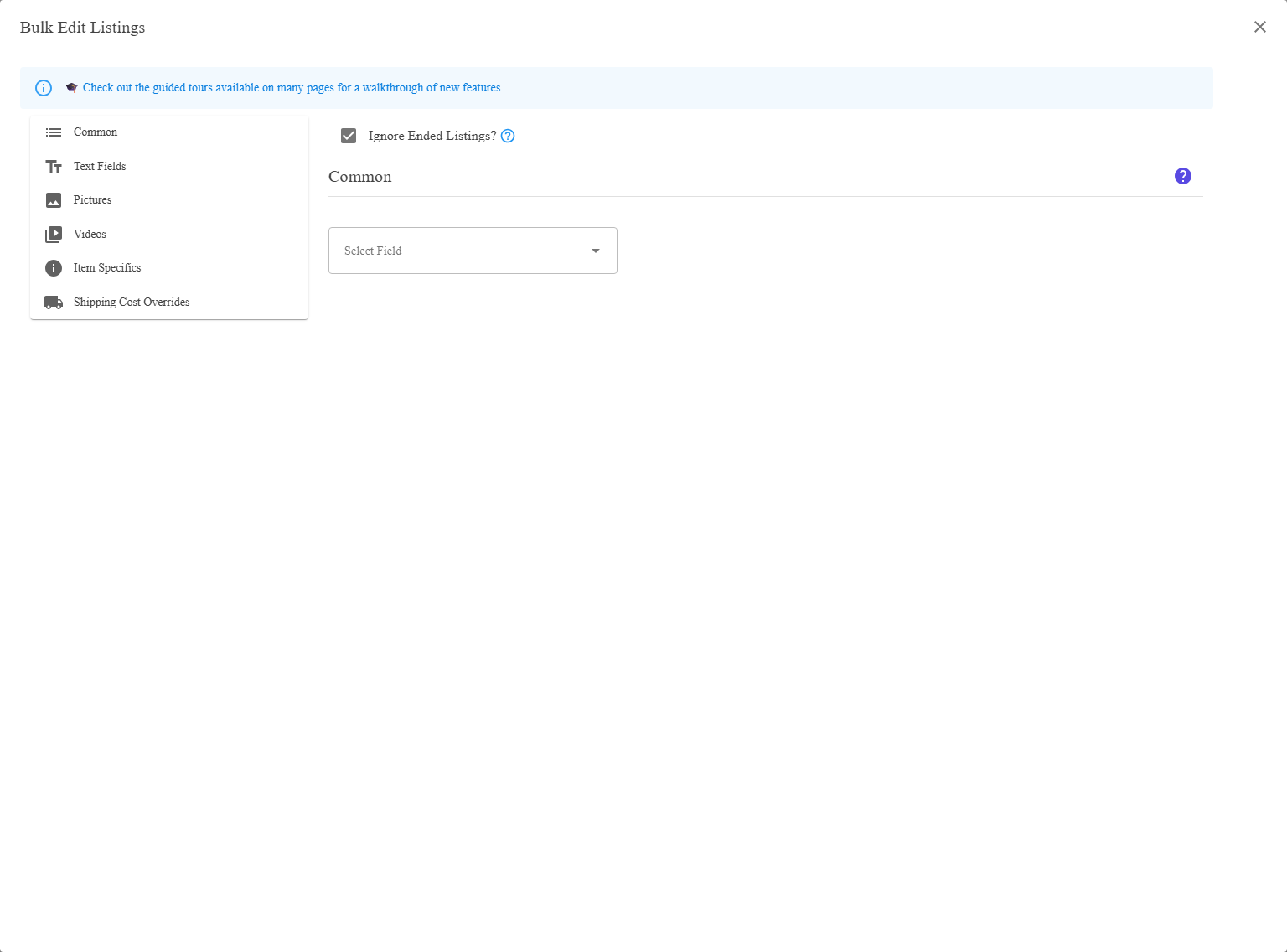
Each change is a row: pick a field, say how to change it, give the value.
Where to find it
Select the listings on Listings, then Bulk Edit from the
toolbar.
What is different about listings
| Because a listing may be live | What follows |
|---|---|
| Changes can reach eBay. | An active listing that is changed is normally submitted straight away. Whether that happens is decided by Listing Submissions. |
| eBay may refuse a change. | A price below what eBay allows, a quantity below what has already sold, a field eBay will not let you revise once there are bids — any of these is refused for that listing, and the rest still go through. |
| Ended listings are not revised. | A change to an ended listing stays in WonderLister. It matters if you relist later. |
Choose the set carefully. The listings grid mixes active, ended and unsubmitted listings
unless you have narrowed it. Select a folder or run a search first, so the change reaches the listings you
meant and not the ones that merely happened to be on screen.
unless you have narrowed it. Select a folder or run a search first, so the change reaches the listings you
meant and not the ones that merely happened to be on screen.
The changes people make most often
| Job | How |
|---|---|
| Put prices up or down | Price, then Plus/minus by specified percentage. |
| Set a sale price | Price, then Set to specified value. |
| Correct a word in many titles | Title, Search containing, and Replacement mode: Only what matches. |
| Move to a new business policy | Pick the policy field in Common fields and choose the new one. |
| Add a line to every description | Description, then Append. |
| Restock | Quantity, then Plus/minus specified value. |
How to use it
- Narrow the grid to the listings you mean, with a folder or a search.
- Select them, and read the count.
- Open Bulk Edit and describe the change.
- Press Apply Changes.
- Watch it in Activity Logs.
Test on two listings first. There is no undo, and a bulk edit that was not quite what you
meant is a bulk edit you now have to reverse by hand.
meant is a bulk edit you now have to reverse by hand.
FAQ
Q: Some listings changed and some did not.
A: eBay refuses some revisions — a quantity below what has already sold, a field that
cannot be changed once there are bids. Open the run in Activity Logs and
press Details to see which ones and why.
cannot be changed once there are bids. Open the run in Activity Logs and
press Details to see which ones and why.
Q: WonderLister shows my change but eBay does not.
A: Check Listing Submissions.
With automatic submission off, the changed listings are waiting in the
Edited – To submit manually folder.
With automatic submission off, the changed listings are waiting in the
Edited – To submit manually folder.
Q: Can I bulk edit ended listings?
A: Yes, but the change stays in WonderLister — there is nothing on eBay to revise.
It applies if you relist.
It applies if you relist.
Q: How many listings can I change at once?
A: There is no fixed limit. Large runs take longer, and are worth starting when you
do not need the result immediately.
do not need the result immediately.
Q: Everything I can change — where is that listed?
A: In Bulk Edit, which describes every field, mode and
option in the dialog.
option in the dialog.
Support
For further assistance you can:
- Email [email protected]
- Use the Contact Us page inside the application
← Back to the User Guide index
Or go to Support, the FAQs, or contact us.