
← All WonderLister user guides
Leaving feedback by hand on every sale is work nobody keeps up with. This page turns it off and on, decides
when feedback is left, and holds the pool of comments to choose from.
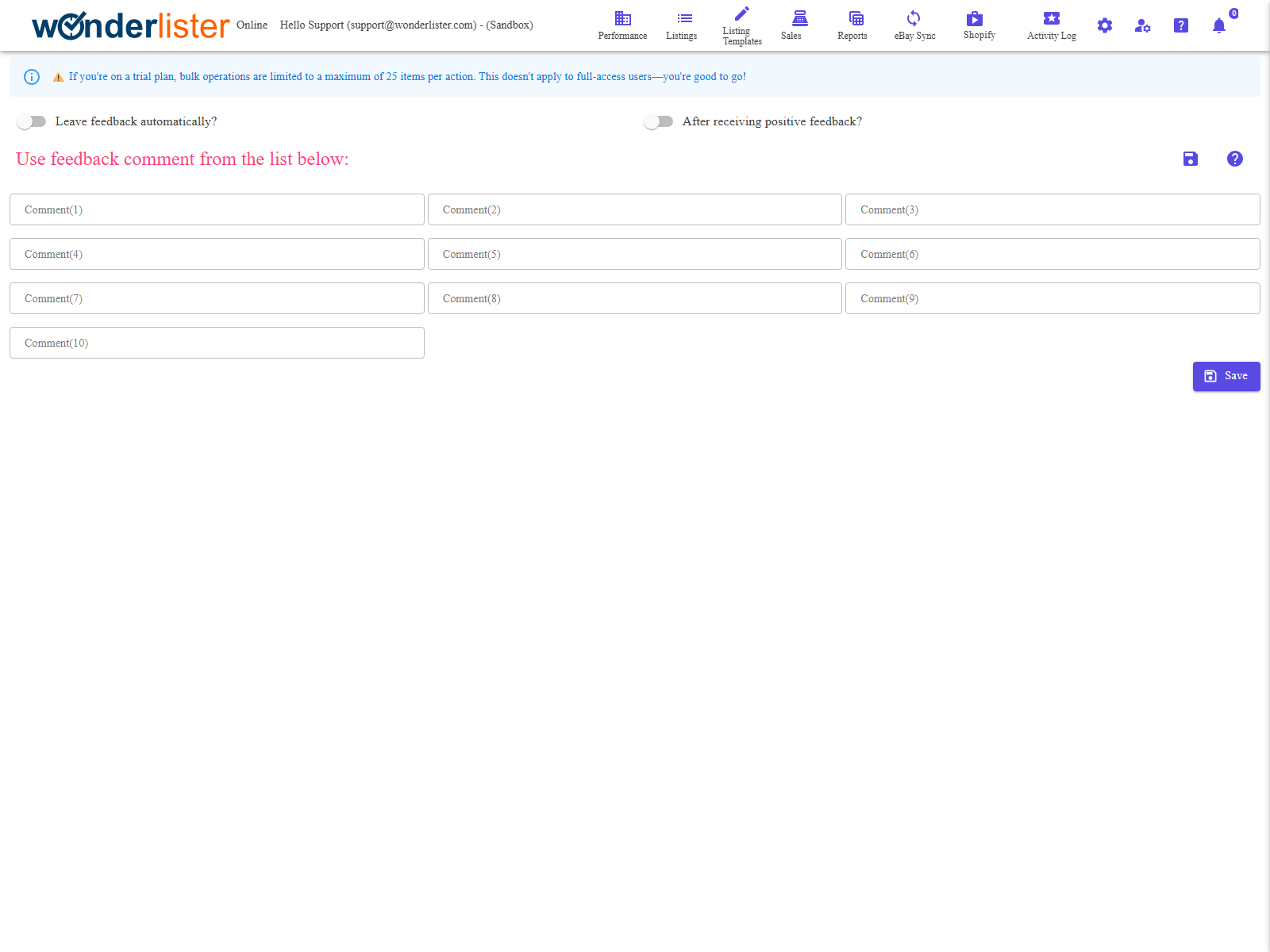
Where to find it
Open Feedback Automation Rules from the menu.
The two switches
| Switch | What it means |
|---|---|
| Leave feedback automatically? | The master switch. Off, nothing is left automatically and the comments below are simply stored. |
| After receiving positive feedback? | When to leave it. On, feedback is left for a buyer once they have left you positive feedback. Off, it is left without waiting for theirs. |
feedback is the cautious course — you never praise a transaction that later goes wrong. Not waiting
gets your feedback in first, which some sellers prefer because it encourages a reply. Decide which you want
before you turn the master switch on.
The comments
Beneath the switches are ten boxes, Comment(1) through Comment(10). Each
one is a complete feedback comment. When feedback is left, one of the comments you have filled in is used, so
several different wordings stop every buyer receiving the identical sentence.
and every box empty is refused with At least one comment must be entered. You do not have to fill
in all ten.
Saving
The save icon at the top right and the Save button at the foot do the same thing. A
successful save reports Saved successfully.
How to set up automatic feedback
- Write your comments into as many of the ten boxes as you want to use.
- Decide whether to wait for the buyer — set After receiving positive feedback? accordingly.
- Turn Leave feedback automatically? on.
- Click Save and check for Saved successfully.
How to turn it off
- Turn Leave feedback automatically? off.
- Click Save. Your comments stay where they are, ready for when you turn it back on.
FAQ
varied wording rather than the same line on every sale.
Get Feedback Comments.
If After receiving positive feedback? is on, nothing happens until the buyer leaves
feedback first.
Support
For further assistance you can:
- Email [email protected]
- Use the Contact Us page inside the application
← Back to the User Guide index
Or go to Support, the FAQs, or contact us.