
← All WonderLister user guides
This page sends a message to WonderLister support from inside the application. It is better than writing to
us directly, because it attaches what we would otherwise have to ask you for: your version, your operating
system, your customer id, and — in the desktop application — your most recent log file.
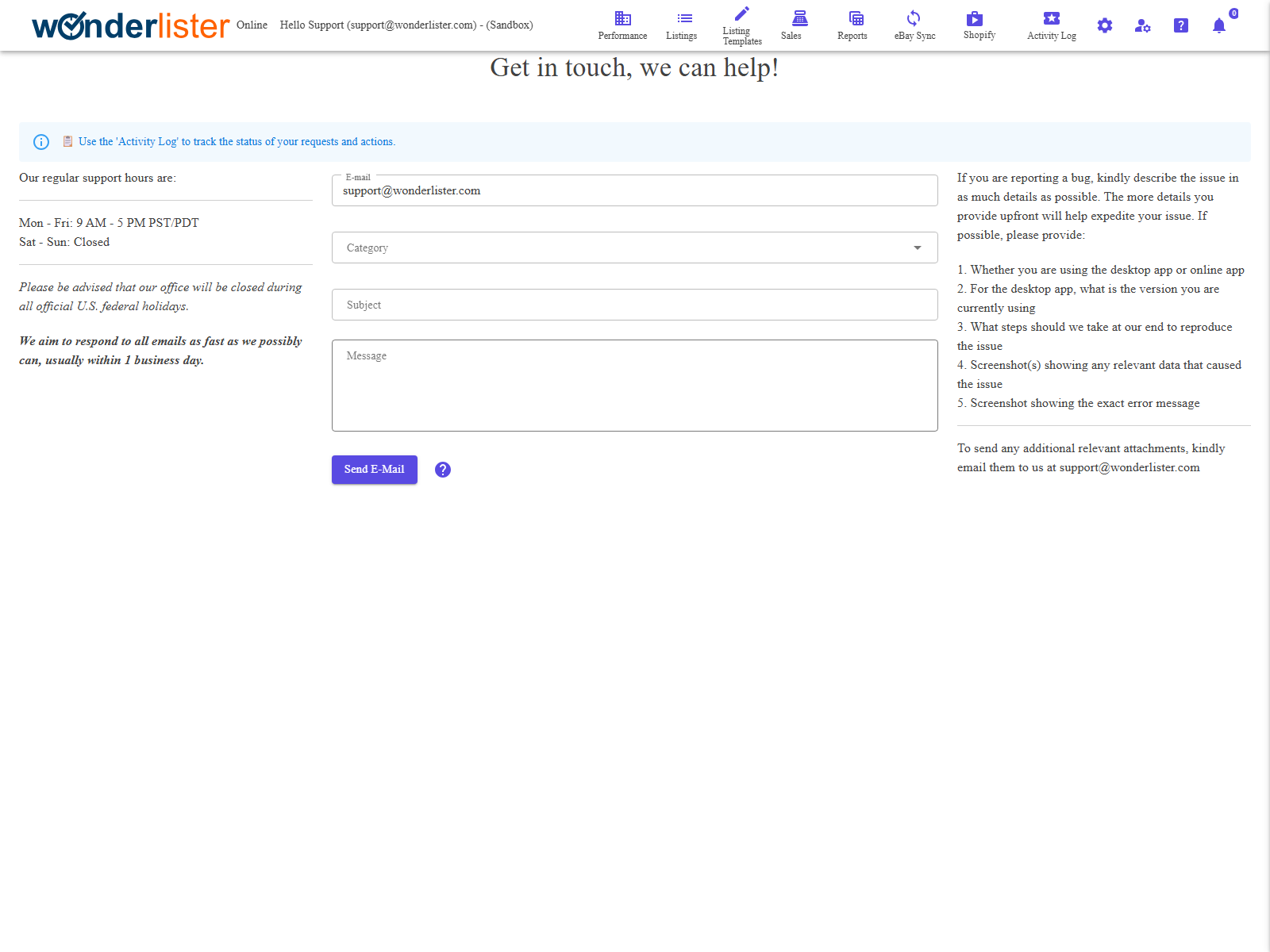
Support hours
- Monday to Friday: 9 AM – 5 PM Pacific.
- Saturday and Sunday: closed.
- The office is closed on U.S. federal holidays.
We aim to answer every message as quickly as we can, usually within one business day.
The form
| Field | What it is |
|---|---|
| Where we reply. Required — check it is an address you read. | |
| Category | Required. One of Bug, Feature request, Question, Feedback or Something else. It decides who picks the message up. |
| Subject | Required. One line saying what this is about. |
| Message | Required. The detail. |
| Send a copy of my database as well? | Desktop application only. Uploads your database so we can reproduce the problem against your own data. Optional, and never needed for a question. |
| Send E-Mail | Sends it. |
system, customer id, and whether you are on the desktop or online application. The desktop application also
attaches your most recent log file and reports its database version and system details. You do not need to
gather any of that yourself.
Reporting a bug well
The more of this you give us up front, the sooner it is fixed:
- Whether you are using the desktop application or the online one.
- For the desktop application, which version.
- The steps we should take at our end to make it happen.
- A screenshot showing the data involved.
- A screenshot showing the exact error message.
Screenshots and other files cannot be attached to this form — e-mail them to
[email protected], quoting the same subject.
Sending your database
In the desktop application only. Tick the box before sending and the database is uploaded first; the message
goes out once the upload has finished, with a percentage shown throughout. A large database on a slow
connection genuinely takes a while.
- You must be on the computer that holds the database. If you are not, the page says so
and nothing is sent. - If the upload fails or times out, the message is not sent, and the page tells you to try
again. That is deliberate — a message claiming a database is attached when none arrived sends support
looking for a file that does not exist.
FAQ
message are all required. Look for the message above the form.
database to send.
but it is never required.
with the same subject line as your message.
connection.
Support
For further assistance you can:
- Email [email protected]
- Use this page inside the application
← Back to the User Guide index
Or go to Support, the FAQs, or contact us.