
← All WonderLister user guides
Item specifics are the structured facts about a product — Brand, Size, Colour, Model,
Material — that eBay uses to filter search results. They are the single biggest influence on whether a
buyer narrowing a search ever sees your listing, and eBay requires some of them in most
categories.
Which specifics exist, which are required and what values are allowed is decided entirely by the eBay
category, which is why this section is empty until the category is set.
Where to find it
Open a listing in the editor and scroll to Item Specifics, or click it in the editor’s
left-hand section list.
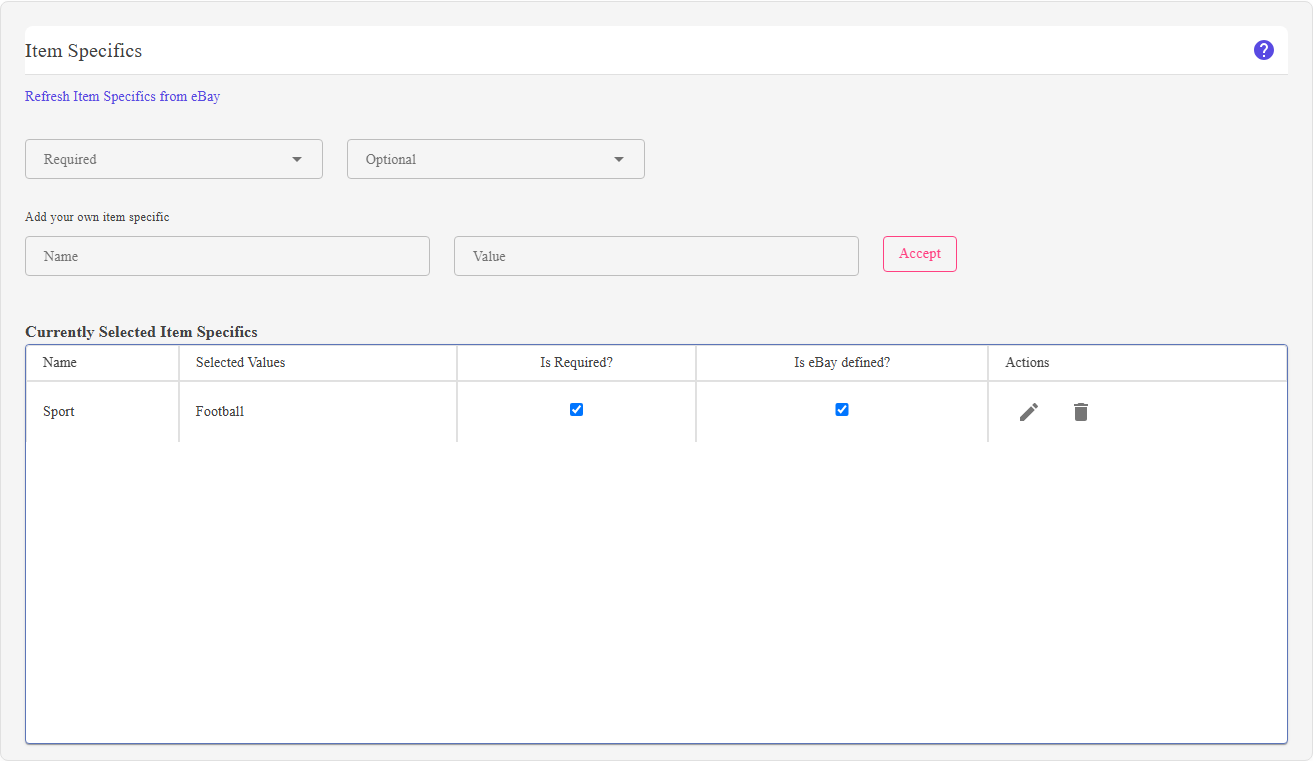
What is on this section
| Control | What it does |
|---|---|
| Required | The specifics eBay insists on for this category. A listing missing one of these will be rejected when it is submitted. |
| Optional |
The specifics eBay recommends but does not demand. Filling them in is the cheapest way to make a listing findable, because buyers filter on exactly these. |
| Currently Selected Item Specifics | Everything set on the listing so far, each with Edit and Delete. |
| Add your own item specific |
Adds a specific eBay does not offer for this category — a Name and a Value of your own. Use Accept to add it to the listing. |
| Refresh Item Specifics from eBay | Re-reads the category’s specifics from eBay. Use it when the values on offer look out of date. |
first.” means no category is set at all. “Please continue to select an eBay category until you
can’t.” means you have stopped part-way down the tree — item specifics belong to the leaf
category, so keep choosing in eBay Categories until no further dropdown appears.
How to use it
- Pick the category down to the leaf in eBay Categories.
- Fill in every Required specific. These are not optional — eBay refuses the listing
without them. - Fill in as many Optional ones as you honestly can. Each one is a filter a buyer might
use. - Add your own if the product has an attribute eBay does not list.
- Review the selected list, editing or deleting anything that is wrong.
FAQ
category, so keep choosing until there is no further dropdown.
specifics from time to time — press Refresh Item Specifics from eBay and check
again.
attribute itself is missing, use Add your own item specific.
Identifiers field. Change it here.
Fill in the new one’s.
selection, and CSV update can too.
Support
For further assistance you can:
- Email [email protected]
- Use the Contact Us page inside the application
← Back to the User Guide index
Or go to Support, the FAQs, or contact us.