
← All WonderLister user guides
This page shows what your WonderLister subscription entitles you to, lists the subscriptions you have taken
out, and is where you start a new one, upgrade, end a trial early, or cancel.
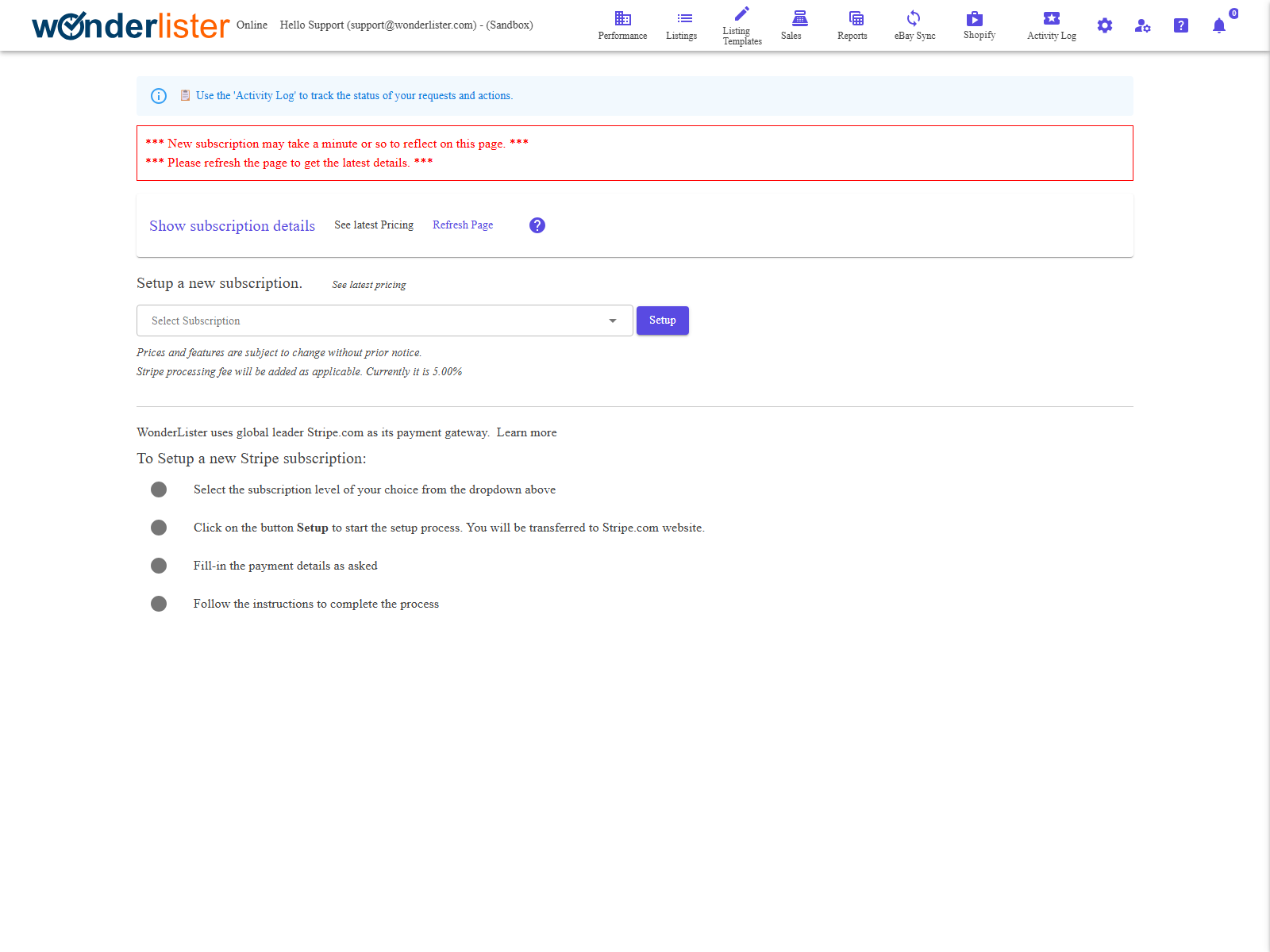
result reaches WonderLister a moment later. If the page still shows the old plan, use
Refresh Page — the page says as much across the top.
Subscription details
Show subscription details opens the summary of what you are entitled to. It is closed when
the page opens.
| Line | What it means |
|---|---|
| Current subscription level | The plan in force. |
| Is eligible for trial | Shown only when you have a trial still available. |
| In trial | Shown only while a trial is running. |
| Maximum number of eBay accounts Allowed | How many accounts you may link on Manage eBay Accounts. “Unlimited” where the plan has no cap. |
| Maximum number of eBay sites Allowed | How many marketplaces you may configure on eBay Sites. |
| Maximum number of active listings Allowed | How many listings you may have live at once. |
| Features Allowed | Each feature the plan includes, ticked. |
An account granted a free subscription for life sees a single line saying so instead of the table.
Your subscriptions
Subscriptions are listed by payment provider. New subscriptions are taken out through Stripe;
PayPal subscriptions are older ones and are shown only if you have them.
| Column | What it shows |
|---|---|
| Level | The plan. |
| Status | An icon: a green tick for active, a red cross for cancelled, an amber mark while in trial. |
| Date Subscribed | When it started, in your local time. |
| Date Cancelled | When it was cancelled, if it was. |
| Trial ends on | When the trial ends, or ended. |
| Amount and Frequency | What it costs and how often it is charged. |
The buttons on a Stripe subscription
| Button | What it does |
|---|---|
| Pay now to become an Active member | Ends the trial immediately and starts billing. You are warned before it happens. |
| Cancel subscription | Cancels it. You are asked why — the answer is optional and helps us. |
| Upgrade subscription | Moves to a higher plan. |
| Refresh (beside the heading) | Re-reads your Stripe subscriptions. |
Setting up a new subscription
- Choose a plan in Select Subscription. See latest Pricing opens the
pricing page in a new tab. - Press Setup. You are handed to Stripe’s checkout.
- Enter your payment details there and follow Stripe’s instructions.
- You are returned to WonderLister. Give it a moment, then Refresh Page.
Prices and features can change without notice, and Stripe’s processing fee is added as applicable — the page
states the current rate.
If you still pay through PayPal
PayPal subscriptions cannot be upgraded in place. Take out a new Stripe subscription as above, then cancel
the PayPal one — the page carries a Cancel your old PayPal subscription link that explains
how, since that has to be done at PayPal.
FAQ
Stripe’s side first and reaches WonderLister shortly after.
subscription governs what you may do in WonderLister, not what is on eBay. Contact support before
cancelling if you are unsure.
subscription. You are charged from that moment, and warned first.
here. Choose a higher plan and press Setup.
details.
Support
For further assistance you can:
- Email [email protected]
- Use the Contact Us page inside the application
← Back to the User Guide index
Or go to Support, the FAQs, or contact us.