
← All WonderLister user guides
A return policy is one of eBay’s three business policies. It says whether you accept
returns, how long the buyer has, and who pays the return postage — separately for domestic and international
buyers. The policies live on eBay; this page lists the ones an eBay account holds for one site, and adds,
edits and deletes them.
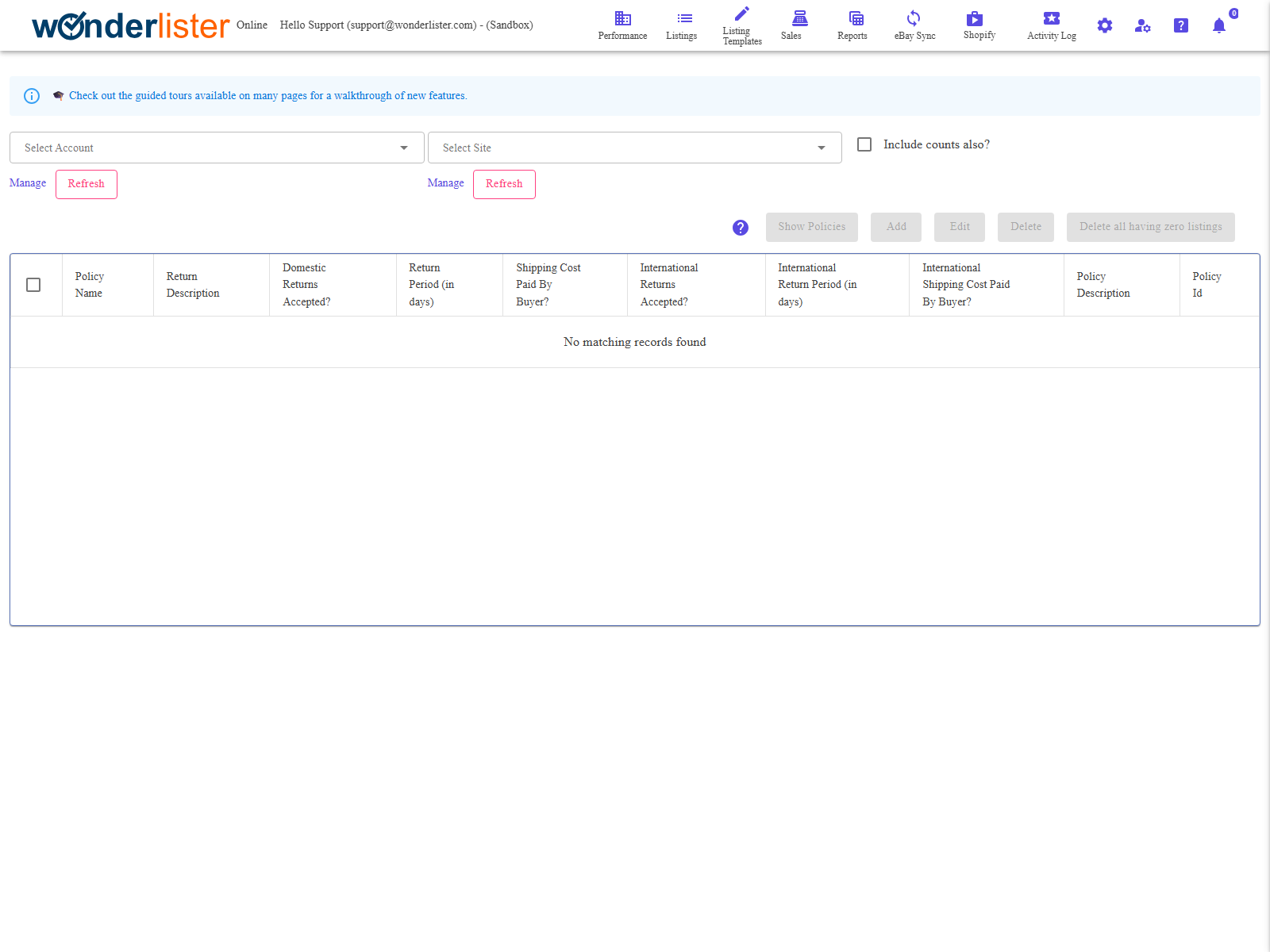
of policies on every marketplace it sells on, so nothing is listed until both pickers are set. Changing
either picker empties the grid, because the rows on screen belong to the pair they were fetched for.
Choosing what to show
| Control | What it does |
|---|---|
| Select Account | Which of your linked eBay accounts to read. Linked accounts are managed on Manage eBay Accounts. |
| Select Site | Which marketplace. The sites offered are the ones you configured on eBay Sites. |
| Include counts also? | Asks eBay how many active listings each policy is used by, and adds a # of Active Listings column. Turning this on or off clears the grid, because the rows already fetched do not carry the count. |
The toolbar
| Button | What it does |
|---|---|
| Show Policies | Fetches the policies for the chosen account and site. Disabled until both are chosen, and while a fetch is already running. |
| Add | Opens the return policy editor on a new policy for the chosen account and site. |
| Edit | Opens the editor on the ticked policy. Exactly one row must be ticked. |
| Delete | Deletes every ticked policy, after a confirmation naming how many. |
| Delete all having zero listings | Ticks every policy with no active listings and offers to delete them in one go. See the warning below. |
in when Include counts also? was ticked for the fetch. Without it every row would read zero and the
button would select everything, so it refuses and asks you to tick the option first.
The columns
| Column | What it shows |
|---|---|
| Policy Name | The name you gave the policy on eBay. |
| # of Active Listings | How many live listings use it. Only present when Include counts also? is ticked. |
| Return Description | The policy’s description, as eBay holds it. |
| Domestic Returns Accepted? | Whether domestic buyers may return at all. |
| Return Period (in days) | How long a domestic buyer has to start a return. |
| Shipping Cost Paid By Buyer? | Who pays the return postage on a domestic return. |
| International Returns Accepted? | Whether overseas buyers may return. |
| International Return Period (in days) | How long an overseas buyer has. |
| International Shipping Cost Paid By Buyer? | Who pays the return postage from overseas. |
| Policy Description | Your own description of the policy. |
| Policy Id | eBay’s identifier. This is what a listing actually stores. |
Every column heading sorts. Rows are ticked with the checkbox column, and more than one can be ticked at a
time.
How to use it
- Choose the account and the site.
- Tick Include counts also? if you want to know which policies are in use — always
do this before a bulk tidy-up. - Press Show Policies.
- Add, Edit or Delete from the toolbar.
Permissions
The toolbar is only drawn for an account administrator, or for a staff account granted Manage business
profiles. Anyone else can still choose an account and site and read the policies. Staff permissions are
set on Staff Accounts.
FAQ
per site — check that the site picker matches the marketplace the policies were created on.
and once at the end beside the policy id, so it is visible however far you have scrolled.
under a different pair would be wrong. Press Show Policies again.
policy still attached to live listings cannot be removed.
OptIn to Business Policies on
Manage eBay Accounts.
Support
For further assistance you can:
- Email [email protected]
- Use the Contact Us page inside the application
← Back to the User Guide index
Or go to Support, the FAQs, or contact us.